
1. Introduction
The D-Link DCS-930L Wireless N Home Network Camera is a comprehensive surveillance solution designed for home or small office environments. This camera offers Wireless N connectivity, allowing flexible placement within your network. Key features include motion detection capabilities and the ability to operate independently without requiring a dedicated PC. It can send email notifications with snapshots upon detecting motion, and allows customization of monitored areas. Remote viewing is supported via the MyD-Link app on various mobile devices.
2. What's in the Box
Please verify that all items are present in the package:
- D-Link DCS-930L Wireless N Home Network Camera
- Power Adapter
- Ethernet Cable
- Camera Mounting Kit
- Instruction Manual
- 1 Year Warranty Information
3. Setup Guide
Follow these steps for initial setup of your D-Link DCS-930L camera:
- Hardware Connection: Connect the camera to your router using the provided Ethernet cable. Plug the power adapter into the camera and an electrical outlet.
- Software Installation: It is recommended to download the latest setup software and firmware directly from the official D-Link support website. The included CD may contain outdated versions.
- Initial Configuration: Run the setup software. The software will guide you through detecting the camera on your network. During this process, you will set up an administrator password for the camera.
- Firmware Update: After initial setup, navigate to the camera's web interface (usually by entering its IP address in a web browser) and perform a firmware update. This ensures optimal performance and security.
- Wireless Setup: Within the camera's web interface, configure your wireless network settings. Select your Wi-Fi network (SSID) and enter the password. Once configured, you can disconnect the Ethernet cable.
- MyD-Link Account Setup: Create or log in to your MyD-Link account. This allows for remote viewing and management of your camera via the MyD-Link app.
- Placement: Position the camera in your desired location. Ensure it is within range of your Wi-Fi network and has a clear view of the area you wish to monitor. The camera is designed for indoor use.
Note: The D-Link DCS-930L is not compatible with the Microsoft Edge browser for its web interface.
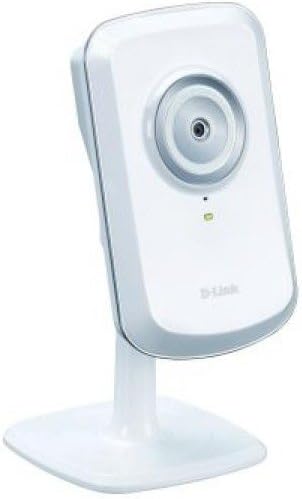
Figure 1: Front view of the D-Link DCS-930L camera, showing the lens and indicator lights.

Figure 2: Rear view of the D-Link DCS-930L camera, displaying the power input, Ethernet port, and reset button.
4. Operating Instructions
Once your camera is set up, you can utilize its various features:
- Remote Viewing: Access live video feeds from your camera using the free MyD-Link app on iPhone, iPad, Android devices, or Windows Phones.
- Motion Detection: Configure motion detection settings via the camera's web interface or MyD-Link portal. You can define specific areas within the video frame to monitor for activity.
- Email Notifications: Set up email alerts to receive notifications and snapshots when motion is detected. This requires configuring your email server settings within the camera's interface.
- Boundary Setting: Customize motion detection zones to exclude areas where unwanted triggers might occur (e.g., pets moving). This helps reduce false alarms.
- Recording Options: The camera can be configured to take pictures or short video clips upon motion detection. These can be sent via email or stored on a network-attached storage (NAS) device if configured.
5. Maintenance
To ensure optimal performance and longevity of your D-Link DCS-930L camera:
- Regular Cleaning: Gently clean the camera lens and exterior with a soft, dry cloth. Avoid abrasive cleaners or solvents.
- Firmware Updates: Periodically check the D-Link support website for new firmware versions. Keeping the firmware updated can improve performance, add features, and address security vulnerabilities.
- Environmental Conditions: Ensure the camera is used within its specified operating temperature and humidity ranges. Avoid direct exposure to moisture or extreme temperatures.
- Power Cycle: If the camera experiences connectivity issues, try power cycling it by unplugging the power adapter for a few seconds and then plugging it back in.
6. Troubleshooting
If you encounter issues with your D-Link DCS-930L camera, consider the following:
- Setup Difficulties: If the initial setup fails, ensure you are using an Ethernet cable for the first connection. Download the latest software and firmware from the D-Link website, as older versions may cause issues, particularly with Java compatibility.
- Connectivity Problems: Verify that your Wi-Fi network is functioning correctly and the camera is within range. If using a wired connection, check the Ethernet cable and router port. A firmware update can often resolve connectivity issues.
- Remote Access Issues: Ensure your MyD-Link account is properly linked to the camera. If accessing directly via IP address from outside your local network, confirm that port forwarding is correctly configured on your router.
- Motion Detection Not Triggering/False Alarms: Adjust the sensitivity settings and refine the motion detection zones within the camera's web interface. Environmental factors like lighting changes or moving objects outside the intended area can cause false triggers.
- Poor Video Quality: Ensure adequate lighting in the monitored area. While the camera supports 720p video capture, its effective video resolution is 480 pixels.
- Resetting the Camera: If all else fails, locate the reset button on the back of the camera (refer to Figure 2). Use a paperclip to press and hold the button for approximately 10 seconds until the indicator light changes. This will restore the camera to factory default settings, requiring re-setup.
7. Specifications
| Feature | Specification |
|---|---|
| Model Number | DCS-930L |
| Indoor/Outdoor Usage | Indoor |
| Connectivity Protocol | Ethernet, Wi-Fi (Wireless N) |
| Power Source | AC/DC Adapter |
| Controller Type | Android, Vera, iOS (via MyD-Link app) |
| Mounting Type | Wall Mount |
| Video Capture Resolution | 720p (Effective 480 Pixels) |
| Effective Still Resolution | 0.3 MP |
| Color | White |
| Item Dimensions (L x W x H) | 3.66 x 2.36 x 0.98 inches |
| Item Weight | 2.54 ounces (0.16 Pounds) |
| Voltage | 240 Volts |
| Wattage | 2 watts |
| Alert Type | Motion Only |
| Video Capture Format | MPEG-4 |
| International Protection Rating | IP54 |
| Special Feature | Motion Sensor |
8. Warranty and Support
The D-Link DCS-930L Wireless N Home Network Camera comes with a 1-Year Limited Warranty. For detailed warranty terms and conditions, please refer to the warranty information included in your product packaging or visit the official D-Link website.
For technical assistance, troubleshooting, or further inquiries, please contact D-Link Customer Support. Support resources, including FAQs, drivers, and manuals, are available on the D-Link support website.
You can typically find contact information and support portals by visiting www.dlink.com/support or searching for 'D-Link support' online.


