
cellularline BTCLIPARDP
Cellularline Roller Clip Bluetooth Headset User Manual
Model: BTCLIPARDP
Introduction
The Cellularline Roller Clip Bluetooth Headset is designed for convenient, hands-free communication. Featuring a retractable cable and a wireless Bluetooth clip, this headset offers flexibility and ease of use. It supports simultaneous connection to two mobile phones, automatically activating when a call is received or made on either device. Its automatic cable winder ensures a tidy experience, making it ideal for users who prefer to wear the headset only during calls.
Product Overview
Familiarize yourself with the components and features of your Cellularline Roller Clip Bluetooth Headset.

Figure 1: Front view of the Cellularline Roller Clip Bluetooth Headset, showing the main unit with the retractable earbud.
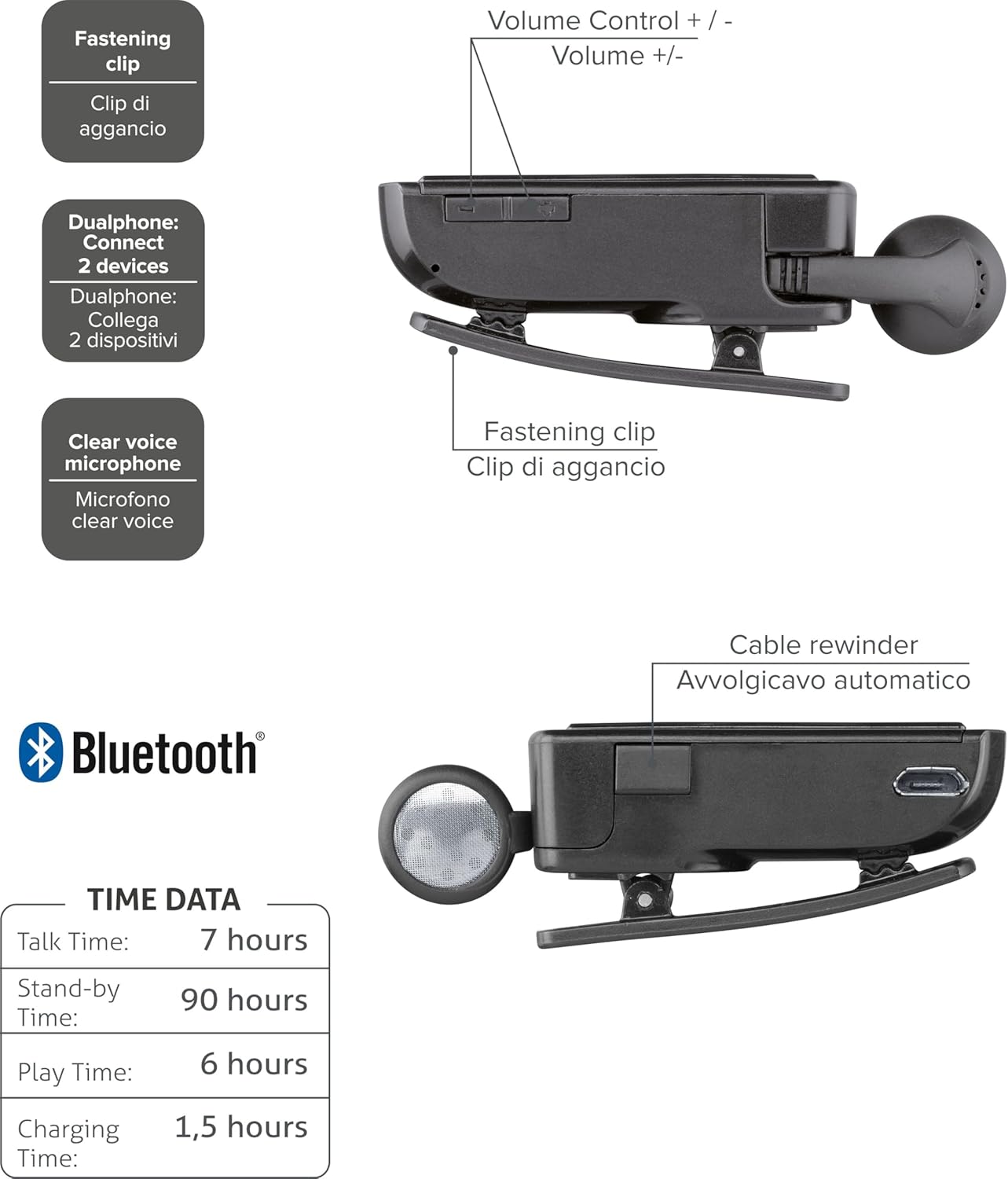
Figure 2: Diagram illustrating key features including the fastening clip, volume controls, dualphone connectivity, clear voice microphone, and cable rewinder.
- Retractable Earbud: The earbud cable automatically retracts into the main unit for compact storage.
- Bluetooth Clip: The main unit features a clip for attaching to clothing.
- Volume Controls: Buttons located on the side for adjusting audio volume.
- Multi-point Connection: Connects to two mobile phones simultaneously.
- Clear Voice Microphone: Ensures clear audio transmission during calls.
- Micro-USB Port: For charging the device.
Setup
1. Charging the Headset
Before first use, fully charge the headset. Use the provided Micro-USB cable to connect the headset to a USB power source (e.g., computer USB port or wall adapter).
- The charging indicator light will illuminate during charging.
- A full charge typically takes approximately 1.5 hours.
- The indicator light will change or turn off once charging is complete.

Figure 3: Side view of the headset showing the Micro-USB charging port.
2. Pairing with a Mobile Device
To use the headset, it must be paired with your Bluetooth-enabled mobile phone or device.
- Ensure the headset is turned off.
- Press and hold the Multi-function button (usually the main power button) until the indicator light flashes blue and red alternately, indicating pairing mode.
- On your mobile device, enable Bluetooth and search for new devices.
- Select "Cellularline Roller Clip" or a similar name from the list of available devices.
- If prompted for a passcode, enter "0000" (four zeros).
- Once paired, the indicator light will typically flash blue slowly, and you may hear a confirmation tone.
3. Connecting to Two Devices (Multi-point)
The headset can be connected to two mobile phones simultaneously.
- Pair the headset with the first mobile device as described above.
- Disable Bluetooth on the first device.
- Put the headset back into pairing mode and pair it with the second mobile device.
- Once paired with the second device, re-enable Bluetooth on the first device.
- The headset should now be connected to both devices. It will automatically switch to the active call on either phone.
Operating Instructions
Power On/Off
- Power On: Press and hold the Multi-function button for approximately 3 seconds until the blue indicator light flashes.
- Power Off: Press and hold the Multi-function button for approximately 3 seconds until the red indicator light flashes and then turns off.
Making and Receiving Calls
- Answer Call: Press the Multi-function button once when a call comes in.
- End Call: Press the Multi-function button once during a call.
- Reject Call: Press and hold the Multi-function button for approximately 2 seconds when a call comes in.
- Redial Last Number: Double-press the Multi-function button when the headset is idle.
- Voice Dialing (if supported by phone): Press and hold the Multi-function button for approximately 1 second when the headset is idle.
Volume Control
Adjust the call or media volume using the dedicated volume buttons on the side of the headset.

Figure 4: Side view of the headset showing the volume control buttons.
- Volume Up: Press the '+' button.
- Volume Down: Press the '-' button.
Retractable Cable
To extend the earbud, gently pull it out. To retract, press the cable winder button (if present) or gently pull the cable slightly further and release to activate the retraction mechanism.
Maintenance
- Cleaning: Wipe the headset with a soft, dry cloth. Do not use abrasive cleaners or solvents.
- Storage: Store the headset in a cool, dry place away from direct sunlight and extreme temperatures.
- Battery Care: To prolong battery life, avoid fully discharging the battery frequently. Charge the headset regularly, even if not in use for extended periods.
- Cable Care: Avoid forcefully pulling the retractable cable. Allow the automatic winder to retract the cable smoothly.
Troubleshooting
| Problem | Possible Cause | Solution |
|---|---|---|
| Headset does not power on. | Low battery. | Charge the headset fully. |
| Cannot pair the headset. | Headset not in pairing mode; Bluetooth disabled on device; device too far. | Ensure headset is in pairing mode (flashing red/blue). Enable Bluetooth on your device. Move headset closer to the device. |
| No audio or poor audio quality. | Volume too low; headset not connected; interference. | Increase volume on both headset and phone. Reconnect the headset. Move away from other electronic devices. |
| Retractable cable not working smoothly. | Mechanism obstruction or damage. | Ensure no debris is obstructing the cable. Avoid forceful pulling. If damaged, contact support. |
| Cannot connect to two devices. | Incorrect pairing sequence. | Follow the multi-point pairing instructions carefully (pair first, disable Bluetooth, pair second, re-enable first). |
Specifications
| Feature | Detail |
|---|---|
| Model Number | BTCLIPARDP |
| Brand | Cellularline |
| Color | Black/Grey (Schwarz) |
| Ear Placement | In Ear |
| Form Factor | In Ear |
| Impedance | 32 Ohm |
| Product Dimensions | 9 x 2.4 x 11 cm; 50 g |
| Battery Type | 1 Lithium Ion battery |
| Talk Time | Up to 7 hours |
| Stand-by Time | Up to 90 hours |
| Play Time | Up to 6 hours |
| Charging Time | Approximately 1.5 hours |
Warranty and Support
For warranty information and technical support, please refer to the official Cellularline website or contact their customer service directly. Keep your proof of purchase for warranty claims.
For additional assistance, you may visit the product page on Amazon.ae.
Related documentsBTCLIPARDP


Ask a question about this manual
Ask about setup, troubleshooting, compatibility, parts, safety, or missing instructions. Manuals+ will review the question and use this page’s manual context to help answer it.