1. Introduction and Overview
The WD My Passport Essential portable hard drive offers a compact and stylish solution for storing your digital life. Designed with both current and future connectivity in mind, it features USB 3.0 and USB 2.0 compatibility, providing fast data transfer speeds and broad device support. This drive is built with WD's renowned quality, ensuring reliable data protection through features like visual backup software and password protection with hardware encryption. Its lightweight and portable design makes it ideal for users requiring fast, on-the-go storage without the need for an external power supply.
- Dual USB 3.0 and USB 2.0 Compatibility: Connects to both USB 2.0 and the faster USB 3.0 ports.
- Up to 3x Faster Transfer Rates: Achieves significantly quicker data transfers when connected to a USB 3.0 port compared to USB 2.0.
- Automatic, Continuous Backup: Protects your data by automatically backing up files as they are created or modified.
- Hardware Encryption and Password Protection: Secures your data from unauthorized access.
- Ultra-Small and Portable: Lightweight and easy to carry, powered directly from the USB port.
2. What's in the Box
Upon opening the package, you should find the following components:
- WD My Passport Essential Portable Hard Drive (Midnight Black)
- USB Cable (for connecting to your computer)
- WD SmartWare Software (pre-loaded on the drive)
- Quick Install Guide
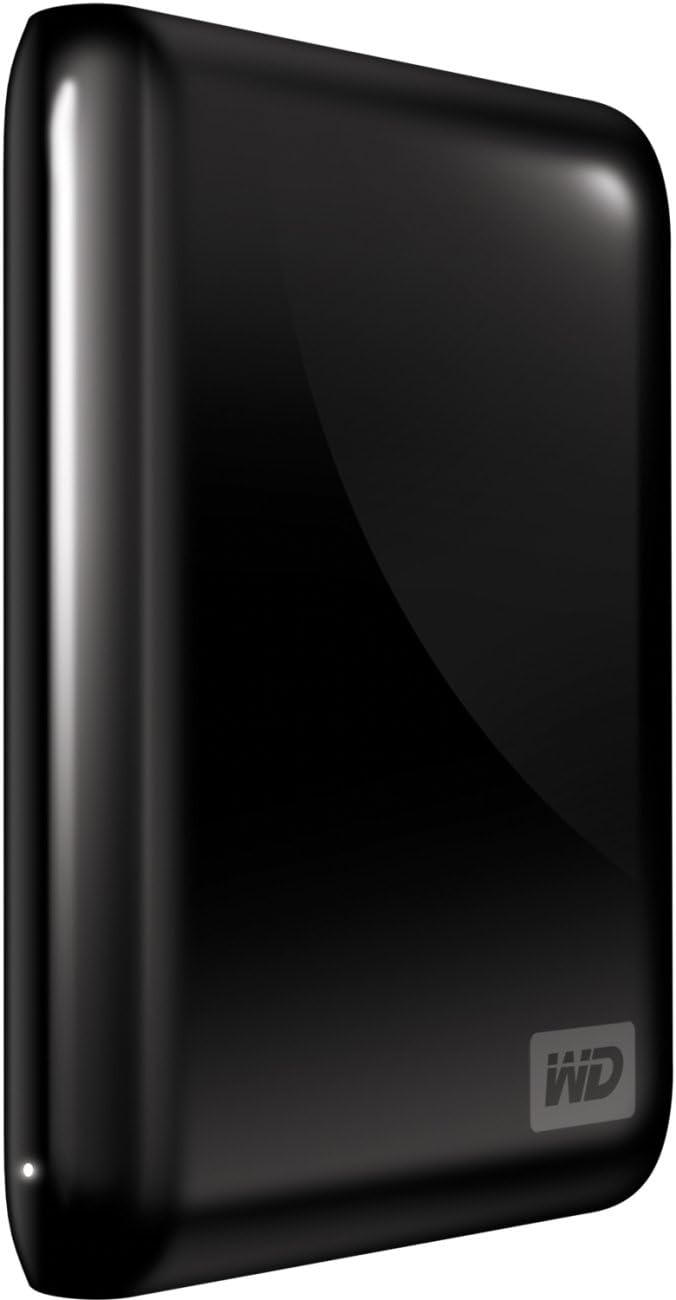
Figure 2.1: The WD My Passport Essential 500 GB Portable Hard Drive in Midnight Black, showcasing its sleek, compact design.

Figure 2.2: The WD My Passport Essential 500 GB Portable Hard Drive alongside its dedicated USB cable, as typically found in the product packaging.
3. Setup
Follow these steps to set up your WD My Passport Essential hard drive:
- Connect the Drive: Plug the small end of the included USB cable into the USB port on your My Passport Essential drive. Connect the other end of the USB cable to an available USB port on your computer. The drive is USB-powered, so no separate power adapter is needed.
- Initial Recognition: Your computer should automatically detect the new hardware.
- For Windows Users: The drive is pre-formatted with NTFS and should be immediately accessible. Drivers will install automatically.
- For Mac Users: The drive requires reformatting to be fully compatible with Mac OS X Leopard or Snow Leopard. Please note that after reformatting, the drive will operate in USB 2.0 mode. Refer to your operating system's documentation for instructions on how to reformat an external drive.
- Install WD SmartWare Software (Optional): The drive comes with WD SmartWare software pre-loaded. This software provides features like automatic backup and password protection.
- To install, navigate to the drive in 'My Computer' (Windows) or 'Finder' (Mac) and run the installer application.
- You have the option to install all features, select specific components, or choose not to install the software at all.
4. Operating Instructions
4.1 Data Transfer
Once connected, your My Passport Essential drive functions like any other external storage device. You can drag and drop files, or copy and paste them to and from the drive.
- USB 3.0 Speed: When connected to a USB 3.0 port, the drive can transfer files up to three times faster than with USB 2.0. For example, a 2-hour HD movie can be transferred in approximately 5 minutes, compared to 13 minutes via USB 2.0. Performance may vary based on your computer's hardware and system configuration.
- USB 2.0 Compatibility: The drive is fully backward compatible with USB 2.0 ports, allowing you to use it with older systems, albeit at USB 2.0 speeds.
4.2 Automatic Backup with WD SmartWare
If you installed the WD SmartWare software, it can provide continuous, automatic backup of your data:
- The software operates quietly in the background, using minimal system resources.
- Any time you add or change a file on your computer, it is instantly backed up to the My Passport Essential drive.
- You retain control over your backup settings and can customize them within the WD SmartWare application.
4.3 Password Protection and Hardware Encryption
For enhanced data security, the WD SmartWare software allows you to set up password protection and utilize hardware encryption:
- This feature protects your sensitive data from unauthorized access.
- Follow the instructions within the WD SmartWare application to enable and configure password protection.
5. Maintenance
5.1 Safe Removal
To prevent data corruption and ensure the longevity of your drive, always safely remove the My Passport Essential before disconnecting it from your computer:
- Windows: Click the "Safely Remove Hardware and Eject Media" icon in the system tray, then select your My Passport drive.
- Mac: Drag the drive icon from your desktop to the Trash, or right-click (or Control-click) the drive icon and select "Eject."
5.2 Physical Care
The My Passport Essential is designed to be durable and portable, but proper care will extend its lifespan:
- Avoid dropping the drive or subjecting it to strong impacts.
- Keep the drive away from extreme temperatures, direct sunlight, and excessive moisture.
- Clean the exterior with a soft, dry cloth. Do not use liquid cleaners or solvents.
5.3 Environmental Responsibility
WD encourages responsible disposal and recycling of electronic products. The packaging for this product is designed to minimize waste and uses recycled materials. Please recycle the packaging and the device according to local regulations when it reaches the end of its life cycle.
6. Troubleshooting
6.1 Drive Not Recognized
- Ensure the USB cable is securely connected to both the drive and your computer's USB port.
- Try connecting the drive to a different USB port on your computer.
- If using a desktop computer, try connecting to a USB port on the back of the computer, as these often provide more stable power.
- Restart your computer and try connecting the drive again.
- Verify that the drive appears in your operating system's Disk Management (Windows) or Disk Utility (Mac). If it appears but is unformatted or shows an incorrect file system, you may need to format it.
6.2 Slow Transfer Speeds
- Ensure you are connected to a USB 3.0 port on your computer for optimal speeds. USB 3.0 ports are often blue internally.
- Confirm that your computer's USB 3.0 drivers are up to date.
- Other running applications or background processes can affect transfer speeds. Close unnecessary programs.
- The type and size of files being transferred can impact speed. Many small files transfer slower than one large file of the same total size.
6.3 Compatibility Issues
- Mac OS X: As noted in the setup section, Mac users must reformat the drive for full compatibility. This will result in USB 2.0 operation.
- Compatibility may vary depending on your specific hardware configuration and operating system version. Ensure your system meets the minimum requirements.
7. Specifications
| Feature | Detail |
|---|---|
| Model Number | WDBACY5000ABK-NESN |
| Digital Storage Capacity | 500 GB |
| Connectivity Technology | USB 3.0 / USB 2.0 |
| Hard Disk Interface | USB 1.1 (Note: This refers to the internal interface, external is USB 3.0/2.0) |
| Hard Disk Form Factor | 2.5 Inches |
| Hard Disk Description | Portable |
| Special Feature | Hardware Encryption |
| Color | Midnight Black |
| Product Dimensions (L x W x H) | 4.3 x 3.2 x 0.6 inches (10.9 x 8.1 x 1.5 cm) |
| Item Weight | 5 ounces (141.7 grams) |
| Manufacturer | Western Digital |
| First Available Date | October 5, 2010 |
8. Warranty and Support
8.1 Limited Warranty
The WD My Passport Essential 500 GB Portable External Hard Drive comes with a 2-year limited warranty. Please retain your proof of purchase for warranty claims. For detailed terms and conditions of the warranty, refer to the documentation included with your product or visit the official Western Digital support website.
8.2 Legal Disclaimer
Please note that all sales are final. No returns are accepted for this product.
8.3 Customer Support
For further assistance, technical support, or to access additional resources, please visit the official Western Digital website or their Amazon Brand Store:
- Western Digital Amazon Brand Store
- Refer to the Quick Install Guide for contact information or specific support URLs.