
Introduction
The Casio SA-76 44-Key Mini Personal Keyboard is designed for beginners, offering an intuitive and engaging musical experience. Its compact size and user-friendly interface make it suitable for young musicians and those new to keyboard playing. This manual provides essential information for setting up, operating, and maintaining your SA-76 keyboard.
The keyboard features an easy-to-read LCD display that shows important data such as tone, rhythm, song number, metronome, tempo, and the note being played. With dedicated buttons for Piano and Organ sounds, switching between instrument voices is quick and simple. The 44 mini keys and 5 percussion pads are designed for comfortable play, especially for smaller hands, making it an excellent introduction to the world of keyboard music.
Key Features
- 44 mini-sized keys for comfortable play.
- 5 percussion pads for rhythmic exploration.
- 100 built-in tones to explore various instrument sounds.
- 50 rhythm patterns to accompany your playing.
- Simple tone selection with dedicated PIANO and ORGAN buttons.
- Melody on/off lesson function for practice.
- Easy-to-read LCD display for clear information.
- Built-in speakers with 1.6 Watts output.
- Headphones jack (3.5mm) for private practice.
- Portable design, can be powered by batteries (6 AA, not included) or an optional AC adapter.
Setup
1. Powering the Unit
The Casio SA-76 can be powered by either an optional AC adapter or batteries.
- AC Adapter (Optional): Connect a compatible 9V DC AC adapter (not included) to the DC 9V jack on the rear panel of the keyboard. Plug the adapter into a standard wall outlet.
- Batteries: The keyboard requires 6 AA-size batteries (not included).
2. Battery Installation
- Ensure the keyboard is turned off.
- Locate the battery compartment cover on the bottom of the keyboard.
- Slide the cover to open it.
- Insert 6 AA-size batteries, ensuring correct polarity (+/-) as indicated inside the compartment.
- Replace the battery compartment cover securely.
3. Attaching the Music Stand
The included music stand can be inserted into the slots on the top panel of the keyboard to hold sheet music or a tablet.
Operating Instructions
1. Power On/Off
- To turn on the keyboard, press and hold the POWER button until the LCD display lights up.
- To turn off the keyboard, press and hold the POWER button again until the display turns off.
2. Adjusting Volume
Use the VOLUME + and VOLUME - buttons located next to the power button to increase or decrease the overall sound volume.
3. Selecting Tones
The SA-76 offers 100 different tones. You can select them using the dedicated buttons or the rotary dial.
- Press the PIANO or ORGAN button for quick access to these common sounds.
- To select other tones, rotate the TONE dial to browse through the available options displayed on the LCD.
4. Playing Rhythms
The keyboard includes 50 rhythm patterns.
- Rotate the RHYTHM dial to select a desired rhythm pattern.
- Press the START/STOP button to begin or end the rhythm playback.
- Adjust the tempo using the TEMPO + and TEMPO - buttons.
5. Playing Built-in Songs
The SA-76 features 10 built-in songs for listening or practicing with the melody on/off function.
- Rotate the SONG BANK dial to select a song.
- Press the PLAY/PAUSE button to start or pause the song.
- Use the MELODY ON/OFF button to mute or unmute the melody part of the song, allowing you to play along.
6. Sustain Function
Activate the SUSTAIN function to make notes linger longer after the key is released, similar to a piano's sustain pedal.
- Press the SUSTAIN button to toggle the effect on or off.
7. Percussion Pads
The 5 percussion pads allow you to add drum sounds to your performance. Simply press a pad to trigger a percussion sound.
8. Using Headphones
For private practice, connect 3.5mm stereo headphones to the PHONES/OUTPUT jack on the rear panel. This will mute the built-in speakers.
Product Overview
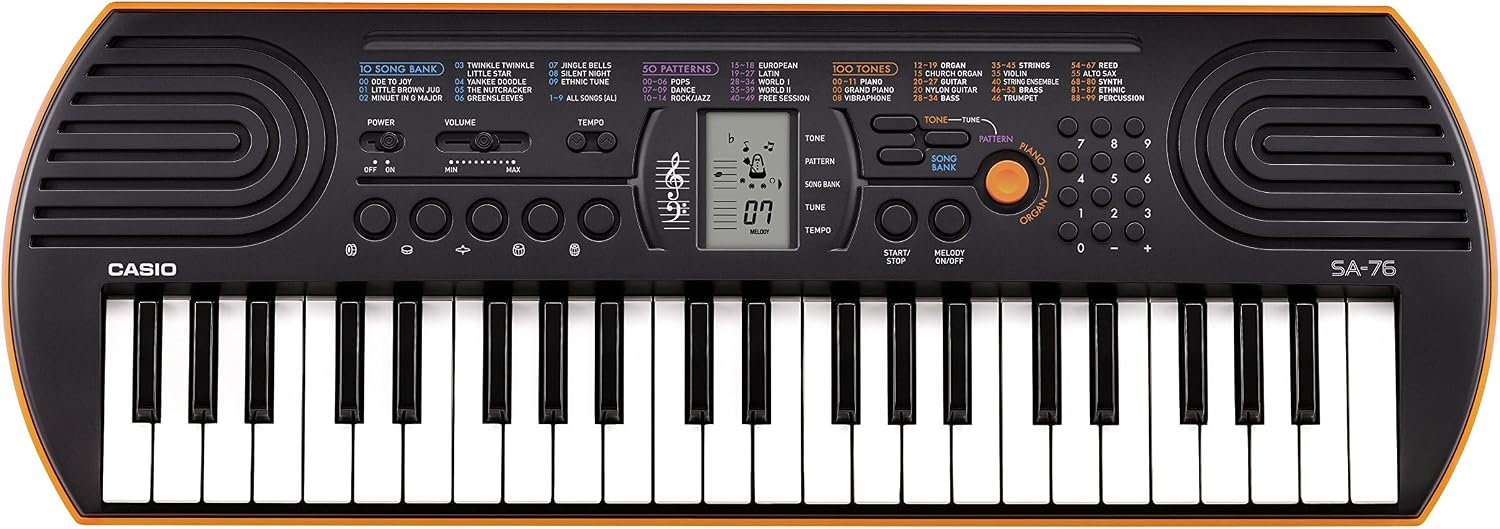
Figure 1: Casio SA-76 44-Key Mini Personal Keyboard. This image shows the overall design of the orange Casio SA-76 keyboard with its 44 mini keys and control panel.

Figure 2: Close-up of the control panel. This image provides a detailed view of the LCD display, tone/rhythm/song dials, volume buttons, and other function buttons on the Casio SA-76.

Figure 3: Diagram highlighting key features. This image illustrates various components of the Casio SA-76, including the 44 mini keys, drum pads, built-in speakers, and easy-to-use controls.

Figure 4: Casio SA-76 product dimensions. This image shows the physical measurements of the keyboard: 23.8 inches (W) x 8.3 inches (D) x 2.24 inches (H).
Maintenance
- Cleaning: Wipe the keyboard with a soft, dry cloth. Avoid using abrasive cleaners, waxes, or solvents, as these can damage the finish.
- Storage: Store the keyboard in a cool, dry place away from direct sunlight, extreme temperatures, and high humidity. If storing for an extended period, remove the batteries to prevent leakage.
- Handling: Avoid dropping the keyboard or subjecting it to strong impacts. Do not place heavy objects on top of it.
Troubleshooting
| Problem | Possible Cause | Solution |
|---|---|---|
| No power | Batteries are dead or incorrectly installed; AC adapter not connected or faulty. | Replace batteries or check polarity. Ensure AC adapter is securely connected and functional. |
| No sound | Volume is too low; headphones are connected; speakers are muted. | Increase volume. Disconnect headphones. Check if any mute function is active. |
| Keys not responding | Keyboard may be in a specific mode (e.g., lesson mode with melody off) or requires a reset. | Check current mode settings. Turn the keyboard off and on again to reset. |
Specifications
| Feature | Detail |
|---|---|
| Number of Keys | 44 mini-sized keys |
| Tones | 100 |
| Rhythms | 50 |
| Songs | 10 |
| Percussion Pads | 5 |
| Speakers | 2 x 1.2 W (Amp Output: 1.6 Watts) |
| Headphone Jack | 3.5mm stereo mini jack |
| Power Source | 6 AA batteries or optional AC adapter (DC 9V) |
| Dimensions (W x D x H) | 23.8" x 8.3" x 2.24" (60.45 cm x 21.08 cm x 5.69 cm) |
| Item Weight | 3.08 pounds (1.4 kg) |
Warranty and Support
For warranty information or technical support, please refer to the documentation included with your product or visit the official Casio website. Keep your purchase receipt as proof of purchase for any warranty claims.


