
TP-Link TL-WN822N
TP-Link TL-WN822N USB WiFi Dongle Instruction Manual
Model: TL-WN822N
1. Product Overview
The TP-Link TL-WN822N is a 300Mbps High Gain Wireless USB Adapter designed to provide reliable Wi-Fi connectivity for PC desktops and laptops. It features dual external antennas for enhanced reception and transmission performance, ensuring a smooth online experience.
Key Features:
- USB WiFi Adapter: 802.11N N300 speed for video streaming and internet calling.
- Increased Range: Dual external antennas deliver enhanced reception and transmission performance.
- Secure WiFi: Easy one-touch wireless security encryption with the Quick Security Setup button.
- Compatibility: Supports Windows (XP/7/8/8.1/10), Mac OS (10.9~10.15), and Linux Kernel (2.6.24~4.9.60).
2. What's in the Box
Upon opening the product packaging, verify that all the following items are included:
- Wireless Adapter TL-WN822N
- 1.5 Meter Extension Cable
- Resource CD (for drivers and utility)
- Quick Installation Guide

Figure 2.1: TP-Link TL-WN822N USB WiFi Dongle with its 1.5 meter extension cable.
3. Product Diagram
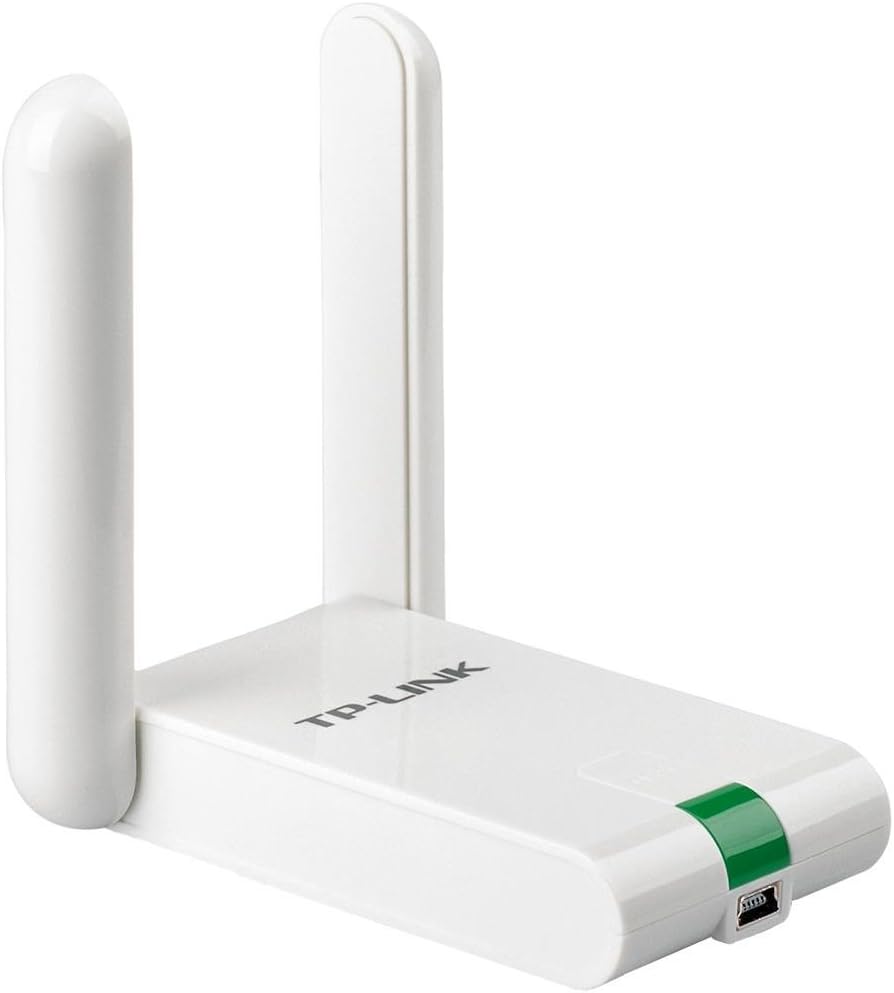
Figure 3.1: Front view of the TP-Link TL-WN822N USB WiFi Dongle, highlighting its dual antennas.
The TL-WN822N features a compact design with two adjustable antennas for optimal signal reception. The device connects via a standard USB port and includes a status light to indicate operational status.
4. Setup and Installation
Follow these steps to set up and install your TP-Link TL-WN822N USB WiFi Dongle:
- Driver Download: Before connecting the adapter, download the latest drivers from the official TP-Link website (www.tp-link.com). Search for model TL-WN822N and select the appropriate driver for your operating system (Windows, Mac OS, or Linux).
- Driver Installation: Unpack the downloaded ZIP file and run the installer program. Follow the on-screen instructions to complete the driver installation. It is recommended to use the official drivers for optimal performance, even if your OS supports plug-and-play.
- System Restart: After the driver installation is complete, restart your computer if prompted.
- Connect Adapter: Insert the TL-WN822N USB WiFi Dongle directly into an available USB port on your computer, or use the provided 1.5 meter extension cable for flexible placement. Ensure the antennas are raised for best signal reception.
- Verify Installation: Once your computer restarts, the adapter should be recognized. You can verify this by checking your network settings.
Video 4.1: A demonstration of the setup and installation process for TP-Link USB Network Adapters, including driver installation and physical connection.
5. Operating Instructions
After successful installation, you can connect to a wireless network:
- Access Network Settings: On your computer, navigate to the Wi-Fi network settings. This is typically found in the system tray (Windows) or menu bar (Mac OS).
- Select Network: A list of available wireless networks will appear. Select your desired network (SSID).
- Enter Password: If the network is secured, you will be prompted to enter the Wi-Fi password (security key).
- Connect: Click "Connect" or "Join" to establish the connection. The adapter's status light will indicate a successful connection.
- WPS Function: For quick and secure connection to a WPS-enabled router, press the WPS button on the TL-WN822N adapter and then press the WPS button on your router within two minutes.
6. Maintenance
To ensure the longevity and optimal performance of your TL-WN822N adapter:
- Keep the device in a cool, dry place, away from direct sunlight and heat sources.
- Avoid exposing the adapter to water or excessive humidity.
- Clean the device with a soft, dry cloth. Do not use liquid cleaners or aerosols.
- Regularly check for and install the latest drivers from the TP-Link website to ensure compatibility and performance improvements.
- Avoid dropping or subjecting the device to strong impacts.
7. Troubleshooting
If you encounter issues with your TL-WN822N, consider the following common solutions:
- No Wi-Fi Connection:
- Ensure the adapter is securely plugged into a USB port.
- Verify that the drivers are correctly installed. Reinstall if necessary.
- Check if your router's Wi-Fi is enabled and broadcasting.
- Confirm you are entering the correct Wi-Fi password.
- Slow Connection Speed:
- Adjust the position of the adapter and its antennas for better signal strength.
- Ensure there are no major obstructions (thick walls, metal objects) between the adapter and the router.
- Update the adapter's drivers to the latest version.
- Reduce interference from other electronic devices operating on the same frequency.
- Adapter Not Recognized:
- Try plugging the adapter into a different USB port.
- Restart your computer.
- Check Device Manager (Windows) or System Information (Mac OS) to see if the adapter is listed without errors.
8. Specifications
| Feature | Detail |
|---|---|
| Model | TL-WN822N |
| Wireless Type | 802.11n, 802.11b, 802.11g |
| Data Transfer Rate | 300 Mbps |
| Hardware Interface | USB |
| Operating System Compatibility | Windows (XP/7/8/8.1/10), Mac OS (10.9-10.15), Linux Kernel (2.6.24-4.9.60) |
| Item Weight | 7 ounces (0.2 Kilograms) |
| Product Dimensions (LxWxH) | 3.54 x 2.68 x 0.69 inches |
| Color | Old Version (White) |
9. Warranty and Support
The TP-Link TL-WN822N USB WiFi Dongle comes with an industry-leading 2-year warranty. For any technical assistance or inquiries, TP-Link provides free 24/7 technical support.
For additional resources, including detailed user manuals and FAQs, please visit the official TP-Link support website:
Related documentsTL-WN822N


Ask a question about this manual
Ask about setup, troubleshooting, compatibility, parts, safety, or missing instructions. Manuals+ will review the question and use this page’s manual context to help answer it.