1. Product Overview
The Esky Barcode Scanner with Stand is a versatile and efficient tool designed for rapid and accurate 1D barcode scanning. Ideal for various applications including retail, warehousing, libraries, and more, this scanner offers both handheld and hands-free operation with its adjustable stand. Its plug-and-play design ensures quick setup across multiple operating systems.

Image 1.1: Esky Barcode Scanner with its adjustable stand.
2. Key Features
- Auto Sensor: Enables hands-free scanning by automatically detecting barcodes placed within the scanning area. Ensure the laser completely covers the barcode for optimal performance. Scanning distance: 2.5-600mm (0.10-23.62in), scanning angle: 45° oblique angle, 65° elevation angle.
- Sturdy & Ergonomic Design: Constructed from high-quality ABS plastic for durability and shock resistance. The ergonomic grip ensures comfortable use during extended periods. Includes a freestanding, no-assembly-required stand for hands-free operation.
- Plug & Play Connectivity: Simply connect the USB cable to your computer. The USB driver will install automatically within 2-5 seconds, allowing for immediate scanning.
- Wide Compatibility: Compatible with Windows, Mac, and Linux operating systems. Seamlessly integrates with common software such as QuickBooks, Word, Excel, and Novell.
- Universal Barcode Support: Reads various 1D barcode types including UPC / EAN, UCC / EAN 128, Code 39, Code 39 Full ASCII, Trioptic Code 39, Code 128, Code 93, Code 128 Full ASCII, Interleaved 2 of 5, MSI, Code 11, RSS variant, and Chinese 2 of 5. Offers 180 configurable options for prefix, suffix, and termination character strings.

Image 2.1: The adjustable stand allows for quick switching between handheld and hands-free modes.
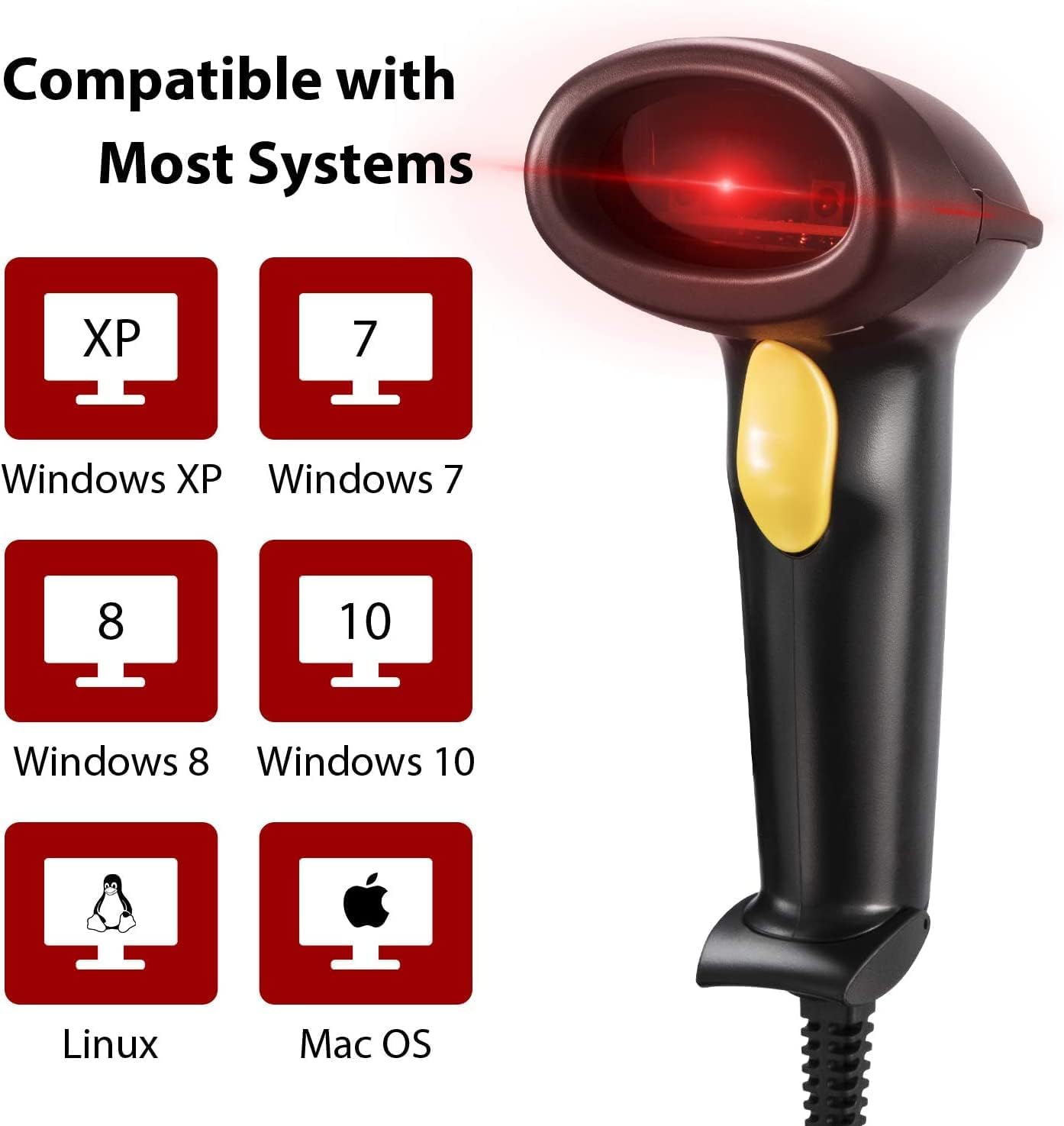
Image 2.2: The scanner is compatible with most common operating systems including Windows, Mac, and Linux.
3. Setup Guide
- Unpack the Scanner: Carefully remove the barcode scanner and its stand from the packaging.
- Assemble the Stand (Optional): If using the stand, attach the scanner securely to the adjustable stand. The stand is designed for easy, no-assembly setup.
- Connect to Computer: Plug the USB cable from the scanner into an available USB port on your computer (desktop, laptop, etc.).
- Driver Installation: Your computer will automatically detect the new hardware and install the necessary USB driver. This process typically takes 2-5 seconds.
- Ready for Use: Once the driver installation is complete, the scanner is ready for immediate use.
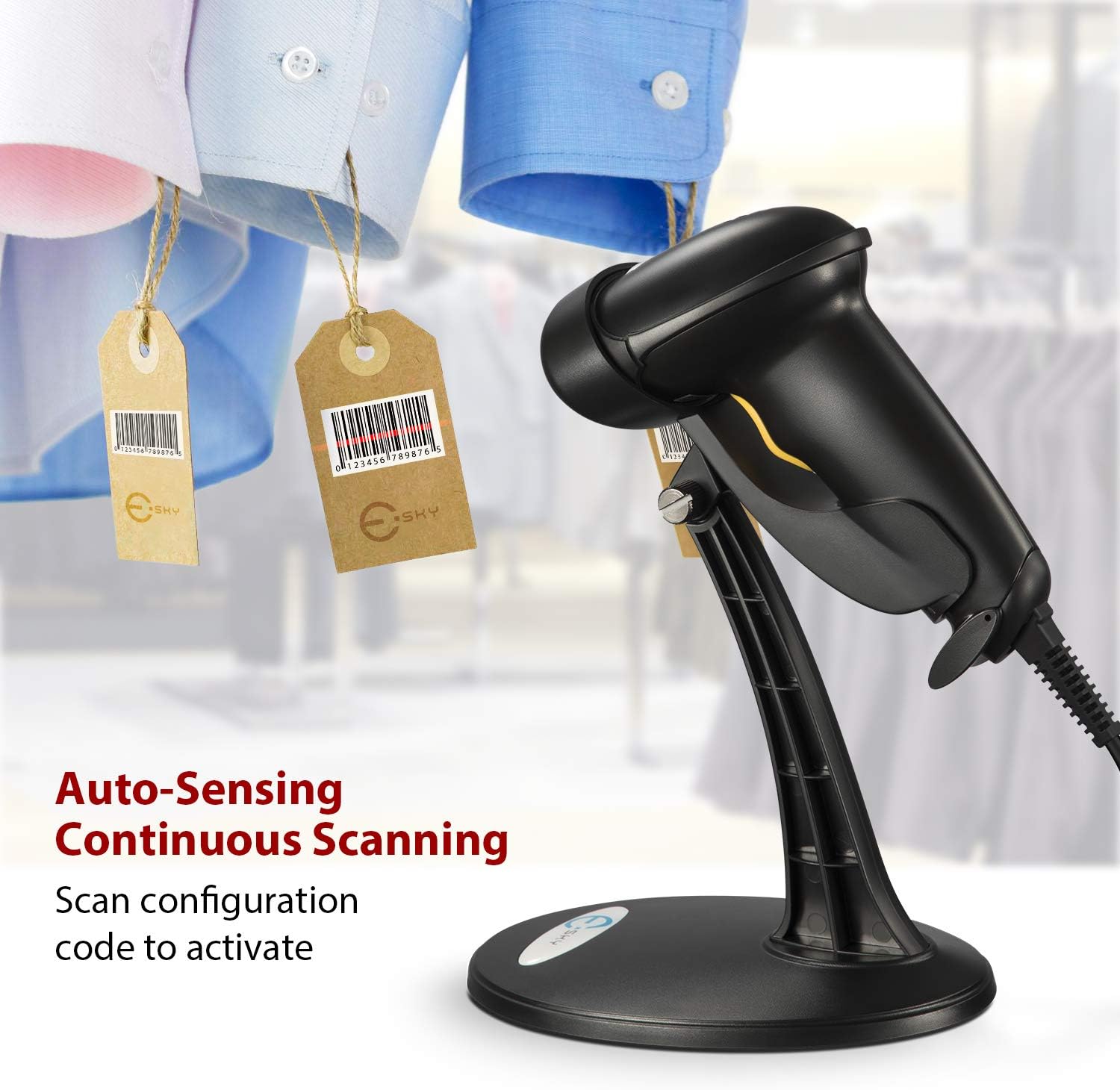
Image 3.1: The scanner can be configured for auto-sensing continuous scanning by scanning a specific configuration code.
4. Operating Instructions
The Esky Barcode Scanner offers two primary operating modes:
4.1. Manual Scanning
- Hold the scanner in your hand.
- Point the scanning window towards the barcode.
- Press the trigger button to activate the laser and scan the barcode.
4.2. Auto-Sensing (Hands-Free) Scanning
- Place the scanner securely on its adjustable stand.
- Ensure the scanner is configured for auto-sensing mode (refer to the detailed user guide for specific configuration barcodes if needed).
- Simply pass the barcode in front of the scanner's window. The scanner will automatically detect and read the barcode without requiring a trigger press.
For optimal scanning, ensure the laser completely covers the barcode. Adjust the scanner's angle on the stand as needed for comfortable and efficient scanning.

Image 4.1: The scanner supports barcode configuration options like adding prefixes or suffixes to scanned data.
5. Maintenance
- Cleaning: Use a soft, dry cloth to wipe the scanner's exterior. For the scanning window, use a soft, lint-free cloth lightly dampened with a mild, non-abrasive cleaner. Avoid harsh chemicals or abrasive materials that could scratch the lens.
- Storage: Store the scanner in a cool, dry place away from direct sunlight and extreme temperatures.
- Cable Care: Avoid bending or twisting the USB cable excessively to prevent internal damage.

Image 5.1: The scanner features an anti-shock design with durable ABS plastic for extended service life.
6. Troubleshooting
- Scanner Not Reading Barcodes:
- Ensure the barcode is clean, clear, and not damaged.
- Verify the laser completely covers the barcode.
- Check the scanning distance and angle (2.5-600mm, 45° oblique, 65° elevation).
- Confirm the scanner is properly connected to the USB port.
- If in manual mode, ensure the trigger button is fully pressed.
- If in auto-sensing mode, ensure the scanner is correctly configured for this function.
- No Data Output:
- Confirm the USB cable is securely plugged into both the scanner and the computer.
- Check if the USB driver installed correctly. Try unplugging and re-plugging the scanner.
- Ensure the cursor is active in the desired input field on your computer (e.g., text document, spreadsheet cell).
- Incorrect Data Scanned:
- Verify the barcode type is supported by the scanner (1D barcodes only).
- Check for any accidental configuration changes (e.g., prefix/suffix settings). Refer to the full user guide for factory reset instructions if necessary.
7. Specifications
| Attribute | Detail |
|---|---|
| Model Number | SC3B |
| Product Dimensions | 4 x 4 x 6 inches |
| Item Weight | 0.01 ounces |
| Manufacturer | Esky |
| Connectivity Technology | Wired (USB) |
| Power Source | Corded Electric |
| Compatible Devices | Laptop, Desktop, Tablet, Smartphone (via USB) |
| Scan Rate | 100 scans per second |
| Supported Barcode Types | UPC / EAN, UCC / EAN 128, Code 39, Code 39 Full ASCII, Trioptic Code 39, Code 128, Code 93, Code 128 Full ASCII, Interleaved 2 of 5, MSI, Code 11, RSS variant, Chinese 2 of 5 |
8. Warranty and Support
For detailed warranty information and further technical support, please refer to the official Esky User Manual PDF or contact Esky customer service.
You can access the User Guide (PDF) here.


