
1. Introduction
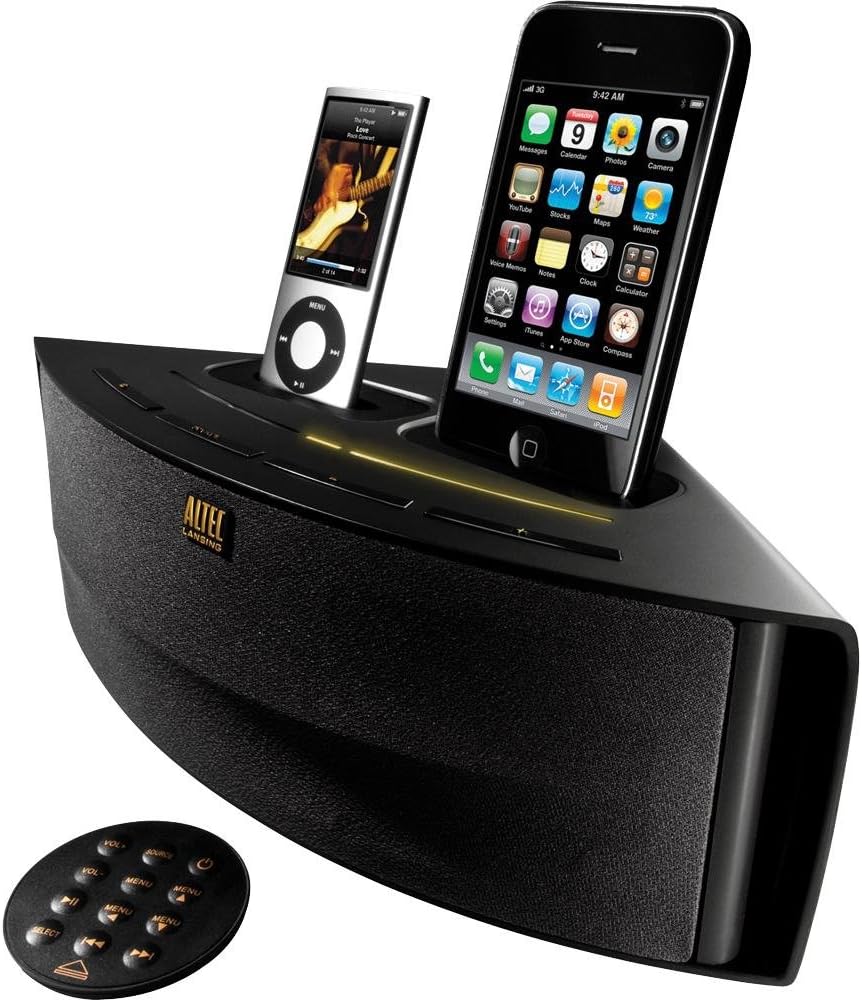
The Altec Lansing M202 Octiv Duo is a dual-docking speaker system designed to charge and play two Apple iPhone or iPod devices simultaneously. It features a compact, wedge-shaped design and includes a built-in USB port for charging a third device. This manual provides instructions for the setup, operation, and maintenance of your M202 system.
Key Features:
- Dual docking and charging for two iPhone/iPod devices (30-pin connector).
- Integrated USB port for charging an additional device.
- Auxiliary input for connecting other audio sources.
- Compact, space-saving design.
- Full-featured remote control.
- Audio Alignment technology for clear sound.
- Shielded design to prevent mobile phone interference.
2. Package Contents
Please verify that all items are present in the package:
- Altec Lansing Octiv Duo speaker system
- Power adapter
- Remote control
3. Product Overview
Familiarize yourself with the components of your Altec Lansing M202 Octiv Duo.
Remote Control:
The included remote control allows for convenient operation of the M202 system from a distance. It features buttons for power, volume adjustment, source selection, and menu navigation for docked devices. The remote can be magnetically attached to the back of the speaker for storage.
4. Setup
4.1 Power Connection
- Connect the power adapter cable to the DC IN port located on the back of the M202 unit.
- Plug the other end of the power adapter into a standard electrical wall outlet.
4.2 Docking Devices
- Gently place your iPhone or iPod onto one of the 30-pin connectors in the docking bays.
- Ensure the device is seated properly and securely in the connector. The device should begin charging automatically.
4.3 Charging a Third Device (USB)
- Connect a USB charging cable (not included) to the USB port located on the M202 unit.
- Connect the other end of the USB cable to your third device (e.g., smartphone, Bluetooth headset). The device will begin charging.
4.4 Auxiliary Input Connection
- Connect an audio cable (3.5mm, not included) from your external audio source (e.g., MP3 player, computer) to the AUX IN jack on the M202 unit.
- Select the auxiliary input as the source for audio playback (refer to Section 5.2).
5. Operation
5.1 Power On/Off
Press the Power button on the M202 unit or the remote control to turn the system on or off.
5.2 Playing Audio
- Ensure your iPhone or iPod is properly docked or your external device is connected via AUX IN.
- Press the Source button on the M202 unit or the remote control to cycle through the available audio sources (Dock 1, Dock 2, AUX IN).
- Start playback on your connected device.
5.3 Volume Control
Adjust the audio output level using the Vol+ and Vol- buttons on the remote control or the corresponding controls on the M202 unit.
5.4 Remote Control Functions
The remote control provides the following functions:
- Power: Turns the unit on or off.
- Volume (+/-): Increases or decreases the audio volume.
- Source: Switches between docked devices and auxiliary input.
- Menu Navigation: Buttons for navigating menus and controlling playback (play/pause, skip track) on docked iPod/iPhone devices.
5.5 Music Mix App (Optional)
The optional Music Mix app, available for iPhone and iPod Touch (iOS 3.1 or later), allows users to shuffle music from both docked devices. It also displays battery levels and activates the stereo widening feature of the Octiv Duo. This app is not required for basic functionality but enhances the dual-docking experience.
6. Maintenance
6.1 Cleaning
- Use a soft, dry cloth to clean the exterior surfaces of the M202 unit.
- Do not use liquid cleaners, abrasive cloths, or chemical solvents, as these may damage the finish.
6.2 Storage
When not in use, store the unit in a cool, dry place. The remote control can be magnetically attached to the back of the speaker to prevent loss.
7. Troubleshooting
If you encounter issues with your M202 system, refer to the following common problems and solutions:
7.1 No Power
- Ensure the power adapter is securely connected to both the DC IN port on the M202 and a working electrical wall outlet.
- Verify that the power outlet is functional by plugging in another device.
7.2 No Sound
- Check that the M202 unit is powered on.
- Verify that the correct audio source (Dock 1, Dock 2, or AUX IN) is selected.
- Ensure the volume is not set to minimum or muted on both the M202 and the connected device.
- Confirm that the docked device is actively playing audio.
- For auxiliary input, check the connection cable for damage and ensure the external device's volume is adequate.
7.3 Device Not Charging
- Ensure the iPhone or iPod is properly seated in the 30-pin dock connector. Remove any bulky cases that might prevent a proper connection.
- For USB charging, verify the USB cable connection and ensure the M202 is powered on.
7.4 Remote Control Not Responding
- Check the battery in the remote control and replace it if necessary.
- Ensure there are no obstructions between the remote control and the M202 unit.
7.5 High-Pitched Noise
- If a high-pitched noise is heard when the unit is plugged in but not playing audio, try unplugging the unit from the wall outlet when not in use. This characteristic may vary between individual units.
8. Specifications
| Product Dimensions | 12.9 x 5.3 x 7.1 inches |
| Item Weight | 2.5 pounds |
| Power Output | 7.5 watts |
| Hardware Interface | USB, 30-pin dock connector |
| Compatible Devices | iPhone 4, iPhone 4S, iPod Touch, and other 30-pin iPod models |
| Total USB Ports | 1 |
| Number of Docking Ports | 2 |
9. Warranty and Support
9.1 Warranty Information
The Altec Lansing M202 Octiv Duo is backed by a one-year limited warranty. Please refer to the warranty documentation included with your purchase for specific terms and conditions regarding coverage and claims.
9.2 Customer Support
For technical assistance, troubleshooting beyond this manual, or further inquiries, please visit the official Altec Lansing website or contact their customer support department. Contact information can typically be found on the product packaging or the manufacturer's website.

