
1. Introduction
The Digitus DA-70544 is a versatile docking station designed for 2.5" and 3.5" SATA hard drives and SSDs. It provides a convenient way to access your data with high-speed USB connectivity, supporting data transfer rates up to 3000 Mbit/s. This manual will guide you through the setup, operation, and maintenance of your device.
2. Product Overview
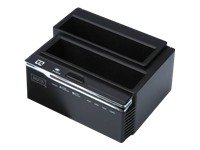
Figure 1: Digitus DA-70544 SATA Docking Station. This image shows the top-down view of the black docking station with two slots for SATA drives and front-facing indicator lights and buttons.
Key features of the Digitus DA-70544 include:
- High-speed data transfer up to 3000 Mbit/s.
- Supports SATA hard disk drives (HDDs) and solid-state drives (SSDs).
- USB interface for easy connection to computers.
- Compatible with Windows XP, Vista, 7, Mac, and Linux operating systems.
- Simple plug-and-play setup.
3. Setup
- Unpack the Device: Carefully remove the docking station and all accessories from the packaging. Ensure all components are present: the docking station, power adapter, and USB cable.
- Connect Power: Connect the provided power adapter to the DC input port on the back of the docking station, then plug the adapter into a power outlet.
- Insert SATA Drive(s): Gently slide your 2.5" or 3.5" SATA hard drive(s) or SSD(s) into the appropriate slots on the top of the docking station until they are firmly seated. Ensure the SATA connector aligns correctly.
- Connect to Computer: Connect one end of the supplied USB cable to the USB port on the docking station and the other end to an available USB port on your computer.
- Power On: Press the power button on the docking station (if available). The power indicator light should illuminate. Your operating system should automatically detect the new hardware.
4. Operating Instructions
- Drive Recognition: Once connected and powered on, your operating system should recognize the inserted drive(s) as external storage devices. You may need to initialize and format new drives via Disk Management (Windows) or Disk Utility (Mac) before use.
- Data Transfer: You can now drag and drop files to and from the drive(s) in the docking station, just like any other external storage device. The high-speed USB interface ensures quick data transfers.
- Safe Removal: Before disconnecting the docking station or removing a drive, always safely eject the drive from your operating system (e.g., "Safely Remove Hardware" in Windows, "Eject" in Mac Finder) to prevent data corruption.
- Hot-Swapping: The DA-70544 supports hot-swapping of drives. After safely ejecting a drive, you can remove it and insert another without powering down the docking station, provided the operating system has fully released the previous drive.
5. Maintenance
- Cleaning: Use a soft, dry cloth to clean the exterior of the docking station. Do not use liquid cleaners or aerosols.
- Storage: When not in use, store the docking station in a cool, dry place away from direct sunlight and extreme temperatures.
- Handling Drives: Always handle hard drives and SSDs with care. Avoid dropping or subjecting them to physical shock, as this can cause data loss or damage.
- Ventilation: Ensure the docking station has adequate ventilation to prevent overheating, especially during prolonged use.
6. Troubleshooting
| Problem | Solution |
|---|---|
| Drive not detected by computer. |
|
| Slow data transfer speeds. |
|
| Docking station not powering on. |
|
7. Specifications
| Feature | Value |
|---|---|
| Brand | DIGITUS |
| Model Number | DA-70544 |
| Supported HDD Interface | SATA |
| Interface | USB 2.0 |
| Max Data Transfer Rate | 3000 Mbit/s |
| Number of USB 2.0 Ports | 1 |
| Compatible Operating Systems | Win XP, Vista, 7, Mac, Linux |
| Product Dimensions | 16.2 x 12.4 x 12.2 cm |
| Product Weight | 699 g (1.54 Pounds) |


