
MSI N210-MD1G/D3
MSI Geforce 210 Graphics Card User Manual
Model: N210-MD1G/D3
Product Overview
The MSI Geforce 210 1024 MB DDR3 PCI-Express 2.0 Graphics Card (Model: N210-MD1G/D3) is designed to enhance your computer's visual performance. It features a 1GB DDR3 memory interface and supports PCI-Express 2.0. This card provides versatile display connectivity with Dual-link DVI, D-Sub (VGA), and HDMI outputs, making it suitable for various monitor setups.

Image: Top view of the MSI Geforce 210 Graphics Card, showing the fan and heatsink assembly.
What's Included
Upon opening the product packaging, verify that all components are present:
- MSI Geforce 210 Graphics Card
- Dual-link DVI connector
- D-Sub (VGA) connector
- HDMI connector
- Note: Additional accessories such as driver CDs or low-profile brackets may be included depending on the specific retail package.
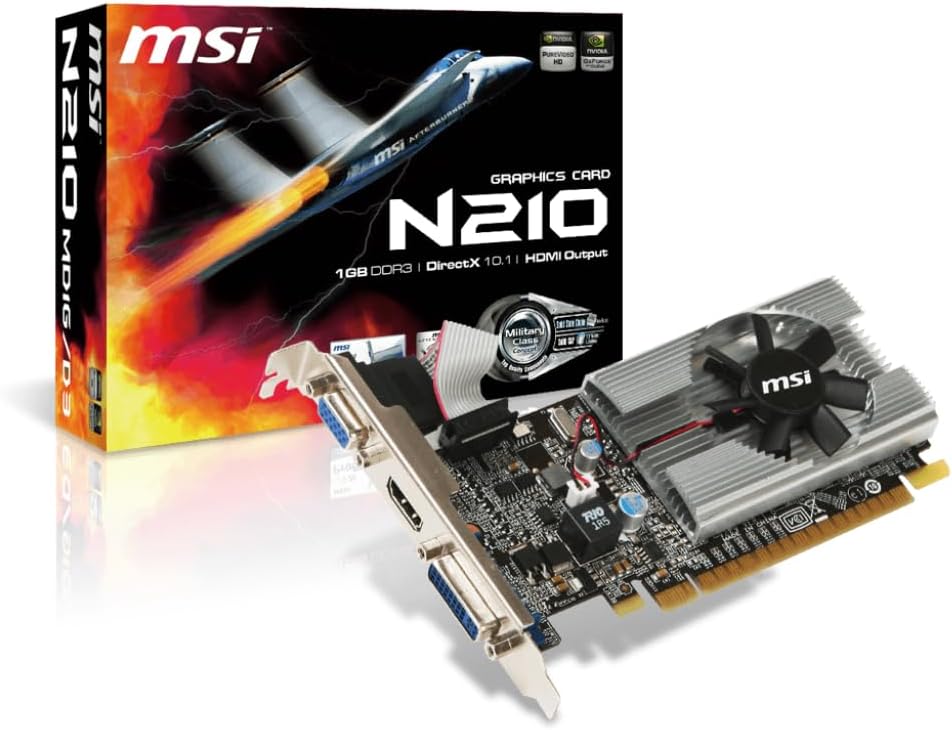
Image: The MSI Geforce 210 Graphics Card displayed alongside its retail packaging.
Setup Guide
1. Pre-installation Checks
- Ensure your computer's power is completely off and the power cable is disconnected from the wall outlet.
- Open your computer case. Refer to your computer's manual for instructions on how to safely open the chassis.
- Identify an available PCI-Express 2.0 x16 slot on your motherboard.
- Compatibility Note: This graphics card is not compliant with Windows 11. It is recommended for systems running Windows 10 or earlier operating systems.
2. Physical Installation
- Carefully remove the graphics card from its anti-static bag. Avoid touching the gold connector pins.
- Align the card with the chosen PCI-Express slot and press down firmly until it is securely seated. A click may be heard.
- Secure the card to the computer case using the screw or latch mechanism provided by your case.

Image: Angled view of the MSI Geforce 210 Graphics Card, highlighting the heatsink and fan.
3. Connecting Displays
Connect your monitor(s) to the appropriate ports on the graphics card. This card supports DVI, D-Sub (VGA), and HDMI connections.

Image: Close-up view of the MSI Geforce 210 Graphics Card's output ports: VGA, HDMI, and DVI.
- DVI: For digital displays.
- D-Sub (VGA): For analog displays.
- HDMI: For digital displays, including audio transmission to compatible devices.
4. Driver Installation
After physical installation and connecting your display, close the computer case, reconnect the power cable, and power on your computer. The operating system may automatically install a basic driver. For optimal performance and full functionality, download and install the latest drivers from the official MSI or NVIDIA website. Search for drivers compatible with the NVIDIA GeForce 210 for your specific operating system.
Operating Instructions
Single Monitor Setup
Once drivers are installed, your operating system should automatically detect and utilize the graphics card. You can adjust display resolution, refresh rate, and other settings through your operating system's display settings or the NVIDIA Control Panel (if installed with drivers).
Multi-Monitor Setup
The MSI Geforce 210 supports multiple displays. Connect additional monitors to the available ports (DVI, D-Sub, HDMI). Once connected, you can configure display modes (extend desktop, duplicate desktop) via your operating system's display settings or the NVIDIA Control Panel.

Image: Front angled view of the MSI Geforce 210 Graphics Card, showing the various display output ports.
Maintenance
Proper maintenance ensures the longevity and optimal performance of your graphics card.
- Dust Removal: Periodically, with the computer powered off and unplugged, use compressed air to gently clear dust from the heatsink fins and fan blades. Accumulation of dust can impede cooling and lead to overheating.
- Driver Updates: Regularly check the official MSI or NVIDIA website for updated drivers. Keeping drivers current can improve performance, stability, and compatibility with new software.
Troubleshooting
- No Display Output:
- Ensure the graphics card is fully seated in the PCI-Express slot.
- Verify that the monitor cable is securely connected to both the graphics card and the monitor.
- Confirm your monitor is set to the correct input source.
- If your motherboard has integrated graphics, ensure the BIOS is configured to prioritize the dedicated graphics card.
- Driver Issues / Low Resolution:
- Uninstall any previous graphics drivers before installing new ones.
- Download the latest drivers directly from the NVIDIA website for the GeForce 210.
- Compatibility with Windows 11:
- As noted, this card is not officially compliant with Windows 11. Users may experience compatibility issues, including driver installation problems or reduced functionality.
- Some users have reported success by disabling "core component protection" or "secure boot mode" in the BIOS/UEFI settings, particularly on Dell XPS 8700 systems, but this is not officially supported and may affect system security.
- System Instability / Freezes:
- Ensure adequate airflow within your computer case to prevent overheating.
- Verify that the graphics card fan is spinning freely and not obstructed by dust.
Specifications
| Brand | MSI |
| Model | N210-MD1G/D3 |
| Graphics Coprocessor | NVIDIA GeForce 210 |
| Graphics RAM Size | 1 GB DDR3 |
| Video Output Interface | DVI, HDMI, D-Sub (VGA) |
| Product Dimensions | 5.7 x 3.3 x 0.7 inches |
| Item Weight | 13.6 ounces |
| Date First Available | July 22, 2010 |
Warranty and Support
For detailed warranty information, please refer to the warranty card included with your product or visit the official MSI website. MSI provides technical support and resources for their products.
An official User Guide in PDF format is available for download from the manufacturer's support page. This document provides comprehensive details on installation, configuration, and troubleshooting.
For further assistance, please visit the MSI Official Website or contact their customer support.
Related documentsN210-MD1G/D3


Ask a question about this manual
Ask about setup, troubleshooting, compatibility, parts, safety, or missing instructions. Manuals+ will review the question and use this page’s manual context to help answer it.