
Introduction
The BenQ SP890 is a high-performance Full HD 1080p projector designed for conference rooms and large venues. It delivers exceptional brightness and resolution, ensuring clear and vibrant presentations. This manual provides essential information for setting up, operating, maintaining, and troubleshooting your BenQ SP890 projector.

Image: The BenQ SP890 projector displaying a large, detailed image of a cathedral interior with stained glass windows, demonstrating its high-resolution projection capabilities suitable for large-scale presentations.
Key Features
- Premium Full HD 1080p Resolution: Delivers crisp and detailed images with 1920 x 1080 resolution.
- Brilliant Visual Performance: Features 4000 ANSI lumen brightness and a 50,000:1 contrast ratio for vivid and clear projections.
- Hollywood Quality Video (HQV) Image Quality: Advanced processing enhances both HD and standard definition content to true 1080p quality.
- Vivid Color with BrilliantColor Technology: Boosts mid-tone colors and overall brightness for a more lifelike picture.
- VIDI Lamp Technology: Collaborates with Philips and Texas Instruments to dynamically control lamp brightness for optimal color ratios across different scenes.

Image: A side-by-side comparison illustrating the enhanced color and vibrancy achieved by the projector's advanced color technologies, with the right image showing improved visual quality.
Package Contents
Upon unpacking, ensure all items are present:
- BenQ SP890 Projector
- Power Cord
- VGA Cable (D-Sub 15pin)
- Remote Control with Batteries
- User Manual CD
- Quick Start Guide
- Warranty Card
Setup
1. Projector Placement
Place the projector on a stable, flat surface or mount it securely to the ceiling. Ensure there is adequate ventilation around the projector to prevent overheating. Position the projector at an appropriate distance from the screen to achieve the desired image size.
2. Connecting Devices
The BenQ SP890 offers various connectivity options. Refer to the diagram below for port identification.

Image: The rear connection panel of the BenQ SP890 projector, detailing all available input and output ports for various devices, labeled for easy identification.
- A: IR Receiver - For remote control signals.
- B: AC Power Input - Connect the power cord here.
- C: LAN Port - For network control and monitoring.
- D: Security Slot - For attaching a security cable.
- E: HDMI Input - Connect HDMI-enabled devices (e.g., Blu-ray player, laptop).
- F: Video Input - Composite video connection.
- G: S-Video Input - S-Video connection.
- H: USB Port - For service or firmware updates.
- I: RS232 Port - For serial control.
- J: 12V Trigger - For automated screen control.
- K: Component Video Input - For high-quality analog video.
- L: PC Input (VGA) - Connect a computer via VGA cable.
- M: Monitor Out (VGA) - Output signal to an external monitor.
- N: Audio In - Connect audio from external sources.
- O: Audio Out - Output audio to external speakers.
Connect your desired video and audio sources to the corresponding ports. For optimal quality, use the HDMI input for Full HD content.
3. Powering On
- Connect the power cord to the projector's AC input (B) and then to a power outlet.
- Press the Power button on the projector's control panel or the remote control. The power indicator light will turn on.
- Allow a few moments for the projector lamp to warm up and display the image.
Operating the Projector
1. Basic Controls
Use the control panel on the projector or the remote control to navigate menus and adjust settings. Common buttons include Power, Menu, Exit, Arrow keys, and Source.
2. Selecting Input Source
Press the "Source" button on the remote or control panel to cycle through available input sources (HDMI, PC, Video, S-Video, Component). Select the input corresponding to your connected device.
3. Image Adjustment
- Focus Ring: Rotate the focus ring on the projector lens until the image appears sharp and clear.
- Zoom Ring: Adjust the zoom ring to change the image size without moving the projector.
- Keystone Correction: If the image appears trapezoidal, use the keystone correction function (usually found in the OSD menu) to square the image.
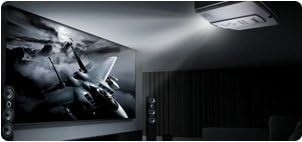
Image: The BenQ SP890 projector, ceiling-mounted, projecting a large, high-definition image of a jet fighter onto a screen in a dark room, illustrating its powerful projection and image quality.
4. Picture Modes
The projector offers various picture modes optimized for different content and environments. Access the "Picture" menu in the On-Screen Display (OSD) to select modes such as Presentation, Cinema, Dynamic, or User-defined settings.
Maintenance
1. Lamp Replacement
The projector lamp has a finite lifespan. When the lamp indicator lights up or the image becomes dim, it's time to replace the lamp. Refer to the full user manual for detailed lamp replacement instructions. Always allow the projector to cool down completely before attempting lamp replacement.
2. Cleaning the Air Filter
Regularly clean the air filter to ensure proper ventilation and prevent dust buildup, which can affect performance and lamp life. The filter location is typically on the side or bottom of the projector. Use a soft brush or vacuum cleaner to remove dust.
3. Cleaning the Lens and Casing
Use a soft, lint-free cloth and a mild lens cleaning solution to gently clean the projector lens. For the casing, use a soft, dry cloth. Avoid abrasive cleaners or solvents.
Troubleshooting
| Problem | Possible Cause | Solution |
|---|---|---|
| No image displayed |
|
|
| Image is blurry |
|
|
| Image is trapezoidal |
|
|
| No sound |
|
|
Specifications
| Feature | Detail |
|---|---|
| Model Number | SP890 |
| Display Resolution | 1920 x 1080 (Full HD) |
| Brightness | 4000 ANSI Lumens (from product description) |
| Contrast Ratio | 50,000:1 (from product description) |
| Connectivity Technology | HDMI, VGA, Component, S-Video, Composite, LAN, RS232, USB |
| Product Dimensions | 16.9 x 13.6 x 6.1 inches |
| Item Weight | 15.9 pounds |
| Special Feature | Portable (as listed in specifications) |
Warranty and Support
For warranty information, please refer to the warranty card included in your product package. For technical support, service, or further inquiries, please visit the official BenQ website or contact their customer service department. Keep your purchase receipt and product serial number handy when seeking support.
Official BenQ Website: www.benq.com


