
1. Product Overview
The SUNPAK SD 2.0 USB Flash Memory Card Reader/Writer is a compact and versatile device designed for quick and efficient transfer of data from various memory card formats to your computer. It supports SD, SDHC, and MMC memory cards, providing a convenient solution for managing your digital photos, videos, music, and other files.
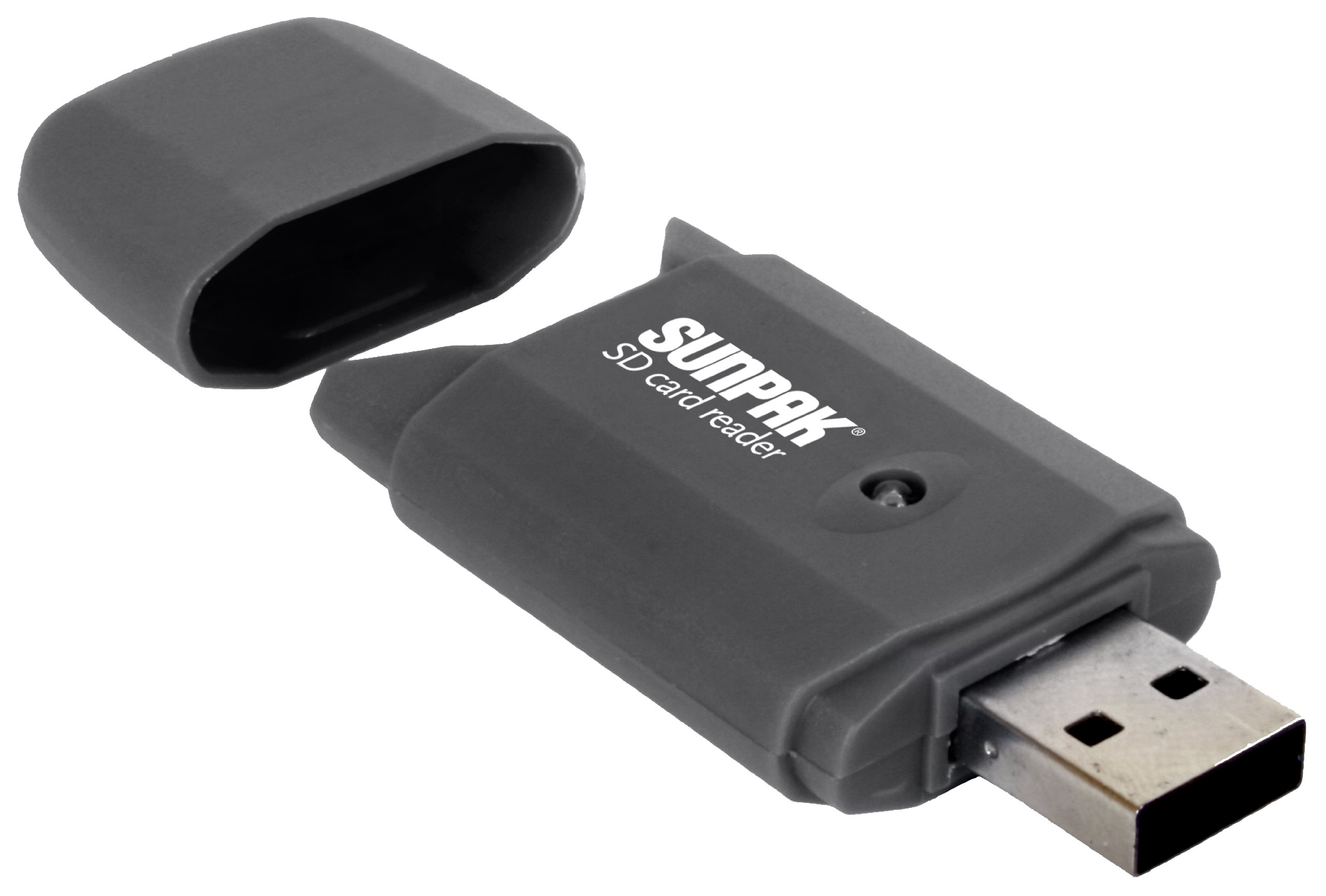
Image 1.1: The SUNPAK SD 2.0 USB Flash Memory Card Reader/Writer. This device facilitates data transfer between memory cards and computers via a USB 2.0 connection.
2. Key Features
- Universal USB 2.0 SD Card Reader: Compatible with standard USB 2.0 ports for broad connectivity.
- High-Speed Data Transfer: Enables super-fast uploading and downloading of pictures, videos, music, and other files.
- Multi-Card Compatibility: Reads and writes to SD, SDHC, and MMC memory cards.
- Built-in Read Status Light: An LED indicator light shows when the device is active or transferring data.
- Compact Design: Portable and easy to carry, ideal for on-the-go use.
3. Setup Guide
Follow these steps to set up your SUNPAK SD 2.0 USB Flash Memory Card Reader/Writer:
- Unpack the Device: Carefully remove the card reader from its packaging.
- Connect to Computer: Insert the USB connector of the card reader into an available USB 2.0 port on your computer.
- Driver Installation: Most modern operating systems will automatically detect and install the necessary drivers. Wait for the operating system to confirm that the device is ready for use. This may take a few moments.
- Verify Connection: Once installed, the card reader will appear as a removable drive in 'My Computer' (Windows) or 'Finder' (macOS) when a memory card is inserted.
4. Operating Instructions
To use the card reader for data transfer:
- Insert Memory Card: With the card reader connected to your computer, carefully insert your SD, SDHC, or MMC memory card into the appropriate slot on the card reader. Ensure the card is inserted correctly, usually with the metal contacts facing down and towards the reader. Do not force the card.
- Access Files: The LED indicator light on the card reader will illuminate or blink, indicating activity. Your computer should recognize the memory card as a new removable drive. Open 'My Computer' (Windows) or 'Finder' (macOS) and locate the new drive.
- Transfer Data: You can now drag and drop files to and from the memory card, or use your computer's copy/paste functions to transfer data.
- Safely Eject: Before removing the memory card or disconnecting the card reader, always safely eject the device from your computer. On Windows, right-click the drive icon in 'My Computer' and select 'Eject'. On macOS, drag the drive icon to the Trash or click the Eject button next to the drive in Finder.
- Remove Device: Once safely ejected, remove the memory card from the reader, and then disconnect the card reader from the USB port.
5. Care and Maintenance
- Cleaning: Use a soft, dry cloth to clean the exterior of the card reader. Do not use liquid cleaners or solvents.
- Storage: Store the card reader in a cool, dry place away from direct sunlight and extreme temperatures.
- Handling: Avoid dropping the device or subjecting it to strong impacts. Do not force memory cards into the slot, as this can damage both the card and the reader.
- USB Port Protection: Keep the USB connector free from dust and debris.
6. Troubleshooting
If you encounter issues with your card reader, refer to the following common problems and solutions:
| Problem | Solution |
|---|---|
| Device not recognized by computer. |
|
| Memory card not reading. |
|
| Slow data transfer speeds. |
|
7. Technical Specifications
| Feature | Detail |
|---|---|
| Model Number | SD-CR-BK |
| Interface | USB 2.0 |
| Compatible Media Types | SD Card, SDHC, MMC |
| Color | Black |
| Product Dimensions | 0.5 x 4.25 x 7.25 inches (approximate packaging dimensions) |
| Item Weight | 1.6 ounces |
| Special Feature | Compact Design, LED Indicator Light |
| Manufacturer | Tocad America Inc. |
8. Warranty and Support
For warranty information and technical support, please refer to the documentation included with your purchase or contact the manufacturer directly. Keep your proof of purchase for any warranty claims.
Manufacturer: Tocad America Inc.