
1. Introduction
This manual provides detailed instructions for the installation, operation, and maintenance of your Absolute COM850IR 8.5-inch TFT LCD Headrest Monitor. Please read this manual thoroughly before using the product to ensure proper function and safety. Keep this manual for future reference.
2. Safety Information
- Ensure all connections are secure and correctly wired to prevent electrical shorts or damage.
- Do not attempt to disassemble or modify the unit. This may void the warranty and pose a safety risk.
- Avoid exposing the monitor to extreme temperatures, direct sunlight for prolonged periods, or excessive moisture.
- Clean the monitor screen with a soft, dry cloth. Do not use harsh chemicals or abrasive cleaners.
- Always operate your vehicle safely. Do not allow the monitor to distract the driver.
3. Package Contents
Verify that all items are present in the package:
- Absolute COM850IR 8.5-inch TFT LCD Headrest Monitor
- Remote Control
- Wiring Harness
- User Manual (this document)
- Mounting Hardware (pre-installed on headrest posts)
4. Product Overview
The Absolute COM850IR is an 8.5-inch TFT LCD monitor integrated into a black leather headrest, designed for in-vehicle entertainment. It features a built-in IR transmitter for wireless headphone connectivity.
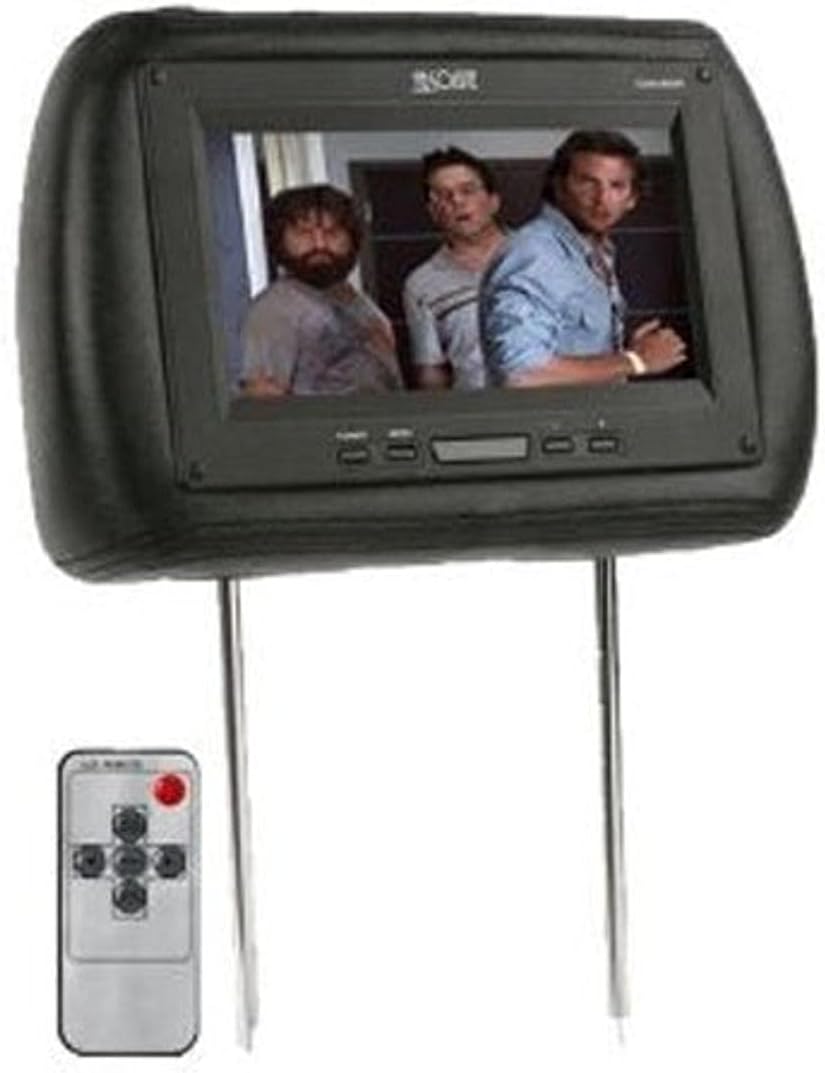
Figure 1: Absolute COM850IR 8.5-inch TFT LCD Headrest Monitor. The image displays the black headrest with the integrated monitor showing a video, and a silver remote control positioned below and to the left of the headrest.
Key Features:
- 8.5-inch TFT LCD Display
- Integrated into a black leather headrest
- Built-in IR Transmitter for wireless audio
- User-friendly controls on the monitor and via remote
5. Setup and Installation
5.1 Headrest Installation
- Carefully remove your vehicle's existing headrest from the desired seat.
- Insert the posts of the COM850IR headrest monitor into the headrest post holes in your vehicle's seat.
- Adjust the height of the headrest to a comfortable and safe position. Ensure it is securely locked in place.
5.2 Wiring Connections
The wiring harness typically includes connections for power, ground, and video input. Consult a professional installer if you are unsure about wiring procedures.
- Power (Red Wire): Connect to a switched 12V power source (e.g., accessory wire) that turns on and off with the vehicle's ignition.
- Ground (Black Wire): Connect to a solid chassis ground point in the vehicle.
- Video Input (Yellow RCA): Connect to the video output of your source device (e.g., DVD player, game console).
5.3 Remote Control Battery Installation
Open the battery compartment on the back of the remote control and insert the required batteries (typically CR2025 or similar button cell, refer to remote for specifics) with the correct polarity.
6. Operating Instructions
6.1 Powering On/Off
Press the POWER button on the monitor or remote control to turn the unit on or off.
6.2 Source Selection
If multiple video inputs are available, use the SOURCE or INPUT button on the monitor or remote to cycle through the available video sources.
6.3 Menu Navigation
Use the MENU button to access the on-screen display (OSD) menu. Navigate through options using the arrow buttons and confirm selections with the ENTER or OK button. Adjust settings such as brightness, contrast, color, and aspect ratio as desired.
6.4 Using the IR Transmitter
The built-in IR transmitter allows for wireless audio transmission to compatible IR headphones. Ensure your IR headphones are powered on and within range of the monitor for audio reception.
7. Maintenance
- Cleaning the Screen: Use a soft, lint-free cloth to gently wipe the screen. For stubborn smudges, slightly dampen the cloth with water or a screen-safe cleaning solution. Do not spray liquid directly onto the screen.
- Cleaning the Headrest: For the leather headrest, use a damp cloth and mild soap, then wipe dry. Avoid harsh chemicals.
- Storage: If the vehicle will be stored for an extended period, ensure the monitor is turned off.
8. Troubleshooting
| Problem | Possible Cause | Solution |
|---|---|---|
| No power to the monitor. | Loose power connection, blown fuse, vehicle ignition off. | Check power and ground connections. Inspect vehicle fuse. Ensure vehicle ignition is on. |
| No video signal. | Loose video cable, incorrect input source selected, source device off. | Verify video cable connection. Select correct input source. Ensure source device is powered on and playing content. |
| No audio through IR headphones. | Headphones off, low headphone battery, headphones out of range, IR transmitter off. | Turn on headphones and check batteries. Ensure headphones are within range. Verify IR transmitter is active (if applicable). |
| Remote control not working. | Dead batteries, obstruction, remote not pointed at IR receiver. | Replace remote batteries. Remove any obstructions. Point remote directly at the monitor's IR receiver. |
9. Specifications
- Model: COM850IR
- Screen Size: 8.5 Inches
- Display Type: TFT LCD
- Connectivity Technology: IR (Infrared)
- Other Display Features: Wireless
- Color: Black
- Product Dimensions: 16 x 14 x 5 inches (approximate)
- Item Weight: 3.9 pounds (approximate)
- Manufacturer: Absolute USA
10. Warranty and Support
For warranty information and technical support, please refer to the documentation included with your purchase or contact Absolute USA customer service. Warranty terms typically cover manufacturing defects for a specified period from the date of purchase.
For further assistance, please visit the official Absolute USA website or contact their customer support department.