
1. Introduction
The BUFFALO Giga Switching Hub LSW3-GT-24NSR is a 24-port Gigabit Ethernet switch designed for high-speed network environments. It is ideal for small to medium-sized offices and workplaces requiring robust and reliable network connectivity. This device supports full Gigabit speeds across all ports, ensuring efficient data transfer.
Key features include a fanless design for silent operation and enhanced reliability, as well as a loop detection function to prevent network disruptions caused by accidental network loops.
2. Safety Information
Please read and understand the following safety precautions before using the device to prevent injury or damage.
- Power Supply: Use only the provided power adapter. Ensure the power outlet meets the specified voltage requirements.
- Ventilation: Do not block ventilation openings. Ensure adequate airflow around the device to prevent overheating.
- Environment: Avoid exposing the device to water, high humidity, extreme temperatures, or direct sunlight.
- Handling: Do not drop or subject the device to strong impacts. Do not attempt to open or repair the device yourself. Refer all servicing to qualified personnel.
- Cables: Ensure all network cables are properly connected and secured.
3. Package Contents
Verify that all items are present in the package:
- BUFFALO Giga Switching Hub LSW3-GT-24NSR Unit
- Power Cable
- Rack Mount Brackets (if included with your model)
- Rubber Feet (for desktop placement)
4. Setup
4.1 Physical Installation
The LSW3-GT-24NSR can be installed on a desktop or mounted in a 19-inch equipment rack.
Desktop Placement:
- Attach the included rubber feet to the bottom of the unit to prevent slipping and provide stability.
- Place the unit on a flat, stable surface with adequate ventilation.
Rack Mounting:
- Attach the rack mount brackets to the sides of the unit using the provided screws.
- Secure the unit into a standard 19-inch equipment rack using appropriate rack screws (not included).
4.2 Connecting Network Cables
Connect your network devices (computers, servers, other switches) to any of the 24 RJ-45 ports on the front panel using standard Ethernet cables (Category 5e or higher recommended for Gigabit speeds).

Figure 1: Front Panel Overview with 24 Ethernet Ports and Status LEDs.
4.3 Connecting Power
- Connect the power cable to the AC IN port on the rear of the device.
- Plug the other end of the power cable into a suitable power outlet.
- The device will power on automatically. The POWER LED on the front panel should illuminate.

Figure 2: Rear Panel Overview with AC IN Power Port.
5. Operating Instructions
5.1 LED Indicators
The front panel features several LED indicators to monitor the status of the switch and its ports.
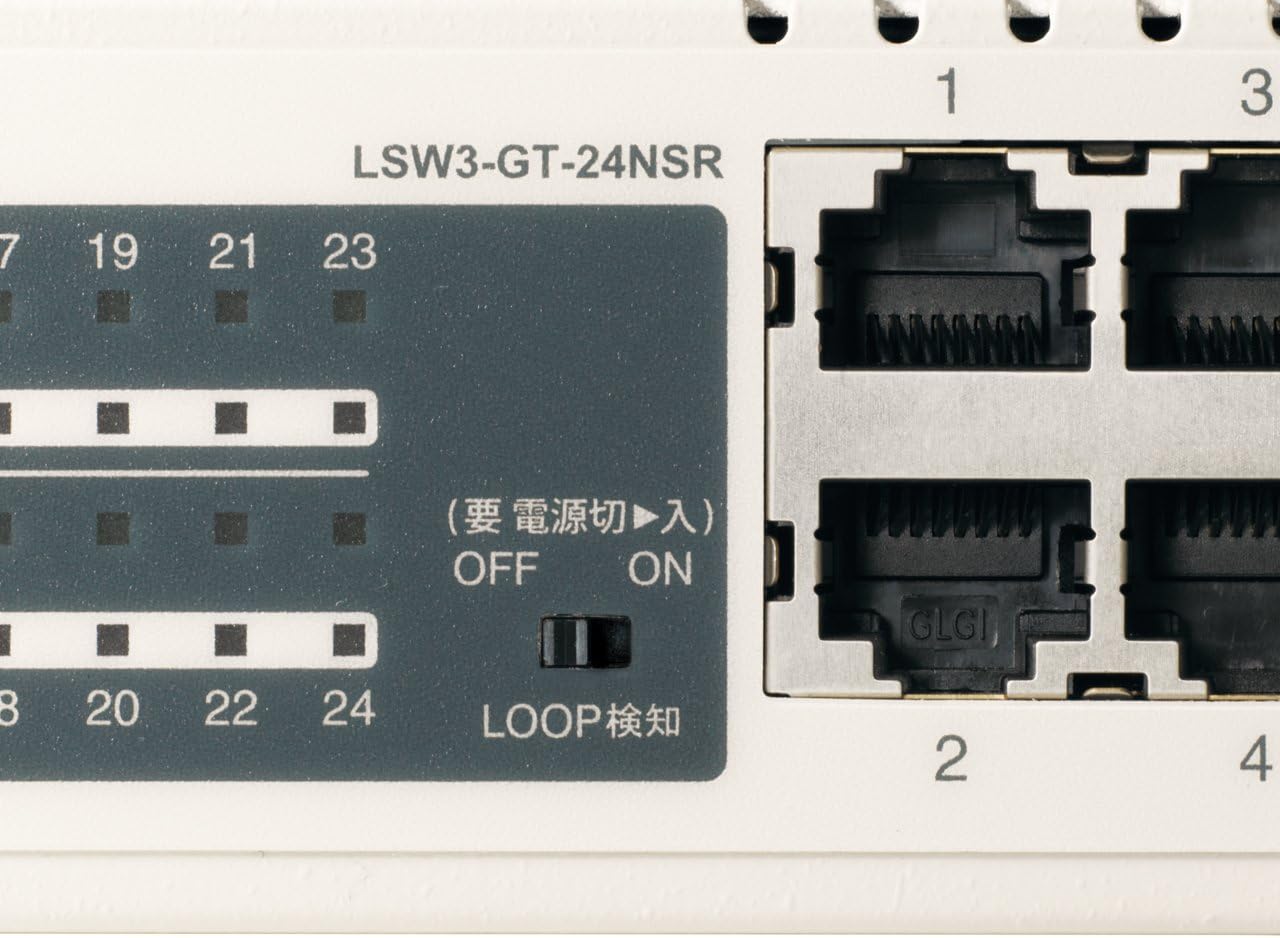
Figure 3: Detailed view of LED Indicators and Loop Detection Switch.
| LED Name | Status | Description |
|---|---|---|
| POWER | On | The device is powered on. |
| LINK/ACT (per port) | On | A network device is connected and a link is established. |
| Flashing | Data is being transmitted or received through the port. | |
| 1000/100/10M (per port) | Green | Port is operating at 1000 Mbps (Gigabit Ethernet). |
| Orange | Port is operating at 100 Mbps (Fast Ethernet). | |
| Off | Port is operating at 10 Mbps (Ethernet). | |
| LOOP DETECT | On | A network loop has been detected. |
5.2 Loop Detection Function
The LSW3-GT-24NSR features a hardware switch for enabling or disabling the loop detection function. This function helps prevent network instability caused by accidental network loops.
Figure 4: Loop Detection Switch (ON/OFF).
- ON: Loop detection is active. If a loop is detected, the corresponding port will be automatically shut down to prevent network broadcast storms, and the LOOP DETECT LED will illuminate.
- OFF: Loop detection is disabled.
It is recommended to keep the loop detection function ON for network stability.
6. Maintenance
6.1 Cleaning the Device
To maintain optimal performance, periodically clean the exterior of the switch.
- Disconnect the power cable before cleaning.
- Use a soft, dry cloth to wipe the surface.
- Do not use liquid cleaners, aerosols, or solvents, as these may damage the casing or internal components.
6.2 Environmental Considerations
Ensure the device is operated within its specified environmental conditions:
- Temperature: 0°C to 40°C (32°F to 104°F)
- Humidity: 10% to 85% (non-condensing)
7. Troubleshooting
If you encounter issues with your BUFFALO Giga Switching Hub, refer to the following common problems and solutions.
7.1 No Power
- Symptom: The POWER LED is off.
- Solution: Check if the power cable is securely connected to both the device and the power outlet. Ensure the power outlet is functional.
7.2 No Link or Slow Speed on a Port
- Symptom: The LINK/ACT LED for a connected port is off, or the 1000/100/10M LED indicates a lower speed than expected (e.g., 100M instead of 1000M).
- Solution:
- Verify the Ethernet cable is securely connected at both ends.
- Try a different Ethernet cable. Ensure it is a Category 5e or higher cable for Gigabit speeds.
- Connect the device to a different port on the switch.
- Check the network adapter settings on the connected device (computer, server) to ensure it is configured for auto-negotiation or the correct speed.
7.3 Network Instability / LOOP DETECT LED is On
- Symptom: The LOOP DETECT LED is illuminated, and network performance is degraded or unstable.
- Solution:
- A network loop has been detected. This typically occurs when two ports on the same switch (or different switches) are connected to each other, creating an infinite data path.
- Carefully inspect your network cabling to identify and remove any redundant connections that form a loop.
- If the loop detection switch is ON, the affected port will be automatically shut down. Once the loop is resolved, the port should resume normal operation.
8. Specifications
| Feature | Description |
|---|---|
| Brand | BUFFALO |
| Model Number | LSW3-GT-24NSR |
| Port Count | 24 x 10/100/1000BASE-T RJ-45 ports |
| Switching Capacity | 48 Gbps (Non-blocking) |
| Forwarding Rate | 35.7 Mpps |
| MAC Address Table Size | 8K entries |
| Jumbo Frame Support | Up to 9KB |
| Features | Auto-MDI/MDIX, Auto-Negotiation, Loop Detection Function, Fanless Design |
| Power Supply | Internal AC power supply |
| Dimensions (W x D x H) | (Specific dimensions not provided in source, typical for 1U rackmount) |
| Weight | (Specific weight not provided in source) |
| Operating Temperature | 0°C to 40°C |
| Operating Humidity | 10% to 85% (non-condensing) |
9. Warranty and Support
This BUFFALO product is covered by a manufacturer's warranty. Please refer to the warranty card included with your product or visit the official BUFFALO website for detailed warranty terms and conditions.
For technical support, product registration, or further assistance, please visit the official BUFFALO support website or contact their customer service department. Contact information can typically be found on the manufacturer's website or in the product packaging.