
Coby MP828-8G
Coby 8 GB 2.8-Inch Video MP3 Player User Manual
Model: MP828-8G
1. Introduction
This manual provides comprehensive instructions for the operation and maintenance of your Coby 8 GB 2.8-Inch Video MP3 Player (Model: MP828-8G). This device is a versatile multimedia player featuring a 2.8-inch color TFT LCD touchscreen, 8 GB of integrated flash memory, an FM radio, stereo speakers, and a 0.3MP camera. It supports playback of music, video, photos, and text files, and includes a miniSD card slot for memory expansion.
Please read this manual thoroughly before using the device to ensure proper operation and to maximize your user experience.
2. Package Contents
Verify that all items are present in the package:
- Coby MP828-8G Video MP3 Player
- USB 2.0 Cable
- Earphones
- Instruction Manual (this document)
- Software CD (for video conversion, if applicable)
Note: A miniSD card is not included and must be purchased separately for memory expansion.
3. Product Overview
Familiarize yourself with the various components and controls of your MP3 player.

Figure 3.1: Front and Side View of the MP828-8G
This image displays the Coby MP828-8G MP3 Player from the front and a slightly angled side view. The device is black with a prominent 2.8-inch touchscreen showing a grid of colorful icons for functions like music, video, photo, radio, text, explorer, calendar, clock, and settings. A power button and 'M' button are visible below the screen. The overall design is compact and rectangular.

Figure 3.2: Back View of the MP828-8G
This image shows the rear of the Coby MP828-8G MP3 Player. The back panel is black and features the "COBY" brand logo prominently at the top. Below the logo, an integrated camera lens is visible in the upper center. A white label with "J064110038763" and "MP828-4G" (note: product is 8GB, this label might be a generic one or for a different variant) is affixed to the lower half, along with regulatory marks like "FC CE".
Physical Components:
- 2.8-inch TFT LCD Touchscreen: Main display and interactive interface.
- Power Button: Located below the screen, used to turn the device on/off and lock/unlock the screen.
- 'M' Button: Menu/Back button, typically located next to the power button.
- Integrated Stereo Speakers: For audio playback without earphones.
- MiniSD Card Slot: For expanding storage capacity.
- USB Port: For charging and data transfer.
- Headphone Jack: For connecting earphones.
- Integrated 0.3MP Camera: For capturing photos.
4. Setup
4.1 Initial Charging
Before first use, fully charge the integrated rechargeable battery. Connect the device to a computer's USB port using the provided USB cable. The charging indicator will typically show progress. A full charge may take several hours.
4.2 Power On/Off
- To Power On: Press and hold the Power button until the screen illuminates.
- To Power Off: Press and hold the Power button until a power-off prompt appears on the screen. Tap "Power Off" to confirm.
- To Lock/Unlock Screen: Briefly press the Power button to lock or unlock the touchscreen.
4.3 Inserting a MiniSD Card
To expand the device's storage, insert a miniSD card (not included) into the miniSD card slot until it clicks into place. Ensure the card is inserted in the correct orientation. To remove, gently push the card in until it springs out.
5. Operating Instructions
5.1 Touchscreen Navigation
The device features intuitive touchscreen controls. Tap icons to select applications or options. Swipe across the screen to navigate through lists or pages. Use the 'M' button to go back to the previous screen or menu.
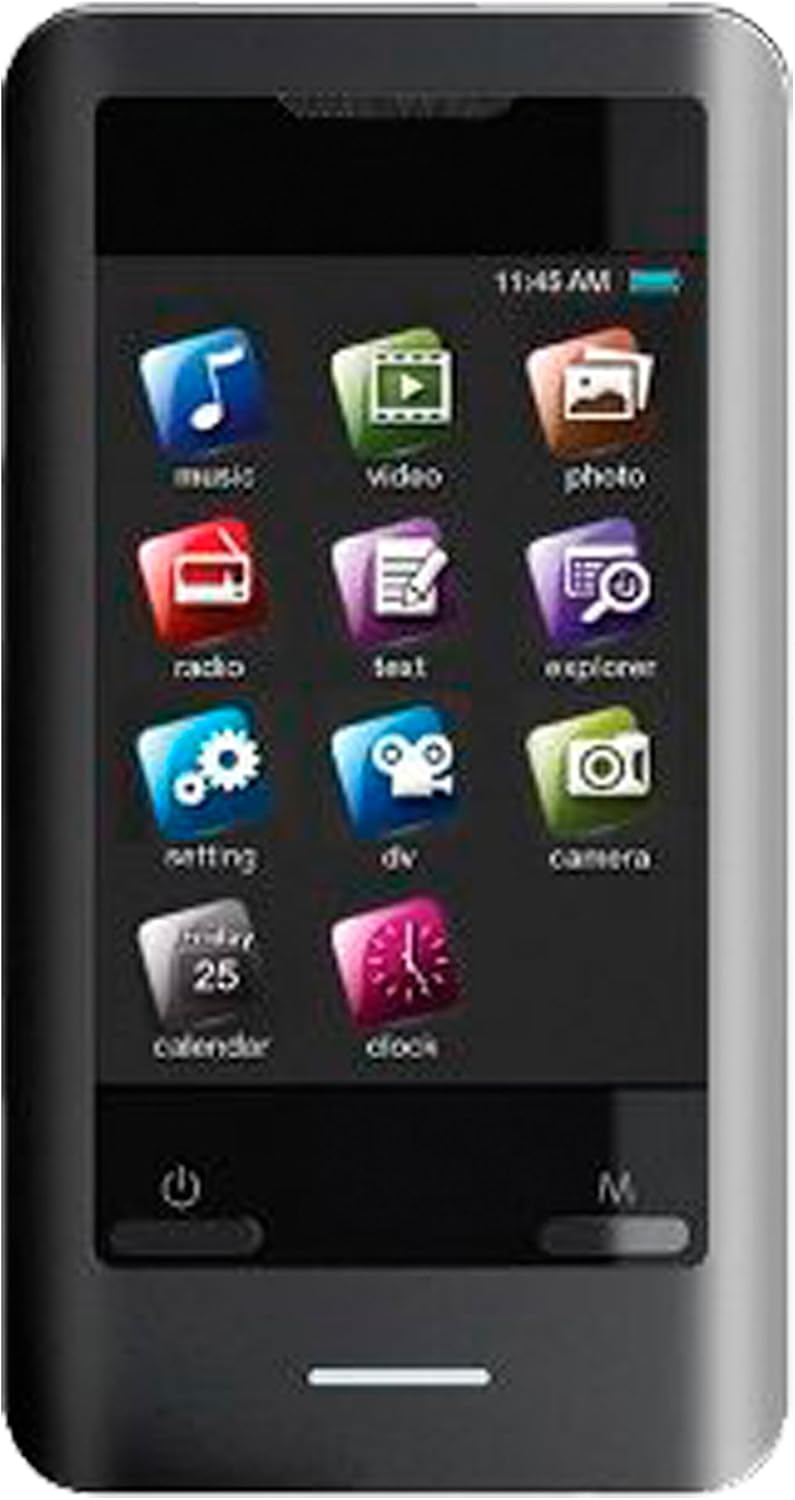
Figure 5.1: Main Menu Interface
This image provides a close-up view of the Coby MP828-8G MP3 Player's touchscreen. The screen shows the main menu, organized as a grid of colorful square icons. Icons include "music," "video," "photo," "radio," "text," "explorer," "setting," "dv," "camera," "calendar," and "clock." A battery indicator and time are visible at the top right of the screen.
5.2 Music Playback
Tap the "Music" icon on the main menu. You can browse music by artist, album, genre, or all songs. Tap a song to begin playback. Use the on-screen controls for play/pause, skip, volume adjustment, and repeat/shuffle modes. The device supports ID3 and LRC for song and lyric information display.
5.3 Video Playback
Tap the "Video" icon. Select a video file to play. Note: Videos may need to be converted using the included software for optimal device playback. The device supports common video formats. Use the on-screen controls for playback management.
5.4 Photo Viewing
Tap the "Photo" icon. Browse your image files. Tap an image to view it in full screen. You can swipe to navigate between photos.
5.5 FM Radio
Tap the "Radio" icon. Connect your earphones as they act as the antenna. You can auto-scan for stations or manually tune to a specific frequency. Save your favorite stations for quick access.
5.6 Camera Functionality
Tap the "Camera" icon to activate the integrated 0.3MP camera. Frame your shot using the screen and tap the capture button to take a photo. Photos are saved to the device's internal memory or the miniSD card if inserted.
5.7 File Management (Explorer)
Tap the "Explorer" icon to access the device's file system. You can view, copy, move, or delete files stored on the internal memory or the miniSD card.
5.8 Calendar and Clock
Access the "Calendar" and "Clock" applications from the main menu for timekeeping and date viewing functions.
5.9 Connecting to a Computer (USB)
Connect the device to your computer using the USB cable. The device will appear as a removable disk drive. You can drag and drop music, video, photo, and text files directly to the device's storage or miniSD card. The device supports USB 2.0 Hi-speed for fast file transfers.
6. Maintenance
6.1 Cleaning
Wipe the device with a soft, dry cloth. For stubborn smudges on the screen, use a screen-cleaning solution specifically designed for electronics and a microfiber cloth. Do not use abrasive cleaners or solvents.
6.2 Battery Care
- Avoid exposing the device to extreme temperatures.
- Charge the battery regularly, even if the device is not used frequently, to maintain battery health.
- If the device will not be used for an extended period, charge it to about 50% before storing.
7. Troubleshooting
| Problem | Possible Cause | Solution |
|---|---|---|
| Device does not power on. | Battery is depleted. | Connect to a USB power source and charge for at least 30 minutes before attempting to power on. |
| Cannot transfer files to/from computer. | Incorrect USB connection; driver issue. | Ensure the USB cable is securely connected to both the device and the computer. Try a different USB port or cable. Restart both the device and computer. |
| Video files do not play or play incorrectly. | Video format incompatibility. | Use the included software (if applicable) to convert video files to a compatible format for the device. |
| Touchscreen is unresponsive. | Temporary software glitch; screen locked. | Briefly press the Power button to unlock the screen. If unresponsive, perform a soft reset by pressing and holding the Power button for 10-15 seconds until the device restarts. |
| Poor FM radio reception. | Earphones not connected or poor signal. | Ensure earphones are fully plugged in, as they function as the antenna. Try moving to an area with better signal reception. |
8. Specifications
| Feature | Detail |
|---|---|
| Model | MP828-8G |
| Digital Storage Capacity | 8 GB (internal flash memory) |
| Display | 2.8-inch Color TFT LCD Touchscreen |
| Camera | 0.3 MP Integrated Camera |
| Audio Formats Supported | MP3 |
| Video Formats Supported | Requires conversion via included software |
| Image Formats Supported | JPEG, BMP, GIF |
| Text Formats Supported | TXT |
| Memory Expansion | MiniSD Card Slot (card not included) |
| Connectivity | USB 2.0 Hi-speed |
| Power Source | Integrated Rechargeable Lithium Ion Battery |
| Integrated Features | FM Radio, Stereo Speakers, Calendar, Clock |
| Product Dimensions | 1.17 x 5.59 x 10.41 cm |
| Product Weight | 68.04 g |
9. Warranty and Support
Coby products are designed for reliability and performance. For information regarding warranty coverage, technical support, or service, please refer to the warranty card included with your product or visit the official Coby support website. Keep your purchase receipt as proof of purchase for warranty claims.
For further assistance, you may contact Coby customer service through their official channels.
Related documentsMP828-8G


Ask a question about this manual
Ask about setup, troubleshooting, compatibility, parts, safety, or missing instructions. Manuals+ will review the question and use this page’s manual context to help answer it.