
1. Introduction
The SilverStone SST-AP181 Air Penetrator is a high-performance 180mm computer case cooling fan designed to provide focused airflow for efficient system cooling. Unlike traditional fans that disperse air, the Air Penetrator's unique blade and grille design channels air into a concentrated column, allowing it to effectively pass through obstacles within a computer case. This design is particularly beneficial for intake applications, ensuring optimal cooling performance even at lower fan speeds and noise levels.

Figure 1: Angled view of the SilverStone SST-AP181 Air Penetrator fan, showcasing its unique blade design.
2. Safety Information
- Always disconnect power from your computer before installing or performing maintenance on any internal components.
- Handle the fan by its frame to avoid damaging the blades or internal components.
- Ensure proper orientation during installation to achieve desired airflow direction.
- Keep fingers and other objects clear of rotating fan blades to prevent injury.
- Do not attempt to disassemble or modify the fan, as this may void the warranty and cause damage.
3. Package Contents
Verify that all items are present in the package before proceeding with installation:
- 1 x SilverStone SST-AP181 Air Penetrator 180mm Fan
- Mounting Screws
- Anti-vibration Rubber Mounts
- Y-Cable Adapter (for connecting two fans to one power source, if included)

Figure 2: Retail packaging for the SilverStone SST-AP181 fan.
4. Setup and Installation
The SST-AP181 fan is designed for easy installation in standard computer cases that support 180mm fan mounts. It is particularly effective as an intake fan due to its air channeling capabilities.
- Prepare your computer: Power off your computer and disconnect it from the power outlet. Open the computer case to access the fan mounting locations.
- Identify mounting location: Locate an available 180mm fan mount in your computer case. Consider the desired airflow direction (typically intake for this fan type).
- Mount the fan:
- Align the fan with the mounting holes.
- Secure the fan using the provided mounting screws or anti-vibration rubber mounts. If using rubber mounts, carefully pull them through the fan and case holes to avoid tearing.
- Connect power: The SST-AP181 uses a 3-pin or 4-pin power connector. Connect the fan's power cable to an available fan header on your motherboard or a fan controller.

Figure 3: Example of a fan power connector and an optional speed switch (if included with your case).
Important Note on Starting Voltage: The SST-AP181 may require approximately 10.8 Volts to start at its low speed setting. Some fan controllers or motherboard BIOS settings might not supply sufficient voltage at low temperatures, causing the fan to not spin up. If this occurs:
- Adjust the fan speed or temperature settings within your motherboard's BIOS to ensure a higher starting voltage.
- If your case has a fan speed switch, set it to the "high" position to enable a lower starting voltage for the fan.
- Cable management: Route the fan cable neatly to avoid interference with other components or airflow.
- Close case and power on: Once the fan is securely installed and connected, close your computer case and reconnect the power. Power on your computer and verify that the fan is operating correctly.

Figure 4: Visual representation of the Air Penetrator fan's focused airflow compared to a traditional fan's dispersed airflow.
5. Operating the Fan
The SilverStone SST-AP181 fan operates continuously once powered. Its speed can be controlled via a compatible motherboard fan header (PWM or voltage control) or an external fan controller, if available. At lower voltages (e.g., 5 Volts), the fan speed will be approximately 500 RPM, resulting in nearly inaudible operation while still providing effective airflow.
- Speed Control: Adjust fan speed through your motherboard's BIOS settings or dedicated fan control software for optimal balance between cooling and noise.
- Airflow Direction: Ensure the fan is oriented to draw cool air into the case (intake) for best performance, especially when utilizing its air channeling capabilities.
6. Maintenance
Regular maintenance helps ensure optimal performance and longevity of your fan.
- Dust Removal: Periodically clean dust from the fan blades and grille using compressed air or a soft brush. Ensure the fan is powered off and stationary before cleaning.
- Inspection: Check for any obstructions around the fan or signs of wear on the cables.
7. Troubleshooting
| Problem | Possible Cause | Solution |
|---|---|---|
| Fan does not spin or spins intermittently. |
|
|
| Fan is unusually loud or making a buzzing noise. |
|
|
| Poor cooling performance. |
|
|
8. Specifications
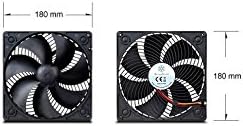
Figure 5: Diagram showing the 180mm x 180mm dimensions of the SilverStone SST-AP181 fan.
| Feature | Detail |
|---|---|
| Model Number | SST-AP181 |
| Dimensions (LxWxH) | 7.09" x 7.09" x 1.26" (180mm x 180mm x 32mm) |
| Material | Polycarbonate |
| Power Connector Type | 3-Pin or 4-Pin |
| Voltage | 10.8 Volts (starting), 12 Volts (operating) |
| Wattage | 5.4 watts |
| Cooling Method | Air |
| Noise Level | 20 Decibels (at specified conditions) |
| Maximum Rotational Speed | 1500 RPM |
| Air Flow Capacity | 0.08 Cubic Meters Per Second |
| Compatible Devices | Desktop Computers |
9. Warranty and Support
SilverStone Technology Co., Ltd. provides a limited warranty for its products. For specific warranty terms and conditions, please refer to the warranty card included with your product or visit the official SilverStone website. For technical support, product inquiries, or warranty claims, please contact SilverStone customer service through their official channels.
Official Website: www.silverstonetek.com


