
1. Introduction
Thank you for choosing the TECKNET 2.4G Wireless Mini QWERTY Keyboard X315. This ultra-thin, compact keyboard is designed for efficiency and comfort, featuring 2.4 GHz wireless technology for a stable connection and 12 multimedia shortcut keys for enhanced productivity. Its low-profile scissor-switch keys offer a quiet and responsive typing experience. This manual provides essential information for setting up, operating, maintaining, and troubleshooting your new keyboard.
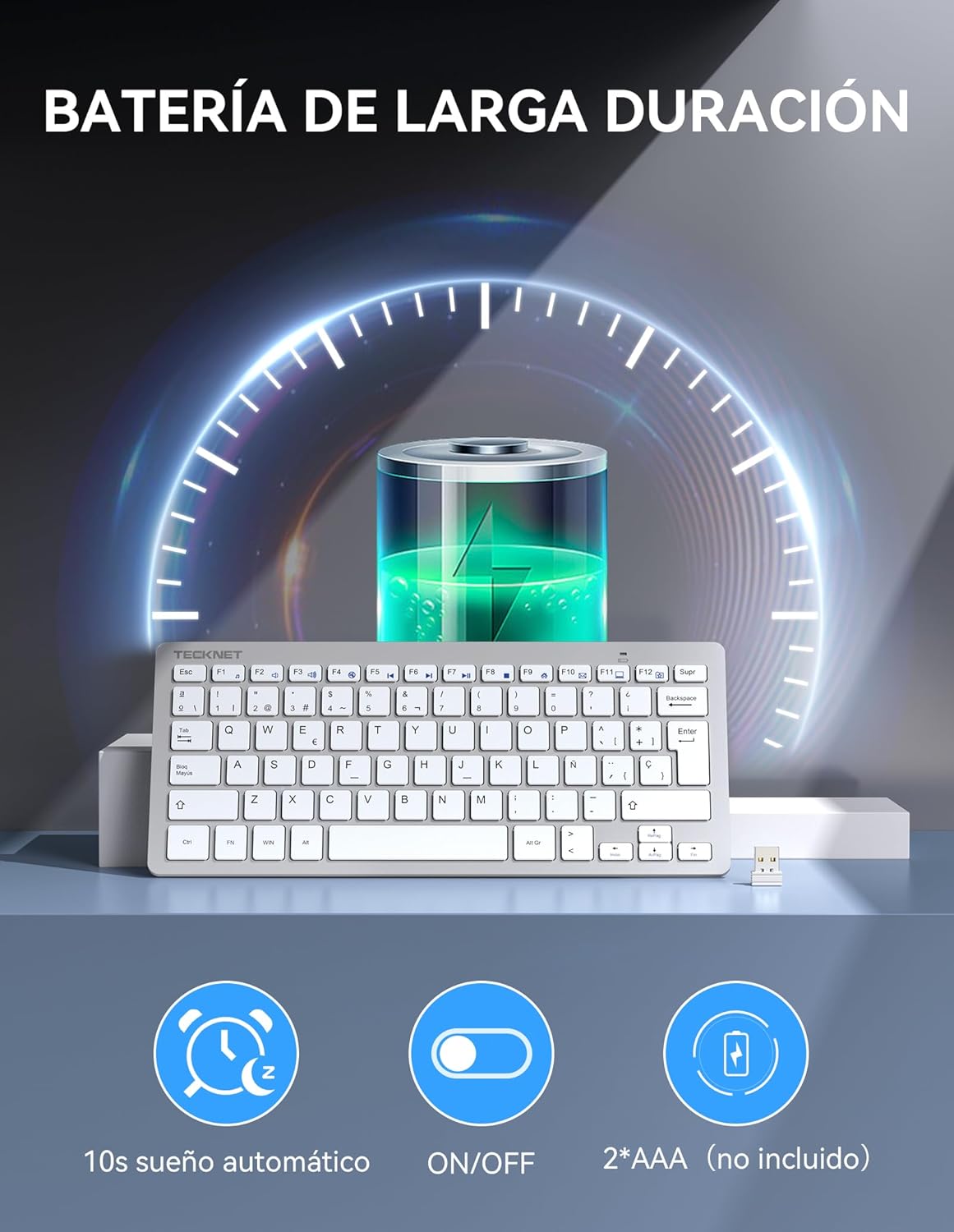
Image: Front view of the TECKNET 2.4G Wireless Mini QWERTY Keyboard X315 in silver.
2. What's in the Box
- 1 x TECKNET 2.4G Wireless Mini QWERTY Keyboard
- 1 x Nano USB Receiver
- 1 x User Manual
3. Setup Guide
3.1 Battery Installation
- Locate the battery compartment cover on the back of the keyboard.
- Slide the cover open.
- Insert two AAA batteries (not included) into the compartment, ensuring correct polarity (+/-).
- Close the battery compartment cover securely.

Image: Diagram showing battery installation (2*AAA) and power-saving features like auto-sleep and ON/OFF switch.
3.2 Connecting the Receiver
- Remove the Nano USB receiver from its storage slot on the back of the keyboard.
- Plug the Nano USB receiver into an available USB port on your computer, laptop, or compatible device.
- The system will automatically detect and install the necessary drivers. This may take a few moments.

Image: Illustration of the 2.4G wireless connection, showing the Nano USB receiver plugged into a laptop and the keyboard operating wirelessly within a 10-meter range.
3.3 Powering On/Off
Locate the ON/OFF switch on the back of the keyboard. Slide it to the 'ON' position to power on the keyboard. Slide it to the 'OFF' position when not in use to conserve battery life.
4. Operating Instructions
4.1 General Use
Once connected, your keyboard is ready for use. The 2.4 GHz wireless technology provides a stable and reliable connection up to 10 meters (33 feet) without interference.
4.2 Multimedia Shortcut Keys
The keyboard features 12 multimedia shortcut keys. To activate these functions, press and hold the FN key, then press the corresponding F-key (F1-F12).
| Key Combination | Function |
|---|---|
| FN + F1 | Music Player |
| FN + F2 | Volume Down |
| FN + F3 | Volume Up |
| FN + F4 | Mute |
| FN + F5 | Previous Track |
| FN + F6 | Next Track |
| FN + F7 | Play/Pause |
| FN + F8 | Stop |
| FN + F9 | Internet Browser |
| FN + F10 | |
| FN + F11 | My Computer |
| FN + F12 | Favorites |
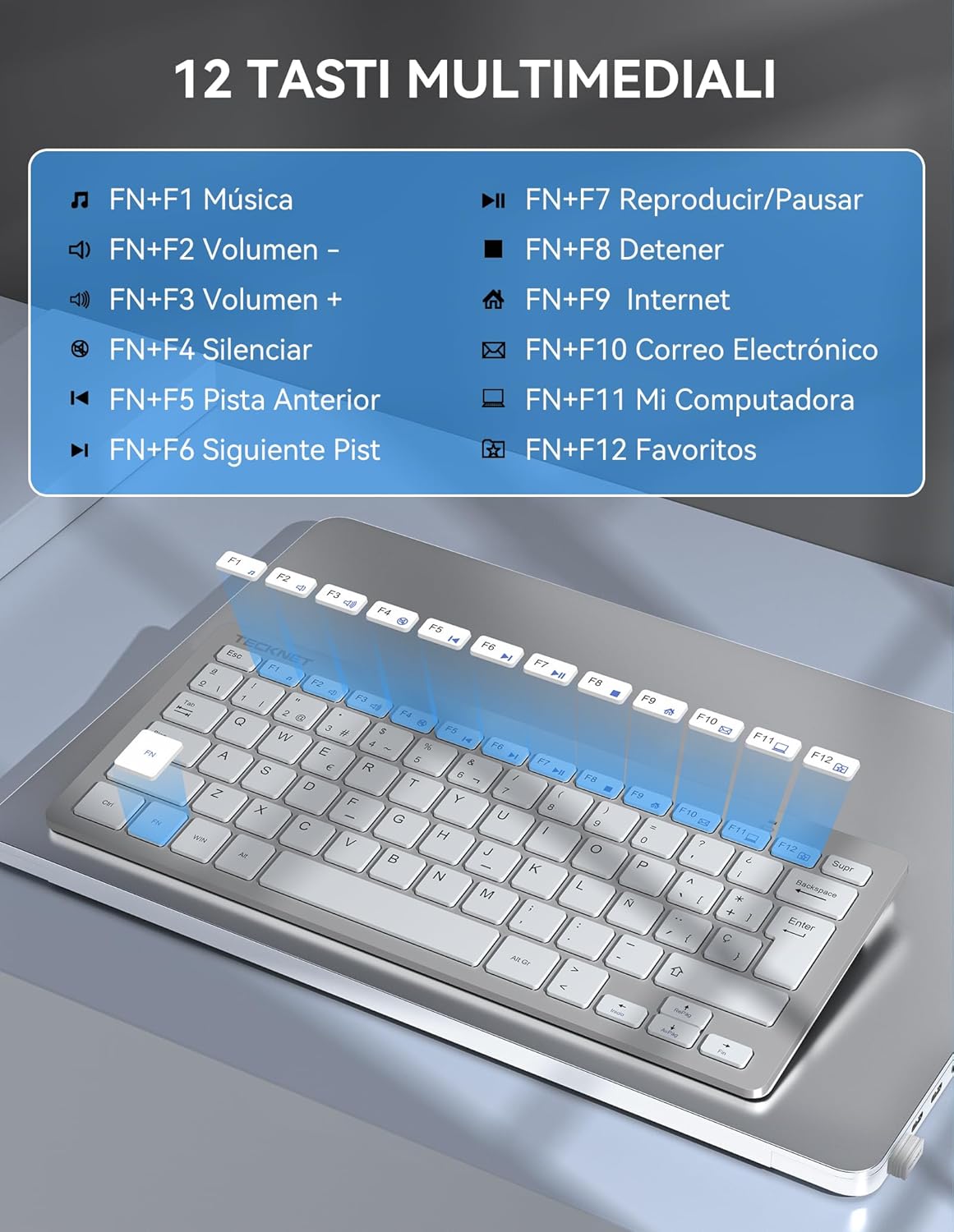
Image: Visual representation of the keyboard highlighting the FN key and multimedia functions (F1-F12).
4.3 Energy Saving Mode
The keyboard features an automatic sleep function. If inactive for a period, it will enter sleep mode to conserve battery. Press any key to wake it up.
5. Maintenance
5.1 Cleaning
To clean the keyboard, use a soft, dry cloth. For stubborn dirt, slightly dampen the cloth with water or a mild cleaning solution. Avoid using harsh chemicals or abrasive materials.
5.2 Battery Replacement
When the keyboard's performance degrades or it stops responding, replace the AAA batteries as described in Section 3.1.
5.3 Storing the Nano Receiver
When transporting or storing the keyboard, you can safely store the Nano USB receiver in its dedicated slot on the back of the keyboard to prevent loss.

Image: The keyboard shown inside a laptop sleeve, illustrating its slim profile (2cm thickness) and compact dimensions (29.2cm x 12.4cm) for portability.
6. Troubleshooting
6.1 Keyboard Not Responding
- Ensure the keyboard is powered ON using the switch on the back.
- Check if the batteries are correctly installed and have sufficient charge. Replace if necessary.
- Verify that the Nano USB receiver is securely plugged into a working USB port on your device. Try a different USB port.
- Move the keyboard closer to the receiver to rule out range issues (maximum 10 meters).
- Restart your computer or device.
6.2 Lag or Intermittent Connection
- Ensure there are no large metal objects or other wireless devices (like Wi-Fi routers, cordless phones) operating too close to the keyboard or receiver, as these can cause interference.
- Try plugging the receiver into a different USB port, preferably one that is not next to other USB devices.
7. Specifications
| Feature | Detail |
|---|---|
| Brand | TECKNET |
| Model Number | X315 |
| Color | Silver |
| Connectivity Technology | 2.4 GHz Wireless |
| Wireless Range | Up to 10 meters (33 feet) |
| Power Source | 2 x AAA Batteries (not included) |
| Keyboard Layout | QWERTY |
| Key Type | Scissor-switch, Low-profile |
| Multimedia Keys | 12 (FN + F1-F12) |
| Dimensions (L x W x H) | 29.2 x 12.4 x 2 cm (11.5 x 4.9 x 0.8 inches) |
| Weight | 296 grams (0.65 lbs) |
| Compatibility | Windows 11/10/8/7/XP/Vista, PC, Laptops, Desktops, Android Smart TVs |
| Special Features | Automatic Sleep Mode, Nano Receiver Storage, Quiet Typing |

Image: The keyboard displayed with a desktop computer and a laptop, illustrating its wide compatibility with various operating systems and devices.
8. Warranty and Support
8.1 Warranty Information
TECKNET provides a 3-year warranty for registered users only. Please refer to the TECKNET official website or your purchase documentation for details on how to register your product and claim warranty services.
8.2 Customer Support
If you encounter any issues or have questions regarding your TECKNET keyboard that are not covered in this manual, please contact TECKNET customer support. Contact information can typically be found on the TECKNET official website or on your product packaging.


