
Introduction
This manual provides detailed instructions for the installation, operation, and maintenance of your Antec Kuhler H600PRO H2O Liquid Cooler. This all-in-one liquid CPU cooler is designed to deliver high cooling performance for Intel and AMD processors, featuring an efficient heat transfer system and a quiet PWM fan with blue LED illumination.
Product Features
- High-performance pump with LED status indicator that illuminates during operation.
- Quiet PWM 120 mm blue LED fan with a noise level range of 16-35 dBA (Max) and speed of 600-2400 RPM.
- High-performance 120 mm radiator with 0.28 mm thick heat fins for maximum heat dissipation.
- FEP tubes designed for minimal moisture absorption and high thermal and kinetic tolerances, ensuring prolonged life.
- Large copper plate effectively dissipates heat from the CPU.
- Compatibility with Intel LGA 775, 1150, 1151, 1155, 1156, 1366, 2011 and AMD Socket AM2, AM2+, AM3, AM3+, FM1, FM2.
- Cooling liquid is safe, environmentally friendly, anti-corrosive, and RoHS-compliant.
Setup and Installation
Follow these steps for proper installation of your liquid cooler:
- Prepare Your System: Ensure your computer is powered off and disconnected from the power source. Remove the side panel of your PC case.
- Install CPU Mounting Bracket: Depending on your CPU socket (Intel or AMD), attach the appropriate backplate and mounting hardware to your motherboard. Refer to the included hardware guide for specific instructions for your socket type.
- Apply Thermal Paste: Apply a thin, even layer of thermal paste to the center of your CPU's integrated heat spreader (IHS).
- Mount CPU Block: Carefully place the pump/cold plate assembly onto the CPU, aligning it with the mounting screws. Secure it evenly with the provided thumb screws or nuts until snug. Do not overtighten.
- Install Radiator and Fan:
- Attach the 120mm fan to the radiator using the provided screws. Ensure the fan is oriented to push air through the radiator (typically exhausting out of the case).
- Mount the radiator assembly to an available 120mm fan mount in your PC case (e.g., rear exhaust, top exhaust).
- Connect Cables:
- Connect the 3-pin pump power cable to an available CPU_FAN or AIO_PUMP header on your motherboard.
- Connect the 4-pin PWM fan cable to a CPU_FAN or SYS_FAN header on your motherboard.
- Cable Management: Route cables neatly to avoid interference with other components or airflow.
- Final Checks: Double-check all connections and ensure no cables are obstructing fan blades. Replace the PC case side panel.
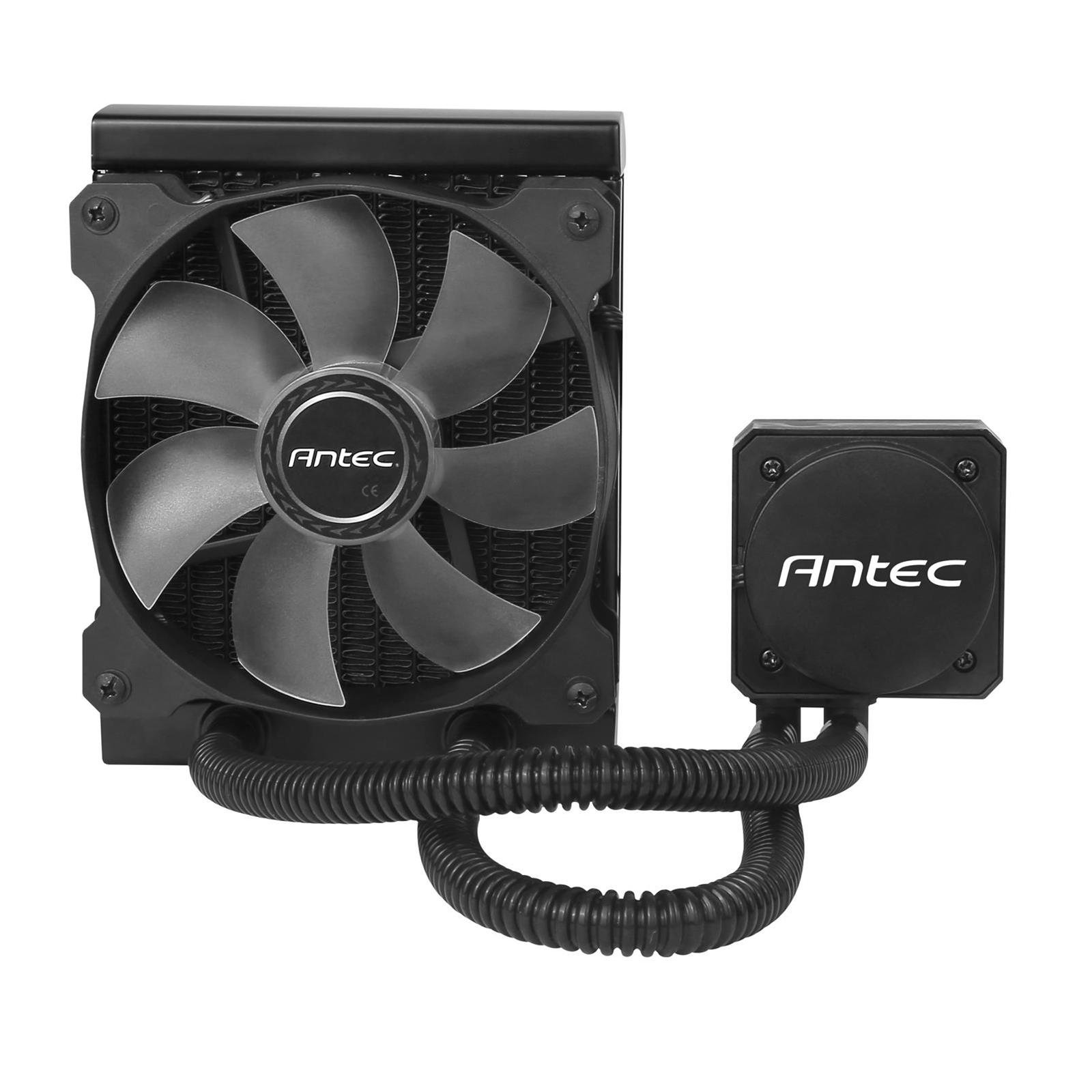
Image showing the Antec Kuhler H600PRO liquid cooler, featuring the radiator, tubing, and the 120mm fan with blue LED illumination.
Operating Instructions
- Initial Power-On: Upon first power-on, the pump and fan will activate. The pump features an LED status indicator that illuminates during operation.
- Fan Speed Control: The 120mm PWM fan's speed is automatically controlled by your motherboard based on CPU temperature. You can typically adjust fan curves in your motherboard's BIOS/UEFI settings for optimal balance between cooling performance and noise levels.
- Noise Levels: The fan operates quietly, with a noise level range of 16-35 dBA (Max), depending on its speed.
- Temperature Monitoring: Monitor your CPU temperatures using system monitoring software to ensure proper cooling performance.
Maintenance
Regular maintenance helps ensure optimal performance and longevity of your liquid cooler.
- Radiator Cleaning: Periodically inspect the radiator fins for dust buildup. Use compressed air to gently clear dust from the fins, ensuring optimal airflow. Perform this every 3-6 months, or more frequently in dusty environments.
- Tube Inspection: While the FEP tubes are designed for durability, occasionally inspect them for any signs of kinks, leaks, or damage.
- General System Cleanliness: Maintain overall cleanliness of your PC case to prevent dust accumulation on components, which can impact cooling efficiency.
Troubleshooting
If you encounter issues with your Antec Kuhler H600PRO, refer to the following common problems and solutions:
High CPU Temperatures
- Check Thermal Paste: Ensure thermal paste was applied correctly and evenly. Reapply if necessary.
- Verify Mounting: Confirm the CPU block is securely mounted and making full contact with the CPU.
- Fan/Pump Operation: Check if the fan is spinning and the pump is operating (listen for a faint hum or check the LED indicator). Ensure all power cables are properly connected.
- Radiator Airflow: Ensure the radiator is not obstructed by dust or cables and that the fan is oriented correctly for airflow.
Excessive Noise
- Fan Noise: Check for any cables or obstructions hitting the fan blades. Adjust fan speed curves in BIOS/UEFI if the fan is running at unnecessarily high RPMs.
- Pump Noise: A slight hum from the pump is normal. If you hear unusual grinding or gurgling noises, ensure the cooler is properly oriented and there are no air bubbles trapped in the pump. Gently tilt the PC case to help dislodge air bubbles.
LED Not Illuminating
- Power Connection: Verify the pump's power cable is securely connected to the motherboard header.
- Motherboard Settings: Check motherboard BIOS/UEFI settings for any LED control options.
Specifications
| Feature | Detail |
|---|---|
| Model Number | H600PRO |
| Power Connector Type | 3-Pin |
| Cooling Method | Liquid |
| Compatible Devices | Desktop |
| Noise Level | 16-35 dBA (Max) |
| Material | Copper (Cold Plate) |
| Maximum Rotational Speed (Fan) | 2400 RPM |
| Radiator Dimensions (LxWxH) | 155 mm x 120 mm x 27 mm |
| Fan Size | 120 mm x 120 mm x 25 mm |
| Cold Plate Height | 35mm |
| Tube Lengths | 315mm |
| Cooling Liquid | Safe, environmentally friendly, anti-corrosive, RoHS-compliant |
| Net Weight (Cooler/Radiator) | 0.63 kg |
| Airflow | 78.9 CFM (Max) |
| Static Pressure | 2.19 mmH2O (Max) |
| Power Draw | 3.6W |
| UPC | 761345109017 |
Warranty and Support
Warranty: The Antec Kuhler H600PRO H2O Liquid Cooler is covered by a one-year national warranty. Please retain your proof of purchase for warranty claims.
Technical Support: For further assistance, technical support, or warranty inquiries, please visit the official Antec website or contact their customer service department. You can find contact information on the Antec website: www.antec.com/support


