
1. Introduction
This manual provides instructions for the installation, configuration, and operation of the D-Link DGS-1210-10P 10-Port Gigabit Smart Managed PoE+ Switch. The DGS-1210-10P is designed to offer functionality, security, and manageability for small to medium businesses, supporting Power over Ethernet (PoE+) and advanced Layer 2 features.
2. Package Contents
Verify that your package contains the following items:
- D-Link DGS-1210-10P Switch
- Power Adapter
- Power Cord
- 8 Screws
- 4 Rubber Feet
- 2 Rackmount Brackets
- Quick Installation Guide
- Resource CD
If any items are missing or damaged, please contact your local D-Link reseller for assistance.
3. Product Overview
3.1 Front Panel
The front panel of the DGS-1210-10P features 8 Gigabit PoE+ ports and 2 Gigabit SFP optical ports, along with LED indicators for power, link/activity, and PoE status.

Figure 1: Front Panel of DGS-1210-10P Switch
3.2 Rear Panel
The rear panel includes the power input connector and a grounding screw.
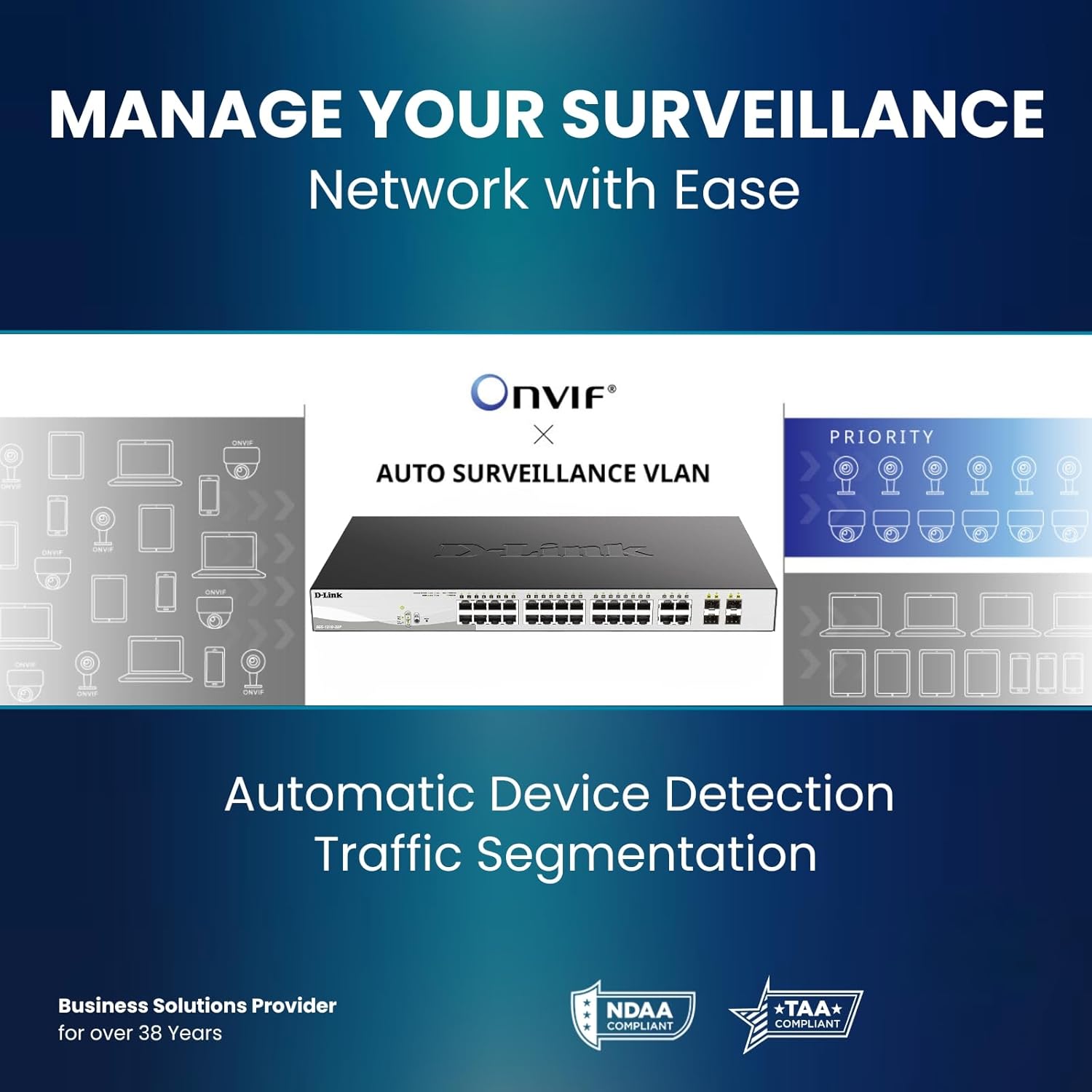
Figure 2: Rear Panel of DGS-1210-10P Switch
4. Setup
Follow these steps to set up your DGS-1210-10P switch:
- Physical Placement: Place the switch on a flat surface or mount it in a standard 19-inch equipment rack using the provided rackmount brackets. Ensure adequate ventilation around the switch.
- Power Connection: Connect the power adapter to the switch's power input and then plug the power cord into a suitable power outlet.
- Network Connection: Connect your network devices (e.g., computers, servers, routers) to the RJ45 Gigabit ports using standard Ethernet cables. For devices requiring power, connect them to the PoE+ enabled ports.
- Uplink Connection: Use the SFP ports for high-speed uplinks to other switches or network devices, typically with fiber optic transceivers (not included).
- Initial Configuration: The switch can be managed via a web-based interface. Refer to the Quick Installation Guide for initial IP address and login details to access the management interface.

Figure 3: Benefit of PoE for simplified cabling
5. Operating Instructions
The DGS-1210-10P operates as a plug-and-play device for basic network connectivity. For advanced features and management, use the web-based interface.
5.1 Power over Ethernet (PoE+)
The 8 PoE+ ports deliver up to 30W per port, with a total power budget of 65W, to compatible devices such as IP cameras, wireless access points, and VoIP phones. This eliminates the need for separate power cables for these devices.

Figure 4: PoE+ Flexibility
5.2 Smart Managed Features
The switch offers a range of Layer 2+ features accessible through its web interface:
- VLANs: Segment your network for improved security and performance.
- Quality of Service (QoS): Prioritize network traffic for critical applications.
- Link Aggregation: Combine multiple ports for increased bandwidth and redundancy.
- Spanning Tree Protocol (STP): Prevent network loops.
- IGMP Snooping: Optimize multicast traffic for applications like IP TV.
- Static Routing: Enable basic inter-VLAN routing.

Figure 5: Advanced Traffic Handling and Security
5.3 Surveillance Mode
The dedicated Surveillance Mode simplifies the deployment and management of IP surveillance networks. It automatically detects ONVIF-compliant devices and optimizes video traffic.

Figure 6: Surveillance Mode Interface
5.4 PD Alive
The PD Alive feature automatically reboots unresponsive PoE devices, minimizing downtime and ensuring continuous network availability without manual intervention.
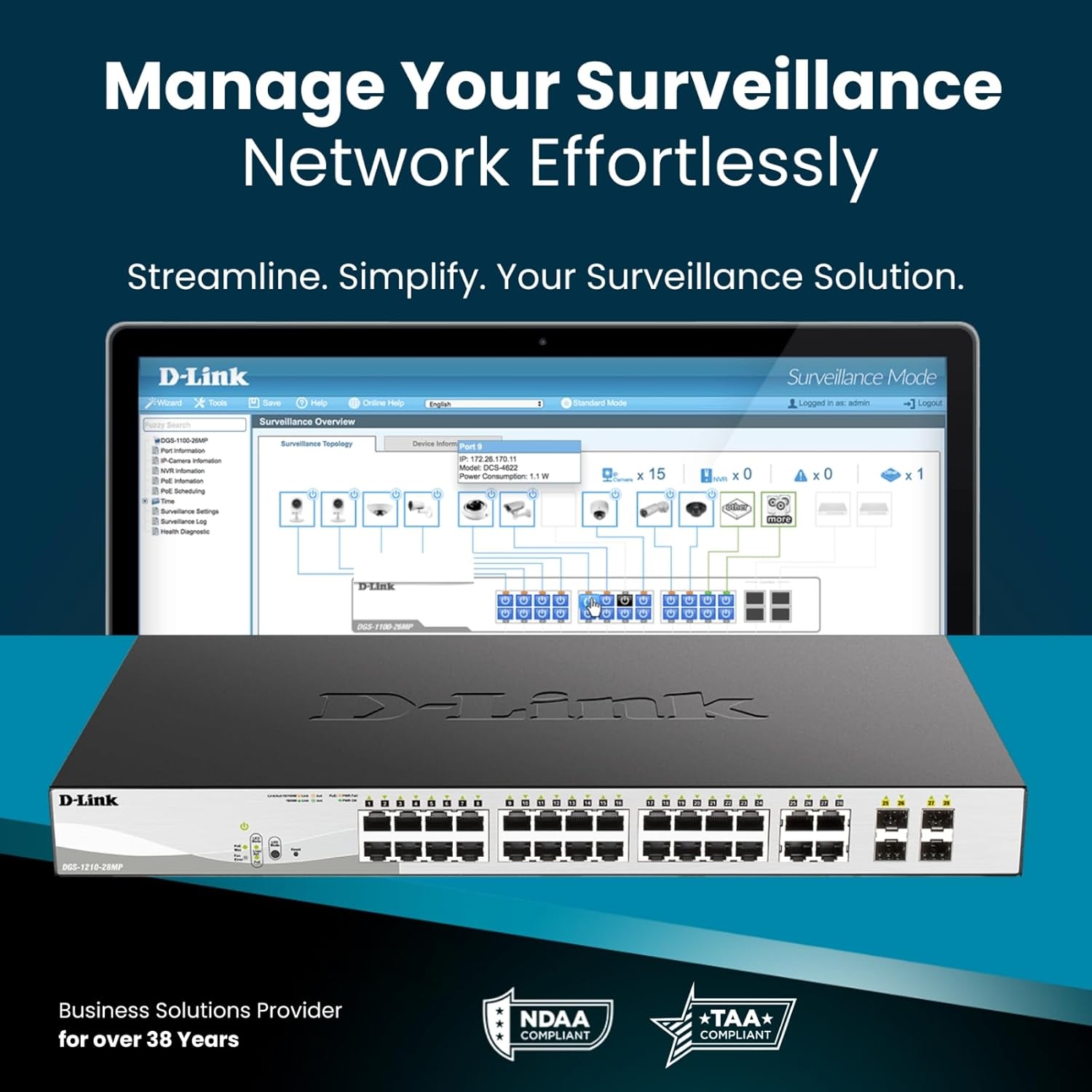
Figure 7: PD Alive Functionality
6. Maintenance
To ensure optimal performance and longevity of your DGS-1210-10P switch, consider the following maintenance practices:
- Firmware Updates: Regularly check the D-Link support website for the latest firmware versions. Updating the firmware can provide new features, performance improvements, and security patches.
- Physical Cleaning: Keep the switch free from dust and debris. Use a soft, dry cloth for cleaning. Ensure ventilation openings are clear.
- Environmental Conditions: Operate the switch within the recommended temperature and humidity ranges specified in the product specifications. Avoid exposing the device to direct sunlight or excessive heat.
- Cable Management: Ensure all network cables are properly organized and secured to prevent accidental disconnections or damage.
7. Troubleshooting
If you encounter issues with your DGS-1210-10P switch, refer to the following common troubleshooting steps:
- No Power: Ensure the power cord is securely connected to both the switch and the power outlet. Verify the power outlet is functional. Check the power LED on the front panel.
- No Link/Activity: Check the Ethernet cable connections between the switch and the connected device. Ensure the connected device is powered on and functioning correctly. Verify the link/activity LED for the respective port.
- PoE Device Not Powering On: Confirm the connected device is PoE compatible and within the switch's power budget (65W total, 30W per port). Check the PoE status LED for the port. If PD Alive is enabled, the switch may attempt to reboot the device.
- Cannot Access Web Interface: Verify that your computer's IP address is in the same subnet as the switch's management IP address. Ensure there are no IP address conflicts on the network. Try resetting the switch to factory defaults (refer to the Quick Installation Guide for the reset procedure).
- Slow Network Performance: Check for excessive network traffic or loops. Utilize the switch's management interface to monitor port statistics, bandwidth usage, and enable features like QoS if necessary.
For more detailed troubleshooting, consult the full product manual available on the D-Link support website.
8. Specifications
| Feature | Specification |
|---|---|
| Model Number | DGS-1210-10P |
| Number of Ports | 10 (8 PoE+ Gigabit, 2 SFP Gigabit) |
| PoE+ Ports | 8 |
| Max PoE Power per Port | 30W |
| Total PoE Power Budget | 65W |
| Interface Type | PoE, SFP |
| Data Transfer Rate | 2000 Megabits Per Second (Full Duplex) |
| Case Material | Metal |
| Dimensions (L x W x H) | 11.2 x 5 x 1.73 inches |
| Item Weight | 3.1 pounds |
| Voltage | 2.4 Volts (Internal operating voltage, not input) |
| Current Rating | 1 Amps |
| Management | Web-based GUI, Nuclias Connect (optional) |
| Compliance | NDAA Compliant, IEEE 802.3az Energy Efficient Ethernet (EEE) |
9. Warranty Information
The D-Link DGS-1210-10P Smart Managed PoE+ Switch is backed by D-Link's Limited Lifetime Warranty. This warranty provides long-term confidence in the quality and reliability of your network infrastructure. For specific terms and conditions of the warranty, please refer to the warranty documentation included with your product or visit the official D-Link website.
10. Support
For technical support, product documentation, and software updates, please visit the official D-Link support website. You can find FAQs, troubleshooting guides, and contact information for customer service.
D-Link Support Website: www.dlink.com/support
11. Product Video Overview
Watch this video for a general overview of D-Link switch solutions, which includes information relevant to this product model.
Video: D-Link Switch Solutions for Home, Gaming, SOHO, and SMB. This video provides an overview of D-Link's range of switches and their applications, including how they can expand network connectivity for various devices.


