
1. Product Overview
The Cisco Catalyst 2960S-48LPS-L Ethernet Switch is a Layer 2 edge device designed to enhance network operations through improved ease of use, robust security, and sustainability. This model features 48 Power over Ethernet Plus (PoE+) ports, offering fast Ethernet access connectivity and PoE capabilities for various network devices. It also supports Cisco FlexStack switch stacking for scalable network solutions.
Key features include:
- 48 x POE+ ports for power and data transmission.
- 5 x Expansion Slots for flexible connectivity options.
- 10/100/1000Base-T Ethernet for high-speed data transfer.
- Manageable switch for comprehensive network control.
- Cisco FlexStack capability for simplified stacking and management.

Figure 1: Front view of the Cisco Catalyst WS-C2960S-48LPS-L Ethernet Switch.
2. Safety Information
Please read and understand all safety instructions before installing or operating this equipment. Failure to follow these instructions could result in injury or damage to the product.
- Electrical Safety: Connect the switch only to a grounded power outlet. Do not operate the switch with a damaged power cord.
- Environmental Conditions: Ensure the operating environment is within the specified temperature (up to 40°C) and humidity ranges. Avoid exposure to direct sunlight, heat sources, or excessive moisture.
- Handling: The switch weighs approximately 16.15 pounds (7.34 kg). Use proper lifting techniques to prevent injury.
- Ventilation: Ensure adequate airflow around the switch to prevent overheating. Do not block ventilation openings.
- Servicing: Refer all servicing to qualified service personnel. Do not attempt to open or repair the switch yourself.
3. Installation and Setup
3.1 Unpacking and Inspection
Carefully unpack the switch and inspect it for any damage during shipping. Report any damage to your vendor immediately.
3.2 Site Preparation
Before installation, ensure the installation site meets the environmental requirements. The switch dimensions are approximately 17.5 x 15.2 x 1.75 inches (44.45 x 38.61 x 4.45 cm) or 17.5"L x 17.5"W x 2.9"H (44.45 x 44.45 x 7.37 cm) depending on specific mounting. Allow sufficient space for cabling and ventilation.
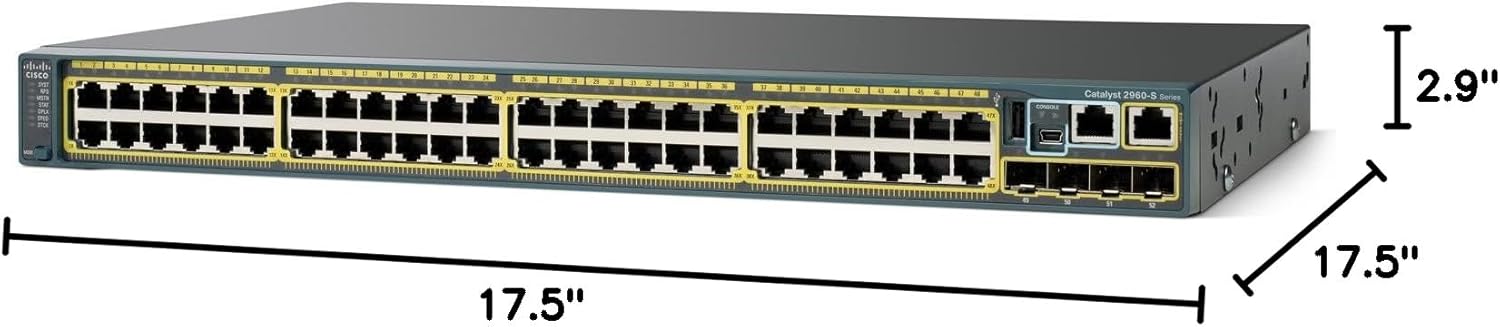
Figure 2: Cisco Catalyst WS-C2960S-48LPS-L switch with approximate dimensions.
3.3 Mounting the Switch
The switch can be mounted in a standard 19-inch equipment rack. Use the provided rack-mount brackets and screws to secure the switch. Ensure the switch is level and securely fastened.
3.4 Connecting Power
- Connect the power cord to the AC power connector on the rear panel of the switch.
- Plug the other end of the power cord into a grounded AC power outlet.
- Verify that the system LED on the front panel illuminates, indicating power is supplied.
3.5 Connecting Network Devices
Connect network devices (computers, IP phones, wireless access points) to the 48 10/100/1000Base-T Ethernet ports using standard Ethernet cables. For devices requiring power, connect them to the PoE+ enabled ports. Use SFP modules in the expansion slots for fiber optic or other uplink connections.

Figure 3: Detailed view of the Ethernet and SFP ports on the switch.
3.6 Initial Configuration Access
For initial configuration, connect a console cable from your management workstation to the console port on the switch. Use a terminal emulation program (e.g., PuTTY, Tera Term) with appropriate settings (typically 9600 baud, 8 data bits, no parity, 1 stop bit, no flow control) to access the command-line interface (CLI).
4. Operation
4.1 Power On/Off
Once connected to a power source, the switch will automatically power on. There is no physical power button. To power off, disconnect the power cord. For proper shutdown, it is recommended to save configurations before disconnecting power.
4.2 LED Indicators
The front panel of the switch features various LEDs to indicate system status and port activity:
- System LED: Indicates overall system health (e.g., green for normal operation, amber for issues).
- RPS LED: Indicates the status of the Redundant Power System (if installed).
- Stack LED: Indicates the status of the FlexStack connection.
- Port Status LEDs: Each Ethernet port has an LED to indicate link status (on/off) and activity (blinking). Green typically indicates a 1000 Mbps link, amber for 10/100 Mbps.
- PoE LED: Indicates Power over Ethernet status for the respective port.
4.3 Power over Ethernet Plus (PoE+)
The switch supports PoE+ (802.3at) on all 48 Ethernet ports, providing up to 30W of power per port to compatible devices such as IP phones, wireless access points, and surveillance cameras. Ensure connected devices are PoE+ compliant for optimal performance.
4.4 Cisco FlexStack
The Cisco Catalyst 2960S-48LPS-L supports FlexStack technology, allowing multiple switches to be stacked together to operate as a single logical unit. This simplifies management and increases network scalability. Refer to the Cisco documentation for detailed FlexStack configuration and cabling instructions.

Figure 4: Example of multiple Cisco Catalyst switches configured in a stack.
5. Maintenance
5.1 Cleaning the Switch
Periodically clean the exterior of the switch with a soft, dry, lint-free cloth. Do not use liquid or aerosol cleaners, as they may contain flammable substances or cause electrical shock. Ensure ventilation openings are free from dust and debris.
5.2 Firmware Updates
Regularly check the Cisco website for the latest firmware updates. Keeping the switch firmware up-to-date ensures optimal performance, security, and access to new features. Follow the instructions provided by Cisco for the update process.
5.3 Environmental Monitoring
Monitor the operating environment to ensure it remains within the specified temperature and humidity ranges. Excessive heat can reduce the lifespan of the device. The upper temperature rating is 40 degrees Celsius.
6. Troubleshooting
This section provides solutions to common issues you might encounter with your Cisco Catalyst switch.
6.1 No Power
- Verify the power cord is securely connected to both the switch and a working power outlet.
- Check the power outlet with another device to ensure it is functional.
- Inspect the power cord for any damage.
- Ensure the system LED on the front panel is illuminated.
6.2 No Link on a Port
- Ensure the Ethernet cable is securely connected to both the switch port and the network device.
- Check the cable for damage and try a different cable.
- Verify the network device is powered on and functioning correctly.
- Check the port status LED on the switch; if it's off, there's no link.
- Confirm that the port is not administratively shut down in the switch configuration.
6.3 Connectivity Issues
- Verify IP addressing and subnet mask configurations on connected devices and the switch.
- Check for duplicate IP addresses on the network.
- Ensure VLAN configurations are correct if your network uses them.
- Test connectivity using ping or traceroute commands from the switch CLI.
6.4 PoE+ Device Not Receiving Power
- Ensure the connected device is PoE+ compliant.
- Check the PoE LED for the specific port; if it's off or amber, there might be an issue.
- Verify that the switch has sufficient power budget to supply all connected PoE+ devices.
- Confirm that PoE is enabled on the port in the switch configuration.
7. Technical Specifications
| Feature | Specification |
|---|---|
| Model Number | WS-C2960S-48LPS-L |
| Brand | Cisco |
| Number of Ports | 48 x 10/100/1000Base-T Ethernet, 5 x Expansion Slots (SFP) |
| Interface Type | PoE+, SFP |
| Data Transfer Rate | 1000 Megabits Per Second (Gigabit Ethernet) |
| Power over Ethernet | PoE+ (IEEE 802.3at) on all 48 ports |
| Product Dimensions | 17.5 x 15.2 x 1.75 inches (44.45 x 38.61 x 4.45 cm) / 17.5"L x 17.5"W x 2.9"H (44.45 x 44.45 x 7.37 cm) |
| Item Weight | 16.15 pounds (7.34 Kilograms) |
| Upper Temperature Rating | 40 Degrees Celsius |
| Manufacturer | CISCO |
| UPC | 809185812183, 809385663752, 882658337451, 737069083629, 700253864892, 803982784254, 088021468511, 807030493242, 014445022268, 809186268798 |
8. Warranty and Support
8.1 Manufacturer's Warranty
This Cisco product is covered by a manufacturer's warranty. For specific terms and conditions, including warranty period and coverage details, please refer to the official Cisco warranty documentation that accompanied your purchase or visit the official Cisco website.
8.2 Technical Support
For technical assistance, troubleshooting, or further information regarding your Cisco Catalyst WS-C2960S-48LPS-L switch, please contact Cisco Technical Support. You can find contact information and support resources on the official Cisco website: www.cisco.com/support.


