
1. Introduction
This manual provides essential information for the safe and efficient use of your Philips 52PFL8605K/02 52-inch LED TV. Please read these instructions carefully before operating the device and retain them for future reference.
2. Safety Information
Always observe the following safety precautions to prevent electric shock, fire, or injury:
- Do not expose the TV to rain or moisture.
- Do not open the TV cabinet. Refer all servicing to qualified personnel.
- Ensure proper ventilation around the TV. Do not block ventilation openings.
- Protect the power cord from being walked on or pinched.
- Unplug the TV during lightning storms or when unused for long periods.
3. Setup
3.1 Unpacking
Carefully remove the TV and all accessories from the packaging. Keep packaging materials for future transport or storage.
3.2 Stand Installation / Wall Mounting
If using the included stand, attach it securely to the TV following the instructions provided in the separate quick start guide. Ensure all screws are tightened. If wall mounting, use a VESA-compatible wall mount kit (sold separately) and follow the wall mount manufacturer's instructions. Always ensure the wall can support the TV's weight.

Image: The Philips 52PFL8605K/02 TV securely placed on its elegant stand.
3.3 Connecting Cables
- Power: Connect the power cord to the TV and then to a wall outlet.
- Antenna/Cable: Connect your antenna or cable TV signal to the 'ANTENNA IN' port.
- HDMI Devices: Connect Blu-ray players, game consoles, or other HDMI devices to the HDMI ports.
- Other Devices: Use component, composite, or PC inputs as needed.
3.4 Initial Setup Wizard
Upon first power-on, the TV will guide you through an initial setup process. This includes language selection, country, channel scanning, and network connection (if applicable).
4. Operating the TV
4.1 Remote Control Overview
The remote control allows you to access all TV functions. Familiarize yourself with the button layout.
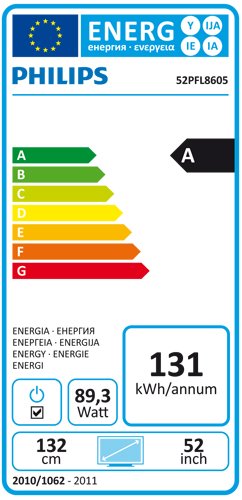
Image: The Philips TV remote control, featuring power, navigation, channel, volume, and numeric buttons.
4.2 Basic Functions
- Power: Press the Power button to turn the TV on or off.
- Volume: Use the Volume +/- buttons to adjust the sound level.
- Channel: Use the Channel +/- buttons to change channels.
- Source: Press the Source button to select input sources (HDMI, AV, etc.).
4.3 Menu Navigation
Press the Home button on the remote to access the main menu. Use the arrow keys to navigate and OK to confirm selections. Press Back or Exit to return to the previous screen or exit the menu.
4.4 Picture and Sound Settings
Within the main menu, navigate to 'Picture' and 'Sound' settings to customize your viewing experience. Adjust brightness, contrast, color, sharpness, and sound modes to your preference.
4.5 Ambilight Feature
Your Philips TV features Ambilight, which projects light from the sides of the TV onto the surrounding wall, matching the colors of the on-screen content. This enhances the viewing experience. Ambilight settings can be adjusted in the TV menu to change mode, brightness, and color intensity.
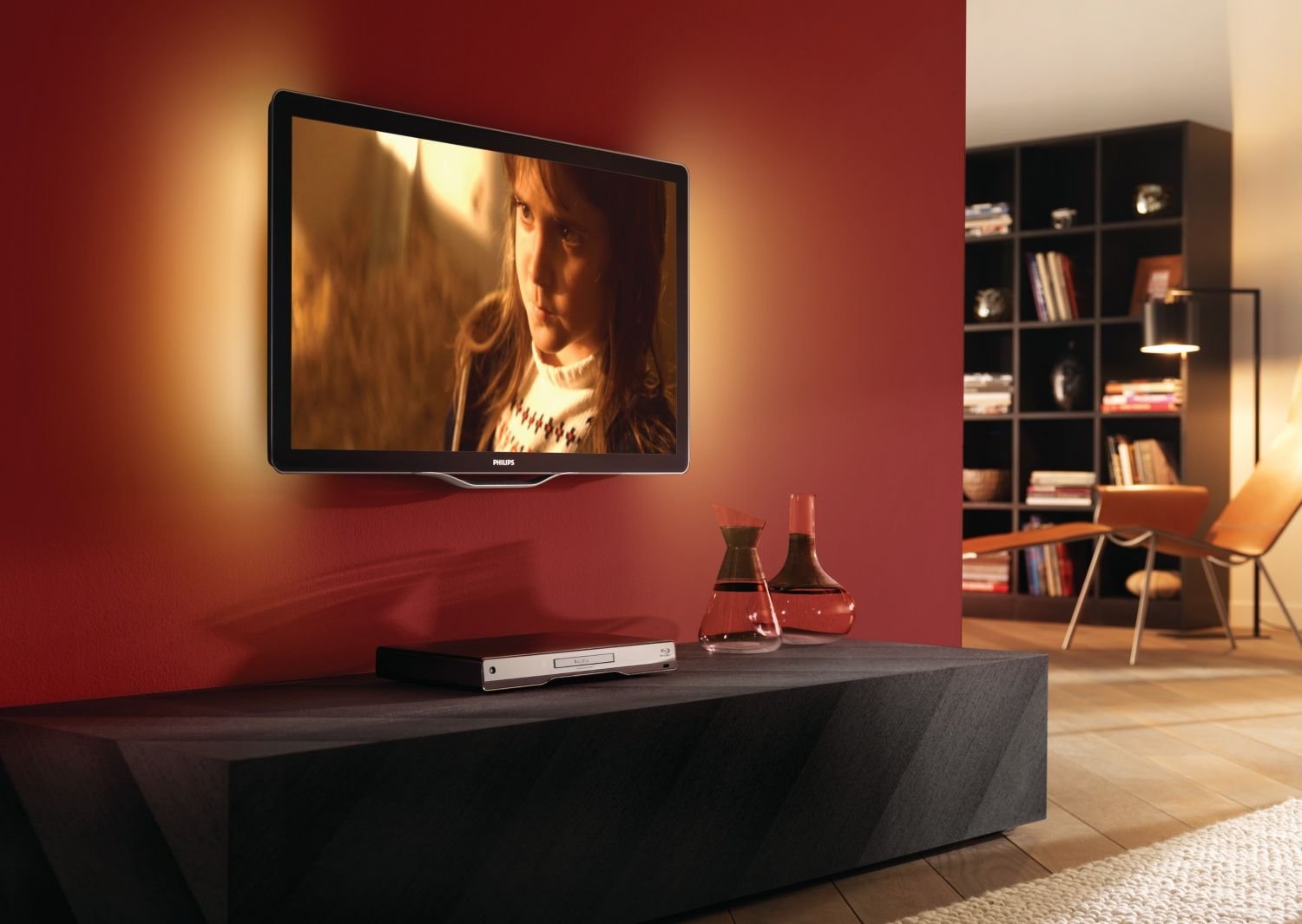
Image: The Philips TV displaying content with its Ambilight feature illuminating the wall behind it.
4.6 3D Functionality
This TV supports 3D viewing. To experience 3D content, you will need compatible 3D glasses and a 3D source. Refer to the 3D glasses manual for specific usage instructions.
5. Maintenance
5.1 Cleaning the TV
- Screen: Gently wipe the screen with a soft, lint-free cloth. For stubborn marks, use a screen cleaner specifically designed for TVs, applied to the cloth, not directly to the screen.
- Cabinet: Wipe the cabinet with a soft, dry cloth. Do not use abrasive cleaners or solvents.
Always unplug the TV before cleaning.
5.2 Software Updates
Periodically check the Philips support website for available software updates for your TV model. Updates can improve performance and add new features. Follow the instructions provided with the update carefully.
6. Troubleshooting
If you encounter issues with your TV, consult the following common problems and solutions:
| Problem | Possible Solution |
|---|---|
| No power | Check if the power cord is securely connected to the TV and the wall outlet. Ensure the outlet is functional. |
| No picture, but sound is present | Check the input source. Ensure external devices are powered on and connected correctly. Try a different HDMI cable. |
| No sound, but picture is present | Check the volume level and mute status. Ensure audio cables are connected correctly. Check sound settings in the menu. |
| Remote control not working | Replace the batteries. Ensure there are no obstructions between the remote and the TV's IR sensor. |
| Image appears blurry or with 'streaks' | This can sometimes be a characteristic of certain LCD panels. Ensure the picture settings are optimized. If persistent, contact customer support. |
If the problem persists after trying these solutions, please contact Philips customer support.
7. Specifications
- Model: 52PFL8605K/02
- Screen Size: 52 inches (132 cm)
- Display Type: LED LCD
- Dimensions (W x D x H): 124.51 x 5.11 x 75.69 cm (without stand)
- Weight: 33 Kilograms (without stand)
- ASIN: B003EA7UVK
7.1 Energy Label
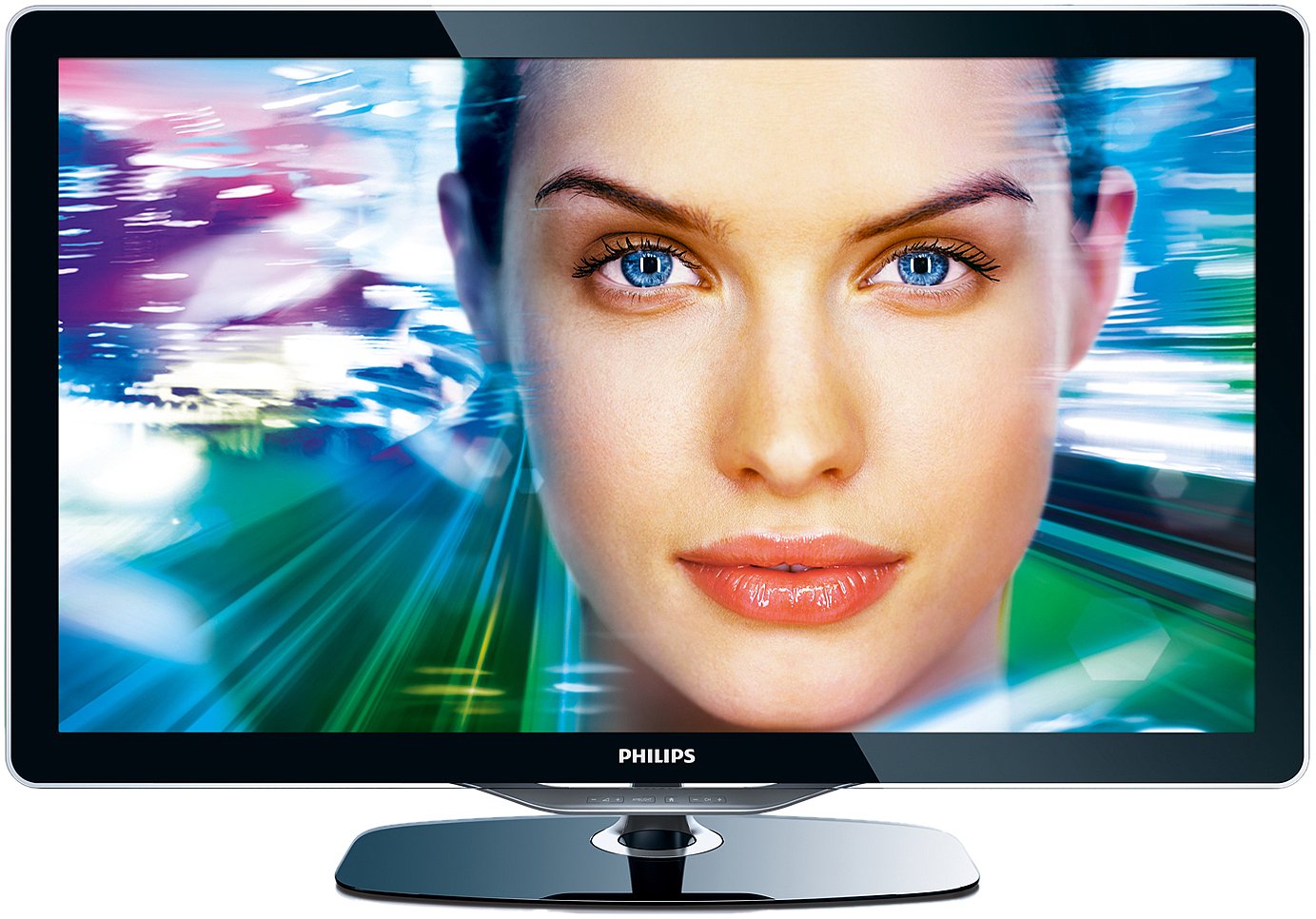
Image: The energy efficiency label for the Philips 52PFL8605K/02 TV, indicating an 'A' rating and annual energy consumption.
8. Warranty and Support
Your Philips TV comes with a limited warranty. Please refer to the warranty card included with your product for details on coverage and duration. For technical support, service, or to find authorized service centers, please visit the official Philips support website or contact their customer service hotline.


