
Introduction
Thank you for purchasing the GPX DH300B 1080p Upconversion DVD Player with HDMI. This device is designed to enhance your viewing experience by upconverting standard definition DVDs to near high-definition resolutions (720p, 1080i, or 1080p) for compatible HDTVs. It supports a variety of disc formats, including DVD, DVD+/-R/RW, CD, CD-R/RW, and JPEG CDs, and features multiple audio and video output options for versatile connectivity.
Package Contents
Please ensure all items listed below are included in your package:
- GPX DH300B DVD Player with built-in AC power cable
- Full-function Remote Control (requires 2 AAA batteries - not included)
- RCA Audio/Video Cable
- User's Guide (this document)
- Warranty Card
Product Overview
Front Panel Controls
The front panel of your GPX DH300B DVD Player provides essential controls for basic operation:

Figure 1: Front view of the GPX DH300B DVD Player, showing the disc tray, control buttons, and USB port.
- Disc Tray: Insert DVDs or CDs here.
- Open/Close Button: Opens and closes the disc tray.
- Play/Pause Button: Starts or pauses disc playback.
- Stop Button: Stops disc playback.
- Power Button: Turns the unit on or off.
- USB Port: For playing media from a USB flash drive.
Rear Panel Connections
The rear panel offers various ports for connecting the DVD player to your television or audio system:

Figure 2: Rear view of the GPX DH300B DVD Player, highlighting the HDMI, S-video, composite video, coaxial digital audio, and RCA stereo audio outputs.
- HDMI Output: For digital audio and video connection to an HDTV. Supports 720p, 1080i, 1080p upconversion.
- S-Video Output: For video connection to a TV.
- Composite Video Output (Yellow RCA): For standard definition video connection.
- Coaxial Digital Audio Output: For digital audio connection to a compatible audio receiver.
- RCA Stereo Audio Output (Red/White): For analog stereo audio connection.
Setup
1. Connecting to a Television
Choose the appropriate connection method based on your television's available inputs:
HDMI Connection (Recommended for HDTVs)
- Ensure both the DVD player and your TV are powered off.
- Connect one end of an HDMI cable (not included) to the HDMI OUT port on the back of the DVD player.
- Connect the other end of the HDMI cable to an HDMI IN port on your television.
- Power on your TV and select the corresponding HDMI input using your TV's remote control.
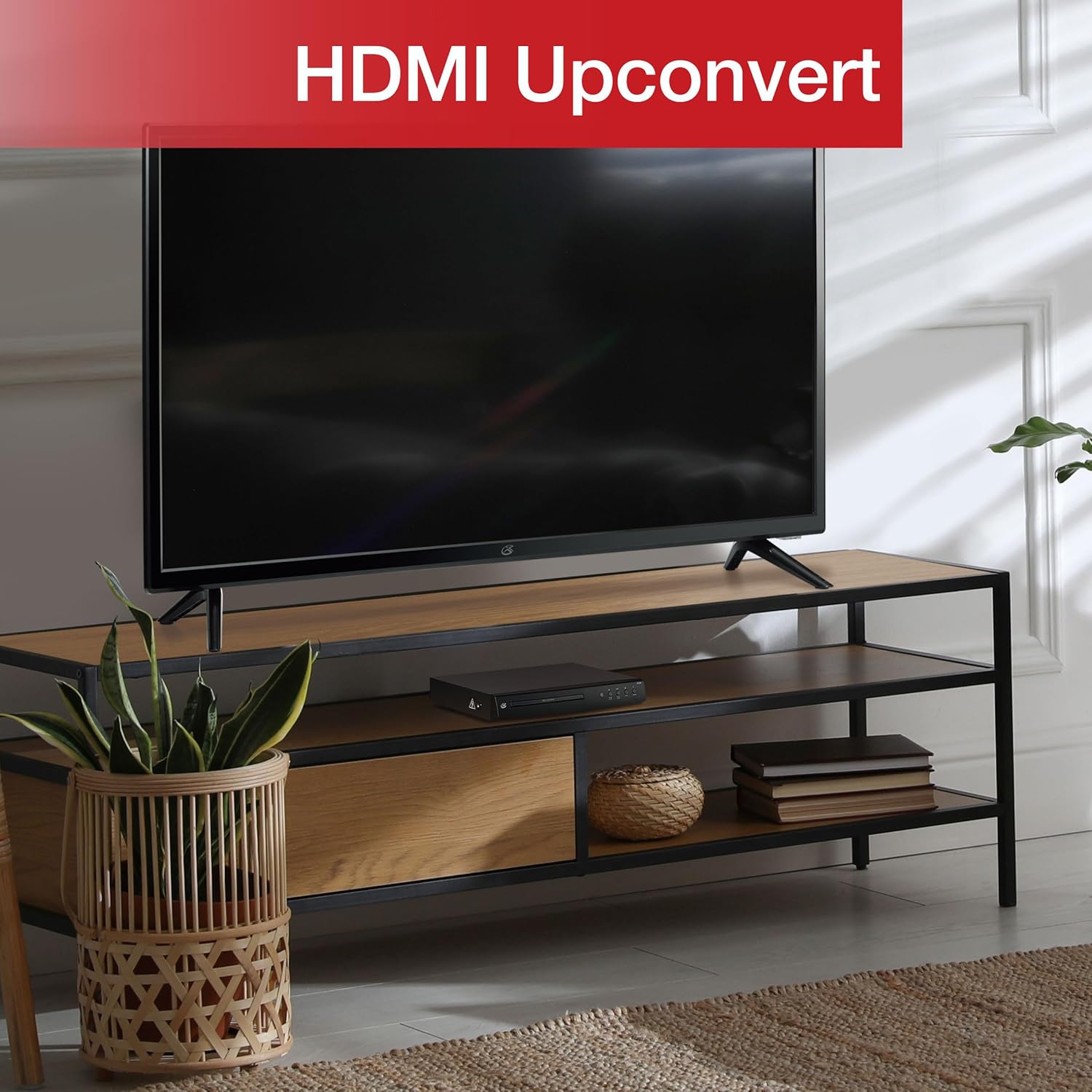
Figure 3: The GPX DH300B DVD Player connected to a television, demonstrating HDMI upconversion capabilities.
RCA Composite Video Connection
- Ensure both the DVD player and your TV are powered off.
- Connect the yellow plug of the RCA audio/video cable to the VIDEO OUT (yellow) port on the DVD player.
- Connect the red and white plugs of the RCA audio/video cable to the AUDIO OUT R (red) and AUDIO OUT L (white) ports on the DVD player.
- Connect the other ends of the RCA cables to the corresponding VIDEO IN and AUDIO IN (R/L) ports on your television.
- Power on your TV and select the corresponding AV input.
2. Power Connection
The DVD player has a built-in AC power cable. Plug this cable into a standard 120V AC wall outlet.
3. Remote Control Battery Installation
The remote control requires two AAA batteries (not included). Open the battery compartment on the back of the remote and insert the batteries, ensuring correct polarity (+/-).
Operating Instructions
1. Powering On/Off
Press the Power button on the front panel of the DVD player or on the remote control to turn the unit on or off.
2. Disc Playback
- Power on the DVD player and your television.
- Press the Open/Close button on the front panel or remote control to open the disc tray.
- Place a DVD or CD onto the disc tray with the label side facing up.
- Press the Open/Close button again to close the disc tray. The player will begin loading the disc.
- Playback should start automatically. If a menu appears, use the arrow buttons on the remote to navigate and the OK button to select.
- Use the Play/Pause and Stop buttons for playback control.

Figure 4: The GPX DH300B DVD Player, indicating its DVD playback capability.

Figure 5: The GPX DH300B DVD Player, indicating its CD playback capability.
3. USB Playback
The GPX DH300B supports media playback from a USB flash drive. Insert your USB drive into the USB port on the front panel. Use the remote control to navigate the on-screen menu and select your desired media files (e.g., JPEG images).
4. On-Screen Display (OSD) and Settings
The multi-language on-screen display allows you to adjust various video and audio settings. Press the SETUP button on the remote control to access the setup menu. Use the arrow buttons to navigate and OK to confirm selections.
5. Remote Control Functions
The included full-function remote control provides comprehensive control over the DVD player. Key functions include:

Figure 6: A user operating the GPX DH300B DVD Player with its remote control.
- Power On/Off
- Open/Close Disc Tray
- Play, Pause, Stop, Fast Forward, Rewind
- Chapter Skip (Next/Previous)
- Volume Control
- Setup Menu Access
- Navigation (Arrow buttons, OK)
- Subtitle, Audio, Angle selection
Maintenance
Cleaning the Unit
Wipe the exterior of the DVD player with a soft, dry cloth. Do not use liquid cleaners or abrasive materials, as they may damage the finish.
Cleaning Discs
Wipe discs from the center outwards with a soft, lint-free cloth. Avoid touching the playback surface of the disc. Do not use solvents such as benzene, thinners, or commercially available cleaners, as they may damage the disc.
Troubleshooting
| Problem | Possible Cause | Solution |
|---|---|---|
| No power | Power cable not connected; outlet not active. | Ensure power cable is securely plugged into a working outlet. |
| No picture | Video cable not connected; incorrect TV input selected. | Check video cable connections (HDMI or RCA). Select the correct input source on your TV. |
| No sound | Audio cable not connected; TV/receiver volume too low or muted. | Check audio cable connections (HDMI or RCA). Adjust volume on TV/receiver. Ensure not muted. |
| Disc not playing | Disc is dirty, scratched, or incompatible format. | Clean the disc. Try a different disc. Ensure the disc format is supported (DVD, CD, JPEG CD). |
| Remote control not working | Batteries are dead or incorrectly inserted; obstruction between remote and player. | Replace batteries, ensuring correct polarity. Remove any obstructions. Ensure remote is pointed at the player. |
Specifications
- Model: DH300B
- Supported Media: DVD, DVD+/-R/RW, CD, CD-R/RW, JPEG CD
- Video Output: HDMI (720p, 1080i, 1080p upconversion), S-Video, Composite Video
- Audio Output: Coaxial Digital Audio, RCA Stereo Audio (2-channel)
- Aspect Ratios: 16:9, 4:3LB, 4:3PS
- Special Features: Progressive Scan, Multi-language On-Screen Display
- Power Requirements: 120V AC
- Dimensions: Approximately 10.24 x 8.07 x 1.85 inches
- Weight: Approximately 2.38 pounds
Warranty and Support
For detailed warranty information and customer support, please refer to the warranty card included in your product packaging or visit the official GPX website. Keep your proof of purchase for any warranty claims.


