
TP-Link MC220L
TP-Link MC220L Gigabit SFP to RJ45 Fiber Media Converter
User Manual
Product Overview
The TP-Link MC220L is a media converter designed to facilitate the conversion between 1000BASE-SX/LX/LH fiber optic signals and 1000Base-T copper Ethernet signals. This device is compliant with IEEE802.3ab 1000Base-T and IEEE802.3z 1000Base-SX/LX/LH standards, supporting both multi-mode and single-mode fiber cables with SC/LC-Type connectors. It operates at 850nm for multi-mode fiber and 1310nm for single-mode fiber. The MC220L can function as a standalone unit or be integrated into TP-Link's 19-inch system chassis. Key features include Auto MDI/MDI-X for the TX port and front panel status LEDs for easy monitoring.

Image: The TP-Link MC220L Gigabit SFP to RJ45 Fiber Media Converter, showing its compact design and ports.

Image: A diagram illustrating the dimensions of the TP-Link MC220L media converter: 94.5mm length, 73mm width, and 27mm height.

Image: Detailed view of the TP-Link MC220L's high-speed Gigabit ports, including the Gigabit SFP Slot, Auto-Negotiation Gigabit RJ45 Port, LED Indicators, and the 9V/0.6A DC External Power Adapter input.
Key Features
- Fiber to Ethernet Conversion: Designed to convert 1000BASE-SX/LX fiber to 1000Base-T copper media or vice versa.
- Versatile Compatibility: Works with both single-mode and multi-mode fiber SFP modules and is fully compatible with 10/100/1000 Base-T Ethernet connections.
- Plug and Play: Easy to use with no software installation or configuration needed.
- Auto-Negotiation Gigabit Connection: Auto-negotiation RJ45 port supports Half-Duplex/Full-Duplex transfer mode and auto-MDI/MDIX.
- Long-Range Transmission: When used with different types of SFP modules, the Hot-Swappable FX Port extends fiber distance up to 12.4 miles (20km) for Single-Mode transmission and 1,800 feet (550m) for Multi-Mode transmission.
Package Contents
The following items are included in the product package:
- Media Converter MC220L
- Power Adapter
- Installation Guide
Setup Guide
Follow these steps to set up your TP-Link MC220L Media Converter:
- Connect Power: Plug the provided power adapter into the MC220L's power input port and then into a standard electrical outlet. The PWR LED indicator should illuminate.
- Insert SFP Module: Carefully insert a compatible Gigabit SFP module (purchased separately) into the SFP slot on the MC220L. Ensure it is fully seated.
- Connect Fiber Optic Cable: Connect your fiber optic cable to the SFP module.
- Connect Ethernet Cable: Connect one end of an Ethernet cable to the Gigabit Ethernet (RJ45) port on the MC220L and the other end to your network device (e.g., router, switch, or computer).
- Verify Connections: Check the LED indicators (FX Link/Act and TP Link/Act) to ensure proper link and activity.

Image: A visual representation of the MC220L converting fiber optic signals to Ethernet, showing connections to an SFP module, fiber optic cables, a router, and an Ethernet switch.
Operation
LED Indicators
The MC220L features several LED indicators to provide real-time status information:
- PWR (Power):
- On: Power is supplied to the device.
- Off: Device is not powered on.
- FX Link/Act (Fiber Link/Activity):
- On: A valid link is established for the FX (fiber) Port.
- Off: No valid link for the FX Port.
- Flashing: FX Port is actively transmitting or receiving data.
- TP Link/Act (Twisted Pair Link/Activity):
- On: A valid link is established for the TP (Ethernet) Port.
- Off: No valid link for the TP Port.
- Flashing: TP Port is actively transmitting or receiving data.

Image: A detailed view of the MC220L's LED indicators and their corresponding operational states.
SFP Module Compatibility
The MC220L is designed to be compatible with a wide range of SFP modules, supporting both single-mode and multi-mode fiber types. The maximum transmission distance and wavelength will vary depending on the specific SFP module and fiber type used. An SFP module is required for the operation of the MC220L and must be purchased separately.

Image: The MC220L shown with an SFP module inserted, emphasizing its broad compatibility with different SFP modules.
Typical Usage Scenarios
The MC220L can be deployed in various networking environments to extend network reach and convert media types:
- Surveillance: Connect IP cameras or other surveillance equipment over long distances using fiber optic cables.
- Point-to-Point Fiber Connection: Establish direct fiber links between two locations, converting to Ethernet at each end.
- Long-Range Transmission: Extend Gigabit Ethernet networks over significant distances using fiber, overcoming the limitations of copper cabling.
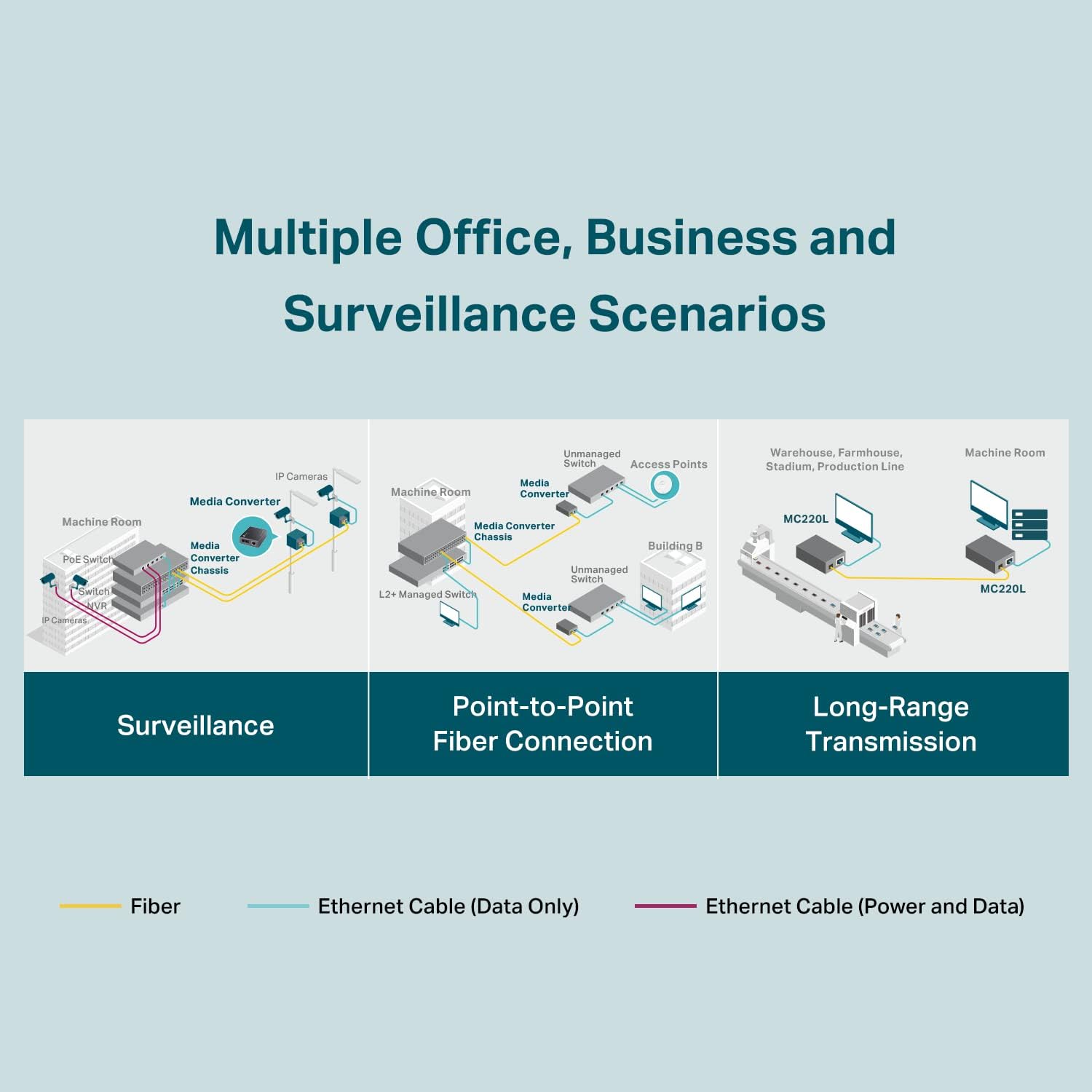
Image: Diagrams illustrating three common application scenarios for the MC220L: surveillance systems, point-to-point fiber connections, and long-range data transmission.
Maintenance
To ensure optimal performance and longevity of your TP-Link MC220L, consider the following maintenance tips:
- Keep the device in a well-ventilated area to prevent overheating.
- Avoid exposing the device to extreme temperatures, humidity, or direct sunlight.
- Clean the exterior of the device with a soft, dry cloth. Do not use liquid cleaners or aerosols.
- Ensure fiber optic connectors are clean and free of dust to maintain signal integrity. Use appropriate fiber cleaning tools if necessary.
- Periodically check all cable connections to ensure they are secure.
Troubleshooting
If you encounter issues with your MC220L, refer to the following common troubleshooting steps:
- No Power: Ensure the power adapter is securely connected to both the device and a working power outlet. Check if the PWR LED is on.
- No Link (Fiber): Verify that the SFP module is correctly inserted and that the fiber optic cable is properly connected and not damaged. Ensure the connected fiber device is powered on and functioning. Check the FX Link/Act LED.
- No Link (Ethernet): Confirm that the Ethernet cable is securely connected to both the MC220L and the network device. Check the network device's port status. Ensure the TP Link/Act LED is on.
- Slow Speed: Ensure both the SFP module and the Ethernet port are operating at Gigabit speeds. Check for cable quality and length limitations.
- Intermittent Connection: Check for loose cable connections, damaged cables, or interference. Try restarting both the MC220L and the connected network devices.
For more detailed troubleshooting or persistent issues, please refer to the official TP-Link support resources.
Specifications
| Attribute | Value |
|---|---|
| Model Number | MC220L |
| Product Dimensions | 3.72 x 2.87 x 1.06 inches (94.5 x 73 x 27 mm) |
| Item Weight | 0.16 ounces (4.54 g) |
| Hardware Interface | Ethernet |
| Color | Grey |
| Compatible Devices | Desktop, Laptop |
| Data Link Protocol | Ethernet |
| Data Transfer Rate | 1000 Megabits Per Second |
| Manufacturer | TP-Link |
| Date First Available | March 10, 2010 |
| UPC | 845973030476 |
Warranty Information
The TP-Link MC220L Gigabit SFP to RJ45 Fiber Media Converter comes with a 2-year warranty from the date of purchase. Please retain your proof of purchase for warranty claims. For detailed warranty terms and conditions, refer to the official TP-Link website or contact customer support.
Support
For further assistance, technical support, or to download the latest drivers and firmware, please visit the official TP-Link support website:
You may also find additional resources and FAQs on the product's Amazon page or by contacting TP-Link customer service directly.
Related documentsMC220L


Ask a question about this manual
Ask about setup, troubleshooting, compatibility, parts, safety, or missing instructions. Manuals+ will review the question and use this page’s manual context to help answer it.