Introduction
The LogiLink VG0005 is a versatile USB 2.0 video capture device designed to digitize analog audio and video signals from sources such as VHS, V8, and Hi8 camcorders. This device allows you to convert your old video tapes into digital formats on your computer, preserving your memories. It features a convenient Snap Shot button for easy start and stop of capture, and connects to your PC via a USB 2.0 A male interface, offering RCA Composite and S-Video input options for your analog devices.
Package Contents
- LogiLink VG0005 USB 2.0 Video Capture Device
- User Manual (this document)
- Installation CD (containing drivers and software)
System Requirements
- Available USB 2.0 port
- PC with a screen resolution of 1024 x 768 or higher
- Compatible operating system (e.g., Windows 7, Windows 10)
- Minimum 1GB RAM (recommended for video processing)
- Sufficient hard disk space for captured video files
Setup
- Connect the Video Capture Device: Plug the USB 2.0 A male connector of the LogiLink VG0005 into an available USB 2.0 port on your computer.
- Connect Analog Video Source:
- For RCA Composite: Connect the yellow (video), white (left audio), and red (right audio) RCA cables from your analog video source (e.g., VCR, camcorder) to the corresponding input ports on the LogiLink VG0005.
- For S-Video: Connect the S-Video cable from your analog video source to the S-Video input port on the LogiLink VG0005. If using S-Video, you will still need to connect the white and red RCA cables for audio.
- Install Drivers and Software: Insert the included installation CD into your computer's CD/DVD drive. Follow the on-screen instructions to install the necessary drivers and video capture software. If you encounter issues with the provided software or drivers, visit the official LogiLink website for updated versions.
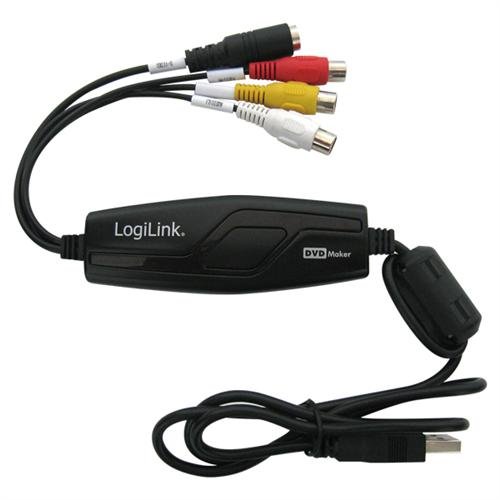
The LogiLink VG0005 device, featuring a USB connector on one end and RCA composite (yellow, white, red) and S-Video input ports on the other, designed for connecting analog video sources to a computer.
Operating
- Launch Capture Software: Open the video capture software installed from the CD or downloaded from the LogiLink website.
- Select Input Source: Within the software, select the correct video input source (RCA Composite or S-Video) and audio input source (usually 'USB Audio Device' or similar).
- Configure Capture Settings: Adjust video resolution, frame rate, and output format as needed. The device supports PAL (720 x 576 @ 25 fps) and NTSC (720 x 480 @ 30 fps) video inputs. Common output formats include MPEG-1, MPEG-2, and MPEG-4.
- Start Playback on Source Device: Begin playing the video on your analog source device (VCR, camcorder).
- Start Recording: Click the 'Record' button in the software or press the 'Snap Shot' button on the LogiLink VG0005 device to begin capturing the video.
- Stop Recording: Click the 'Stop' button in the software or press the 'Snap Shot' button again to end the recording.
- Save and Edit: Save your captured video file. You may use the provided software or other video editing applications to trim, enhance, or convert your video further.
Maintenance
- Cleaning: Use a soft, dry cloth to clean the device. Avoid liquid cleaners or abrasive materials.
- Storage: Store the device in a cool, dry place away from direct sunlight and extreme temperatures when not in use.
- Handling: Handle the device with care to prevent physical damage to the connectors or internal components.
Troubleshooting
- No Video Signal:
- Ensure all cables (USB, RCA/S-Video) are securely connected.
- Verify that the analog video source is powered on and playing correctly.
- Check the input source selection in your capture software.
- No Audio:
- Confirm the white and red RCA audio cables are correctly connected.
- Check the audio input device selection in your capture software (should typically be 'USB Audio Device').
- Ensure the volume on your computer and source device is not muted or too low.
- Software Not Working/Crashing:
- The included software may be outdated for newer operating systems. Try downloading the latest drivers and software from the LogiLink official website.
- Consider using alternative, compatible video capture software (e.g., OBS Studio, Cyberlink PowerDirector).
- Ensure your operating system is up to date.
- Poor Video Quality (Jitter, Brightness Issues):
- Analog-to-digital conversion can sometimes introduce minor artifacts. Ensure your source video quality is optimal.
- Check for loose connections.
- Experiment with different capture settings within the software.
- Device Not Recognized:
- Try plugging the device into a different USB port.
- Reinstall the drivers.
- Restart your computer.
Specifications
| Brand | LogiLink |
| Model Number | VG-0005 |
| Interface | USB 2.0 A Male |
| A/V Input Connectors | RCA Composite (Yellow, White, Red), S-Video |
| Supported Video Input Sources | VHS, V8, Hi8 |
| Video Input Formats | PAL (720 x 576 @ 25 fps), NTSC (720 x 480 @ 30 fps) |
| Recommended PC Screen Resolution | 1024 x 768 or higher |
| Dimensions | 18.6 x 17.4 x 4 cm |
| Weight | 181.44 g |
| Number of Ports | 1 (USB) |
Warranty and Support
For warranty information and technical support, please refer to the documentation included with your purchase or visit the official LogiLink website. Contact details for customer service are typically available on the manufacturer's website.


