
1. Product Overview
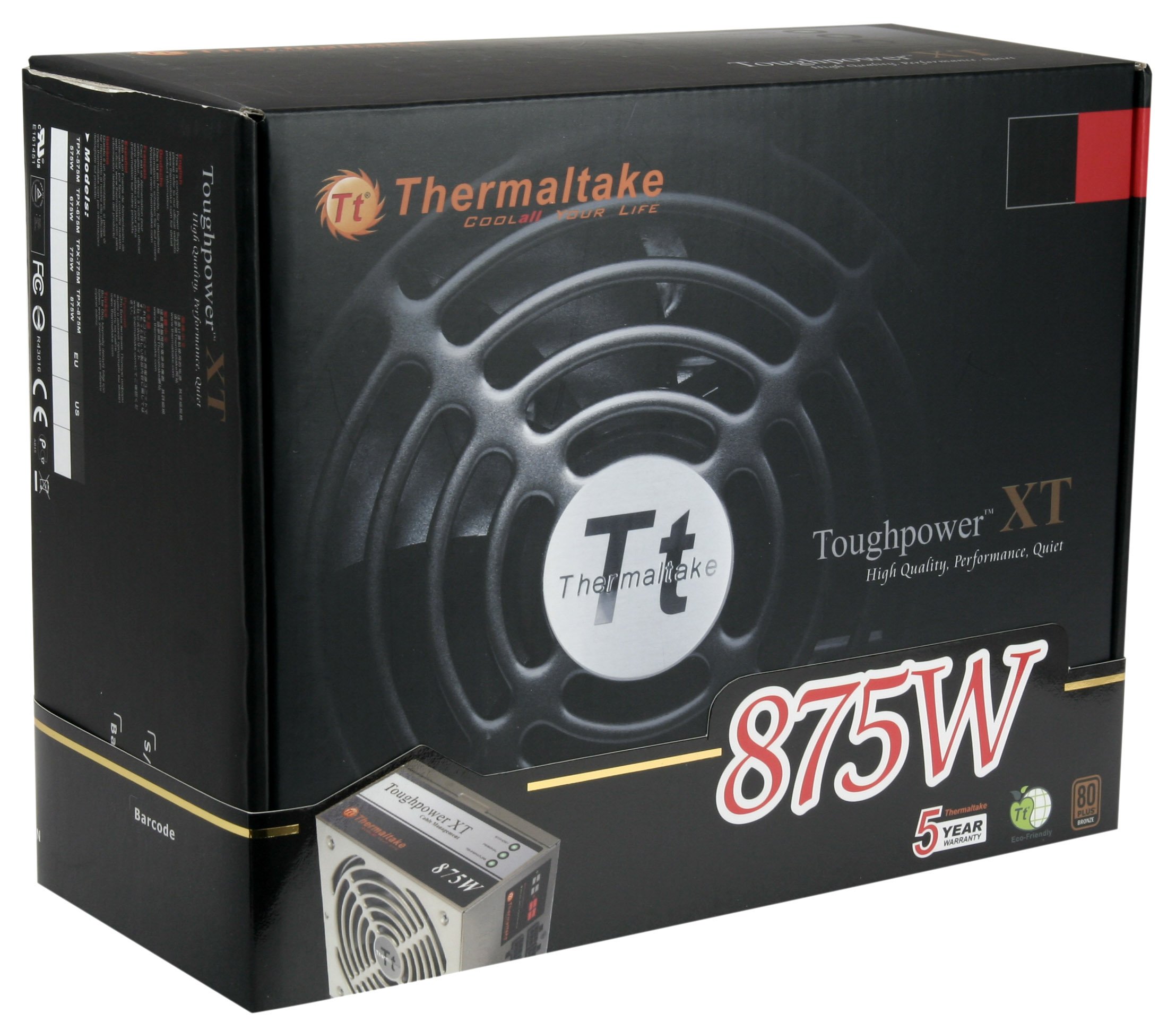
The Thermaltake Toughpower XT 875W is a high-performance power supply designed for reliable and efficient power delivery to personal computer systems. It features advanced double-forward and DC to DC converter designs, along with high-grade Japanese capacitors, ensuring stable operation and longevity. This power supply is built to operate continuously in environments up to 50 degrees Celsius.
Key Features:
- 24/7 Operation: Designed for continuous operation up to 50°C for maximum stability.
- High Efficiency: Advanced double-forward switching circuitry minimizes power loss.
- S.P.T. Indicator: Provides real-time visual status updates on power supply performance.
- FanDelayCool Technology: Extends power supply lifespan by cooling critical components after shutdown.
- Premium Components: Utilizes high-quality Japanese and solid-state capacitors rated for up to 105°C.
- DC to DC Converter: Ensures superior dynamic response and system stability.
2. Safety Information
Please read and understand all safety instructions before installing or operating this power supply. Failure to follow these instructions may result in electric shock, fire, or damage to the product and connected devices.
- Electrical Hazard: Do not open the power supply unit. High voltages are present inside, even when the unit is unplugged. There are no user-serviceable parts.
- Ventilation: Ensure adequate ventilation around the power supply. Do not block any ventilation openings.
- Environment: Install the power supply in a dry, well-ventilated area, away from direct sunlight, heat sources, and moisture.
- Grounding: Always connect the power supply to a grounded electrical outlet.
- Power Cord: Use only the power cord provided with the unit. Do not use damaged or frayed power cords.
- Overload: Do not overload the power supply beyond its rated wattage. Refer to the specifications section for details.
- Children: Keep the power supply and its components out of reach of children.
3. Package Contents
Verify that all components are present in the package before proceeding with installation.
- Thermaltake Toughpower XT 875W Power Supply Unit
- Modular Cable Set
- AC Power Cord
- Mounting Screws
- Cable Ties/Straps
- User Manual and Warranty Information

4. Installation Guide
Follow these steps to properly install your Thermaltake Toughpower XT 875W Power Supply.
4.1. Preparation
- Turn off and unplug your computer from the wall outlet.
- Open your computer case.
- If replacing an existing power supply, disconnect all cables from the old PSU and remove it from the case.
4.2. Mounting the Power Supply
- Carefully place the new Thermaltake Toughpower XT 875W Power Supply into the designated PSU bay in your computer case. Ensure the fan is facing the correct direction for optimal airflow (typically facing down if there's a bottom vent, or facing inside the case if mounted at the top).
- Secure the power supply to the case using the provided mounting screws.
4.3. Connecting Cables
This power supply features cable management, allowing you to connect only the necessary cables.
- 24-pin Main Power Connector: Connect the large 24-pin cable to the corresponding port on your motherboard.
- CPU Power Connector (EPS12V): Connect the 4+4-pin or 8-pin CPU power cable to the motherboard's CPU power socket.
- PCI-E Power Connectors: For graphics cards, connect the 6+2-pin PCI-E cables as required by your GPU(s).
- SATA Power Connectors: Connect SATA power cables to your storage drives (HDDs, SSDs) and optical drives.
- Peripheral (Molex) Connectors: Connect peripheral cables for case fans, older drives, or other accessories as needed.
- Ensure all connections are firm and secure. Route cables neatly to improve airflow and aesthetics.

5. Operating Instructions
5.1. Powering On
- After all cables are connected and the computer case is closed, connect the AC power cord to the power supply and then to a grounded wall outlet.
- Flip the power switch on the rear of the power supply to the "ON" (I) position.
- Press the power button on your computer case to start the system.
5.2. S.P.T. Status Indicator
The Toughpower XT series features an S.P.T. (Standby, PG Signal, Temperature) indicator panel to provide real-time status of the power supply.
- STANDBY (Green LED): Indicates the power supply is receiving power and is in standby mode.
- PG SIGNAL (Green LED): Indicates the Power Good signal is active, meaning the power supply is operating correctly and providing stable voltages.
- TEMPERATURE (Green/Red LED):
- Green: Power supply is operating within normal temperature limits.
- Red: Indicates an over-temperature condition. The power supply may shut down to prevent damage.


5.3. FanDelayCool Technology
This technology allows the power supply's fan to continue operating for a short period after the system is shut down. This helps to dissipate residual heat from critical components, significantly increasing the overall lifespan and reliability of the power supply.
6. Maintenance
Proper maintenance ensures the longevity and optimal performance of your power supply.
- Cleaning: Periodically clean the exterior of the power supply and its fan grille to prevent dust buildup. Use compressed air to gently clear dust from the fan and vents. Ensure the power supply is turned off and unplugged before cleaning.
- Ventilation: Ensure that the computer case has good airflow and that the power supply's intake and exhaust vents are not obstructed.
- Cable Management: Keep internal cables tidy to avoid obstructing airflow within the computer case.
7. Troubleshooting
If you encounter issues with your power supply, refer to the following common troubleshooting steps:
- No Power:
- Check if the AC power cord is securely connected to both the power supply and the wall outlet.
- Ensure the power switch on the rear of the PSU is in the "ON" (I) position.
- Verify that the wall outlet is functional by plugging in another device.
- Check all internal power connections (24-pin, CPU, PCIe) to ensure they are firmly seated.
- Observe the STANDBY LED on the S.P.T. indicator. If it's off, there might be no power input.
- System Instability/Random Shutdowns:
- Check the PG SIGNAL LED. If it's not green, the power supply might be experiencing issues.
- Monitor the TEMPERATURE LED. If it turns red, the PSU is overheating, which can cause shutdowns. Ensure proper ventilation.
- Ensure the total power draw of your components does not exceed the 875W capacity of the PSU.
- Test components individually if possible to isolate the issue.
- Fan Not Spinning:
- The fan may not spin at low loads due to intelligent fan control. This is normal.
- If the system is under load and the TEMPERATURE LED is green but the fan is not spinning, check for obstructions or contact support.
If problems persist after following these steps, please contact Thermaltake customer support.
8. Specifications
Detailed technical specifications for the Thermaltake Toughpower XT 875W Power Supply.
| Feature | Specification |
|---|---|
| Model Number | TPX-875M |
| Brand | Thermaltake |
| Output Wattage | 875 watts |
| Form Factor | ATX12V |
| Compatible Devices | Personal Computer |
| Connector Type | ATX, EPS |
| Cooling Method | Air (1 fan) |
| Item Dimensions (L x W x H) | 8.5 x 6.3 x 13.6 inches |
| Item Weight | 7 pounds |
| UPC | 841163036952 |
8.1. Electrical Specifications (from product label)

| Input Voltage | 100V - 240V |
|---|---|
| Input Current | 12A max |
| Frequency | 47Hz - 63Hz |
| DC Output | +5V | +3.3V | +12V | -12V | +5VSB |
|---|---|---|---|---|---|
| Max Output Current | 25A | 25A | 72A | 0.5A | 3A |
| Max Output Power | 150W (+5V & +3.3V combined), 864W (+12V), 6W (-12V), 15W (+5VSB) | ||||
| Total Power | 875W | ||||
9. Warranty Information
This Thermaltake Toughpower XT 875W Power Supply comes with a 5-year warranty from the date of purchase. This warranty covers defects in materials and workmanship under normal use. For detailed warranty terms and conditions, please refer to the warranty card included in your product package or visit the official Thermaltake website.
Note: Opening the power supply unit will void the warranty.
10. Customer Support
If you require further assistance or have questions not covered in this manual, please contact Thermaltake customer support:
- Website: Visit the official Thermaltake website for FAQs, drivers, and support resources.
- Contact: Refer to the contact information provided on the Thermaltake website or your product's warranty card for phone or email support.


