
Introduction
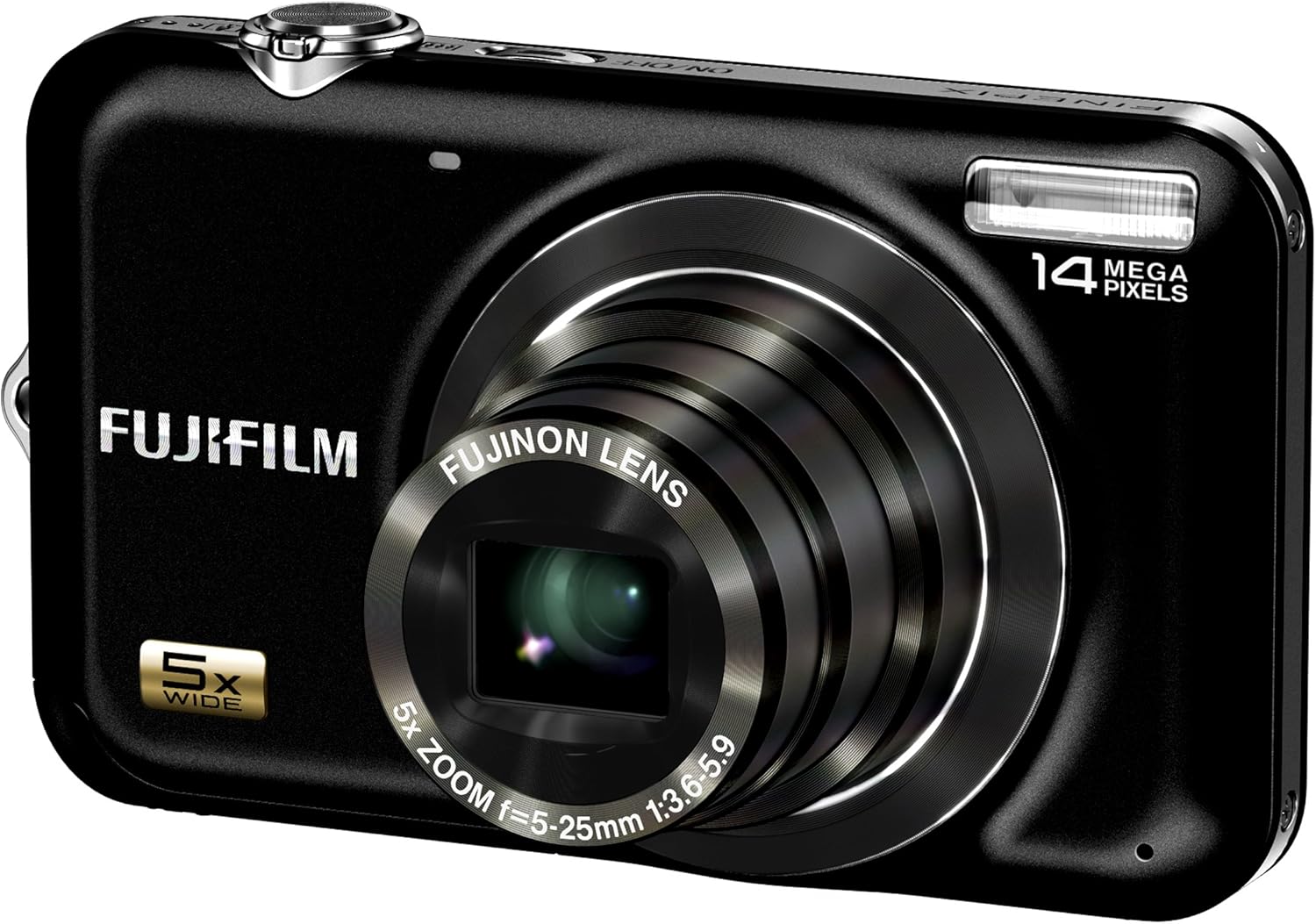
Welcome to the user manual for your Fujifilm FinePix JX250 Digital Camera. This guide provides essential information on setting up, operating, maintaining, and troubleshooting your camera to help you capture high-quality photos and videos. The FinePix JX250 features a 14-megapixel CCD sensor, a Fujinon 5x wide-angle optical zoom lens (28-140mm), and a 2.7-inch LCD, designed for ease of use and excellent image results.
Safety Information
Please read these safety precautions carefully before using your camera to ensure safe and optimal performance.
- Do not expose the camera to water or moisture. This product is not water-resistant.
- Avoid operating the camera in extreme temperatures or high humidity.
- Use only the specified battery and charger. Incorrect use may lead to fire or explosion.
- Keep the camera and accessories out of reach of small children.
- Do not attempt to disassemble or modify the camera. Refer servicing to qualified personnel.
- Clean the lens and LCD screen gently with a soft, lint-free cloth.
Package Contents
Verify that all items are present in your camera package:
- Fujifilm FinePix JX250 Digital Camera
- Rechargeable Lithium-Ion Battery
- Battery Charger
- USB Cable
- Hand Strap
- CD-ROM (Software/Manual)
- Owner's Manual (Printed)
Setup
1. Charging the Battery
Before first use, fully charge the supplied Lithium-Ion battery. Insert the battery into the charger and plug the charger into a power outlet. The indicator light will show charging status and turn off or change color when charging is complete.
2. Installing the Battery and Memory Card
Open the battery/memory card compartment cover located on the bottom of the camera. Insert the charged battery according to the polarity indicators. Insert an SD or SDHC memory card with the label facing the back of the camera until it clicks into place.
3. Initial Power On and Settings
Press the power button to turn on the camera. The first time you power on, you will be prompted to set the date, time, and language. Follow the on-screen instructions using the directional buttons and MENU/OK button.
Operating the Camera
1. Basic Photography
To take a picture, ensure the camera is in a shooting mode (e.g., SR AUTO). Frame your shot using the 2.7-inch LCD. Press the shutter button halfway down to focus, then press it fully to capture the image. The 5x optical zoom can be adjusted using the zoom lever around the shutter button.

2. Advanced Shooting Features
- Scene Recognition Auto (SR AUTO): This mode intelligently detects the scene type (e.g., portrait, landscape, macro) and automatically optimizes camera settings for the best results.
- Face Detection with Red-Eye Removal: The camera can detect up to 10 faces in a frame, optimizing focus and exposure. It also automatically corrects red-eye in captured images.
- Smile & Blink Detection: The camera can be set to automatically capture a photo when a smile is detected and will warn you if a subject blinked, allowing for re-shooting.
- Tracking Auto Focus: Ideal for moving subjects, this feature tracks the subject to maintain focus, ensuring sharp images even when the subject is in motion.
- Digital Image Stabilization: Reduces blur caused by camera shake, especially in low light or at longer zoom settings.
3. Video Recording
The FinePix JX250 can record HD movies in 720p resolution with sound. To start recording, switch to movie mode (if available via a dedicated button or menu option) and press the shutter button. Press it again to stop recording.
4. Playback
Press the playback button (usually marked with a play icon) to view your captured photos and videos. Use the directional buttons to navigate through images. Press the zoom buttons to zoom in on photos or view multiple images at once.
Maintenance
Cleaning the Camera
- Camera Body: Wipe with a soft, dry cloth. For stubborn dirt, use a cloth lightly dampened with water and then dry thoroughly.
- Lens: Use a lens brush to remove dust, then gently wipe with a lens cleaning cloth. Avoid touching the lens with your fingers.
- LCD Screen: Use a soft, dry cloth. Do not apply pressure.
Battery Care
- Always use the original Fujifilm battery and charger.
- Store batteries in a cool, dry place when not in use.
- Do not expose batteries to extreme heat or cold.
Storage
When storing the camera for extended periods, remove the battery and memory card. Store the camera in a dry, well-ventilated area, preferably in a camera bag to protect it from dust and scratches.
Troubleshooting
If you encounter issues with your camera, refer to the following common solutions:
- Camera does not turn on: Ensure the battery is fully charged and correctly inserted.
- Cannot take pictures: Check if a memory card is inserted and has sufficient free space. Ensure the lens cap is removed (if applicable).
- Images are blurry: Check focus settings. Ensure Digital Image Stabilization is active. Hold the camera steady or use a tripod.
- Flash does not fire: Check flash mode settings. Ensure the flash is not disabled or in a mode where it won't fire (e.g., forced off).
- LCD screen is blank: Press the DISPLAY/BACK button to cycle through display options.
For more detailed troubleshooting, consult the full owner's manual on the provided CD-ROM or Fujifilm's support website.
Specifications
| Feature | Specification |
|---|---|
| Model Name | Fujifilm FinePix JX250 |
| Effective Still Resolution | 14 MP |
| Photo Sensor Technology | CCD |
| Optical Zoom | 5x |
| Lens Type | Fujinon 5x wide-angle (28mm-140mm) optical zoom lens |
| Screen Size | 2.7 Inches |
| Display Type | LCD |
| Image Stabilization | Digital Image Stabilization |
| Video Resolution | HD 720p |
| Supported File Format | JPEG |
| Flash Memory Type | SD, SDHC |
| Battery Type | Lithium Ion |
| Color | Black |
| Item Weight | 1 Pounds |
Warranty and Support
Your Fujifilm FinePix JX250 Digital Camera comes with a limited manufacturer's warranty. Please refer to the warranty card included in your package for specific terms and conditions. For technical support, service, or to download the latest software and drivers, please visit the official Fujifilm support website or contact their customer service department.
You can find more information and support resources by visiting the Fujifilm Store.


