
Introduction
This manual provides comprehensive instructions for the setup, operation, and maintenance of your Monster MCC AV 50 Central Control Evolution 50 Universal Learning Remote. This advanced remote is designed to consolidate control of up to six AV components, offering a streamlined and intuitive user experience for your home entertainment system.
Please read this manual thoroughly before using your remote to ensure proper functionality and to maximize its capabilities.
Product Overview
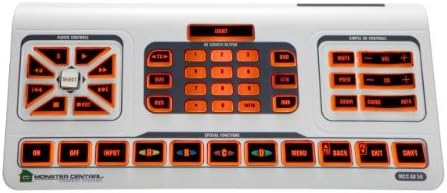
Figure 1: Top-down view of the Monster MCC AV 50 Universal Learning Remote. The remote features a central numeric keypad, a left-side directional and playback control pad, and a right-side volume/channel control section. Below these are dedicated buttons for power, input, and special functions, all with amber backlighting.
Key Features
- Controls up to 6 AV components with a console/tabletop design.
- Equipped with pre-programmed codes for quick setup.
- Full learning capability for most functions (excluding source and backlight keys).
- Smart "ON" feature automatically powers on correct components when a source is selected (e.g., selecting DVD turns on DVD player and TV).
- Smart volume "Punch Through" allows volume control of a specific component without changing the active AV source mode.
- Monster patented "Touch Sensing User Interface" for transport and direction pad layout.
- Simple controls, keypad, and special function keys are clearly laid out for ease of navigation.
- Full amber backlighting for visibility in low-light conditions.
Setup
1. Battery Installation
The Monster MCC AV 50 remote requires 4 AAAA batteries for operation. Follow these steps to install them:
- Locate the battery compartment on the underside of the remote.
- Slide open the battery compartment cover.
- Insert the 4 AAAA batteries, ensuring the correct polarity (+ and -) as indicated inside the compartment.
- Close the battery compartment cover securely.
Note: Always use fresh batteries and replace all four batteries at the same time. Do not mix old and new batteries or different types of batteries.
2. Initial Device Setup (Pre-programmed Codes)
Your remote comes with pre-programmed codes for many popular AV components. To set up a device:
- Turn on the device you wish to control (e.g., TV, DVD player).
- Press and hold the desired device button (e.g., TV, DVD) on the remote until the indicator light blinks.
- Enter the 4-digit code for your device's brand from the included code list (refer to the separate code booklet).
- Point the remote at the device and press the Power button. If the device turns off, the code is correct.
- If the device does not respond, try the next code listed for your brand until you find the correct one.
- Once the device responds, press the device button again to save the code.
3. Learning Function
For devices not covered by pre-programmed codes, or for specific functions, the remote can "learn" commands from your original remote controls. Most keys are learnable, except for source selection and backlight keys.
- Place the Monster remote and your original remote on a flat surface, facing each other, about 1-2 inches apart.
- Press and hold the desired device button on the Monster remote until the indicator light blinks.
- Press and hold the key on the Monster remote that you wish to program. The indicator light will glow steadily.
- While holding the Monster remote key, press and hold the corresponding key on your original remote.
- The indicator light on the Monster remote will blink rapidly to confirm successful learning. Release both keys.
- Repeat for all desired keys.
- Press the device button again to exit learning mode and save the learned commands.
Tip: Ensure both remotes have fresh batteries for optimal learning performance. Avoid bright light sources during the learning process.
Operating Instructions
1. Basic Control
- Power (ON/OFF): Use the dedicated ON and OFF buttons at the bottom left to power your devices.
- Source Selection: Press the desired device button (e.g., TV, DVD, CBL) at the top of the remote to select the component you wish to control.
- Volume Control: Use the Volume Up (+) and Volume Down (-) buttons on the right side.
- Channel Control: Use the Channel Up (+) and Channel Down (-) buttons on the right side.
- Numeric Keypad: Use the central numeric keypad for direct channel entry or other numerical inputs.
2. Smart "ON" Function
The Smart "ON" feature simplifies turning on multiple components for a specific activity. When you select a source (e.g., DVD), the remote can be programmed to automatically turn on both the DVD player and your TV.
Refer to the advanced programming section in the separate code booklet for detailed instructions on setting up Smart "ON" for your specific components.
3. Smart Volume "Punch Through"
This feature allows you to control the volume of a specific audio component (e.g., AV receiver) regardless of which video source (e.g., DVD, Cable Box) is currently selected on the remote. This eliminates the need to switch to the audio component's mode just to adjust volume.
To activate or configure Smart Volume "Punch Through":
- Press and hold the device button for the component whose volume you want to control (e.g., AMP or TV).
- While holding, press the "Volume +" button.
- Release both buttons. The volume control is now "punched through" to that device across all modes.
- To disable, repeat the process.
4. Touch Sensing User Interface (Transport & Directional Pad)
The left-side control pad features Monster's patented Touch Sensing User Interface for navigation and media playback. This includes directional arrows (up, down, left, right), a central SELECT button, and playback controls (Play, Pause, Stop, Fast Forward, Rewind, Skip Forward, Skip Back).
- Directional Arrows: Navigate menus and selections.
- SELECT: Confirm selections.
- Playback Controls: Control media playback on compatible devices (DVD, Blu-ray, DVR).
5. Special Function Keys
The row of buttons below the main control areas includes dedicated keys for common functions:
- INPUT: Cycles through input sources on your TV or receiver.
- A, B, C, D (Colored Buttons): Often used for special functions in cable/satellite boxes or DVD menus. Their function varies by device.
- MENU: Accesses the main menu of the selected device.
- BACK/EXIT: Navigates back in menus or exits current menu.
- SHIFT: Activates secondary functions for certain keys (refer to key labels).
Maintenance
- Cleaning: Wipe the remote with a soft, dry cloth. For stubborn dirt, slightly dampen the cloth with water. Do not use abrasive cleaners or solvents.
- Battery Replacement: Replace all 4 AAAA batteries when the remote's performance degrades or the backlight dims significantly. Dispose of old batteries responsibly according to local regulations.
- Storage: Store the remote in a cool, dry place away from direct sunlight and extreme temperatures when not in use for extended periods.
Troubleshooting
| Problem | Possible Cause | Solution |
|---|---|---|
| Remote not responding to device. | Incorrect device code; batteries are low or dead; remote not pointed correctly; IR sensor blocked. | Ensure fresh batteries are installed. Re-enter the device code or try another code from the list. Ensure a clear line of sight between the remote and the device's IR sensor. |
| Learning function fails. | Remotes too far apart or not aligned; ambient light interference; original remote batteries low. | Ensure remotes are 1-2 inches apart and facing each other. Perform learning in a dimly lit room. Ensure original remote has fresh batteries. Repeat the learning process carefully. |
| Backlight not working. | Batteries are low; backlight function is not learnable. | Replace batteries. Note that the backlight function itself is not programmable via learning. |
| Smart "ON" or "Punch Through" not working. | Feature not correctly programmed or configured. | Refer to the advanced programming section in the separate code booklet or re-configure the feature as per instructions. |
Specifications
| Attribute | Detail |
|---|---|
| Model Number | MC AV 50 |
| Brand | Monster |
| Product Dimensions | 7.32 x 28.91 x 19.69 cm |
| Item Weight | 498.95 g |
| Batteries Required | 4 x AAAA batteries |
| Max Supported Devices | 6 AV components |
| Special Feature | Infrared, Universal, Learning Function, Backlighting |
| Color | White |
| Compatible Devices | Television, DVD, Blu-ray, Cable Box, Satellite Receiver, Audio Receiver, etc. |
Warranty and Support
For detailed warranty information, please refer to the warranty card included with your product packaging or visit the official Monster website. Keep your purchase receipt as proof of purchase.
For technical support, troubleshooting assistance beyond this manual, or to inquire about replacement parts, please contact Monster customer service or visit their official support page.
You can find more information about Monster products at the Monster Store on Amazon.ca.