

1. Introduction
This manual provides essential information for the proper use, setup, and maintenance of your InLine 34650B USB 2.0 Extension Cable. This cable is designed to extend the reach of your USB 2.0 devices, offering a reliable and effective connection solution.
Key features include:
- Reliable performance for data transmission.
- Sleek design for easy integration.
- Effective product for extending USB connections.

Figure 1: The InLine 34650B USB 2.0 Extension Cable, featuring a male Type A connector on one end and a female Type A connector on the other, both in black.
2. Setup Instructions
The InLine 34650B USB 2.0 Extension Cable is a plug-and-play device, requiring no software installation. Follow these simple steps to set up your cable:
- Identify Ports: Locate an available USB Type A port on your computer, laptop, or other host device.
- Connect Male End: Insert the male USB Type A connector of the InLine extension cable into the USB Type A port on your host device. Ensure it is fully seated.
- Connect Female End: Plug the male USB Type A connector of your peripheral device (e.g., mouse, keyboard, printer, flash drive) into the female USB Type A port of the InLine extension cable. Ensure a secure connection.
Your device should now be extended and ready for use. The cable supports a wide range of compatible devices, including PCs, laptops, mice, keyboards, printers, scanners, USB storage devices, MP3 players, and digital cameras.
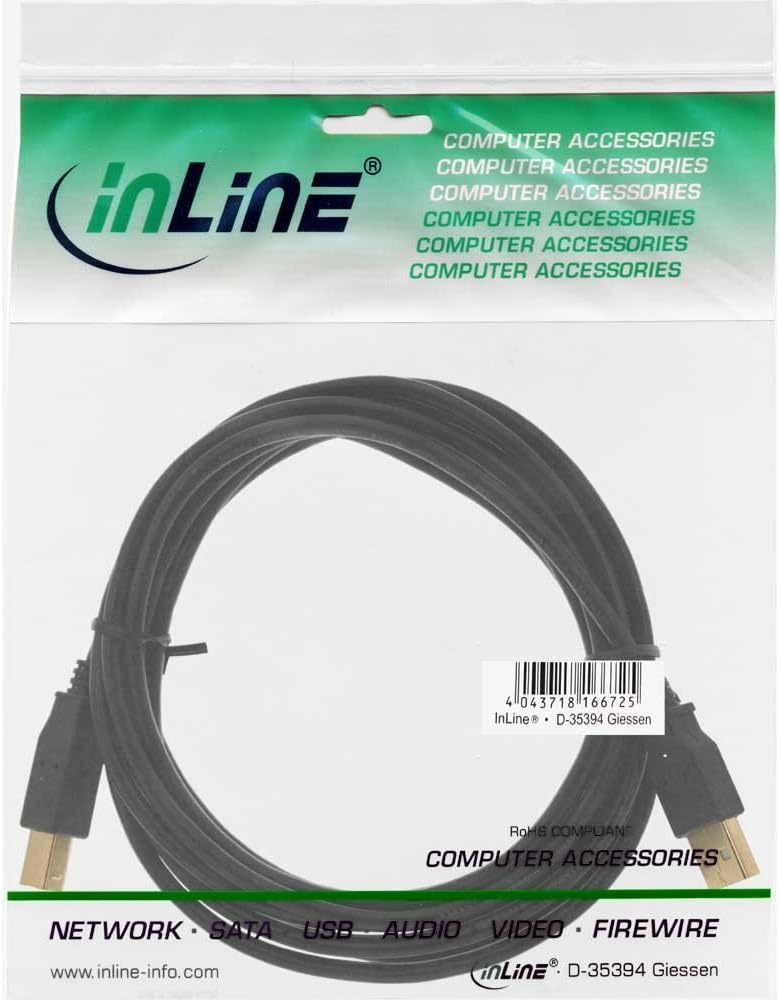
Figure 2: The InLine 34650B USB 2.0 Extension Cable as packaged, showing the product coiled inside clear plastic packaging with branding and product information. The barcode visible on the packaging is 4043718166725.
3. Operating Instructions
Once connected, the InLine 34650B USB 2.0 Extension Cable operates automatically. It facilitates data transfer between your host device and the connected peripheral.
- Data Transfer: The cable supports USB 2.0 data transfer rates up to 480 Megabits Per Second (Mbps).
- Power Delivery: The cable also transmits power to connected devices as per USB 2.0 specifications.
- Compatibility: Ensure both your host device and peripheral are compatible with USB 2.0 for optimal performance. The cable is backward compatible with USB 1.1 devices, though at reduced speeds.
4. Maintenance
To ensure the longevity and optimal performance of your InLine USB 2.0 Extension Cable, follow these maintenance guidelines:
- Storage: When not in use, store the cable in a cool, dry place, away from direct sunlight and extreme temperatures. Avoid tightly coiling or bending the cable sharply, as this can damage the internal wires.
- Cleaning: Use a soft, dry cloth to wipe the cable and connectors. Do not use liquid cleaners or solvents, as they may damage the cable's insulation or connectors.
- Handling: Always grasp the connector housing when plugging or unplugging the cable. Avoid pulling on the cable itself, as this can strain the connections and lead to damage.
- Inspection: Periodically inspect the cable for any signs of wear, such as frayed insulation, bent pins, or damaged connectors. If damage is observed, discontinue use.
5. Troubleshooting
If you encounter issues with your InLine USB 2.0 Extension Cable, consider the following troubleshooting steps:
- Device Not Recognized:
- Ensure both ends of the cable are securely connected to the host device and the peripheral.
- Try connecting the peripheral directly to the host device (without the extension cable) to confirm the peripheral and host port are functioning correctly.
- Test the extension cable with a different USB port on your host device.
- Test the extension cable with a different peripheral device.
- Slow Data Transfer:
- Verify that both your host device and peripheral support USB 2.0 speeds. If either is USB 1.1, data transfer will be limited to USB 1.1 speeds.
- Ensure no other high-bandwidth USB devices are connected to the same USB hub or controller, which might be sharing bandwidth.
- Check for any background processes on your computer that might be consuming system resources.
- Intermittent Connection:
- Check for any physical damage to the cable or connectors.
- Ensure the cable is not excessively bent or kinked.
- Try a different USB port or host device.
If problems persist after following these steps, please refer to the Warranty and Support section.
6. Specifications
| Feature | Detail |
|---|---|
| Brand | Inline |
| Model Name | InLine 34650B USB 2.0 Extension Cable |
| Connector Type | USB Type A |
| Cable Type | USB |
| Connector Gender | Male-to-Female |
| Data Transfer Rate | 480 Megabits Per Second (USB 2.0) |
| Color | Black |
| Length | 0.5 meters (approx. 1.64 feet) |
| Compatible Devices | PC, Laptop, Mouse, Keyboard, Printer, Scanner, USB storage devices (flash drives, external hard drives), MP3 players, Digital cameras, and other devices with USB-A port. |
| Item Weight | 0.95 ounces (0.03 Kilograms) |
| Package Dimensions | 5.43 x 3.78 x 0.43 inches |
| First Available Date | August 10, 2012 |
7. Warranty and Support
For warranty information and technical support regarding your InLine 34650B USB 2.0 Extension Cable, please refer to the documentation provided with your purchase or visit the official Inline website. Keep your proof of purchase for warranty claims.
If you require further assistance, please contact Inline customer support through their official channels.


