
1. Introduction
This manual provides instructions for the installation, operation, and maintenance of your ACER X223WDbd 22" Widescreen LCD Monitor. Please read this manual thoroughly before using your monitor to ensure proper setup and optimal performance. Keep this manual for future reference.
2. Safety Information
Observe the following safety precautions to prevent damage to the monitor and to ensure your personal safety:
- Do not place the monitor on an unstable cart, stand, or table.
- Do not block ventilation openings.
- Do not expose the monitor to rain or moisture.
- Use only the power cord and adapter supplied with the monitor.
- Refer all servicing to qualified service personnel.
3. Package Contents
Verify that your package contains the following items:
- ACER X223WDbd 22" Widescreen LCD Monitor
- Power Cord
- VGA Cable
- DVI Cable
- User Manual (this document)
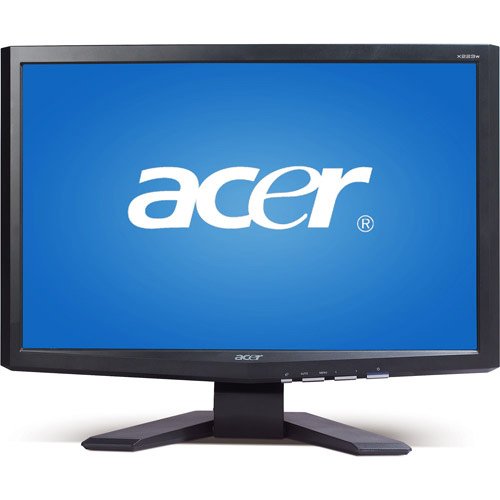
Image: The ACER X223WDbd 22-inch Widescreen LCD Monitor, showing the screen and stand.
4. Setup
4.1 Attaching the Stand
- Carefully place the monitor face down on a soft, clean surface.
- Align the stand base with the stand neck and secure it with the provided screw.
- Attach the assembled stand to the back of the monitor until it clicks into place or is secured with screws, depending on the model.
4.2 Connecting the Monitor
- Power Connection: Connect the power cord to the monitor's power input and then to a power outlet.
- Video Connection:
- For VGA connection, connect one end of the VGA cable to the monitor's VGA port and the other end to your computer's VGA port.
- For DVI connection, connect one end of the DVI cable to the monitor's DVI port and the other end to your computer's DVI port.
- Ensure all connections are secure.
5. Operating the Monitor
5.1 Powering On/Off
- Press the power button located on the front or bottom bezel of the monitor to turn it on or off.
- The power indicator light will illuminate when the monitor is on.
5.2 On-Screen Display (OSD) Menu
Use the control buttons on the monitor to navigate and adjust settings via the OSD menu. Common adjustments include:
- Brightness/Contrast: Adjust the display's luminance and contrast levels.
- Color Settings: Modify color temperature, RGB levels, or select preset color modes.
- Input Select: Manually switch between VGA and DVI input sources.
- Auto Adjust: Optimizes the display settings automatically for analog (VGA) input.
6. Maintenance
6.1 Cleaning the Monitor
- Always unplug the monitor before cleaning.
- Use a soft, lint-free cloth lightly dampened with water or a mild, non-abrasive screen cleaner.
- Do not spray cleaner directly onto the screen.
6.2 Storage
When storing the monitor for an extended period, ensure it is powered off, unplugged, and stored in a cool, dry place away from direct sunlight and extreme temperatures.
7. Troubleshooting
| Problem | Possible Cause | Solution |
|---|---|---|
| No image on screen | Monitor not powered on; video cable disconnected; incorrect input selected. | Ensure power is connected and monitor is on. Check video cable connections. Select correct input source via OSD. |
| Image is blurry or distorted | Incorrect resolution; loose video cable; analog signal interference. | Set display resolution to 1680 x 1050. Reconnect video cable. Use Auto Adjust function for VGA. |
| Colors are incorrect | Color settings misconfigured. | Adjust color settings in the OSD menu or reset to factory defaults. |
8. Specifications
- Model: ACER X223WDbd
- Screen Size: 22 Inches
- Maximum Resolution: 1680 x 1050
- Aspect Ratio: 16:10
- Contrast Ratio: 2500:1
- Display Colors: 16.7 Million
- Input Ports: VGA, DVI
- Product Dimensions: 21 x 16 x 7 inches
- Item Weight: 12.3 pounds
9. Warranty and Support
For warranty information and technical support, please refer to the warranty card included with your product or visit the official Acer support website. Keep your purchase receipt as proof of purchase.
Acer Support Website: https://www.acer.com/support


