
Avery AVE5351
Avery 5351 Copier Label User Manual
Model: AVE5351
For 1" x 2-13/16" White Mailing Labels
1. Product Overview
The Avery 5351 Copier Labels are designed for efficient and reliable printing of address, shipping, barcoding, and organizational labels. Each box contains 3300 bright white labels, distributed across 100 sheets, with 33 labels per sheet. These labels are optimized for use with high-speed copiers and printers, ensuring clear and sharp print quality.

Figure 1.1: Avery 5351 Copier Labels product packaging and an example of a label applied to an envelope.
The labels measure 1 inch by 2-13/16 inches, providing ample space for essential information. They are made from wood sourced from a certified managed forest, reflecting a commitment to responsible material sourcing.
2. Setup and Preparation
2.1. Choosing the Right Template
To ensure proper alignment and printing, it is highly recommended to use Avery's free templates. These templates are specifically designed for the 5351 label format and can be accessed online.
- Visit the official Avery website: avery.com/templates
- Search for template 5351.
- Utilize the Avery Design & Print software, which is web-based and requires no download. This tool assists with margin settings, spacing, and design customization.

Figure 2.1: The Avery Design & Print online platform, showing options for product selection, design, customization, and preview before printing.
2.2. Printer/Copier Settings
Before printing, ensure your copier or printer is configured correctly for label sheets. Refer to your printer's manual for specific instructions on loading specialty paper or labels. Generally, you should select a "Labels" or "Heavy Paper" setting if available, and ensure the paper size is set to Letter (8.5" x 11").
3. Operating Instructions
3.1. Printing Your Labels
- Design Your Labels: Use the Avery Design & Print online tool to create your label content. You can import data for mail merge, add text, images, and barcodes.
- Load Labels: Load the Avery 5351 label sheets into your copier or printer's paper tray according to your device's instructions. Ensure the sheets are loaded correctly to prevent jams and misprints.
- Print: Initiate the print job from the Avery Design & Print tool or your chosen software. Perform a test print on a plain sheet of paper first to check alignment before printing on the actual label sheets.

Figure 3.1: Avery label sheets being processed by a copier, demonstrating the compatibility with high-speed printing.
3.2. Applying Your Labels
Once printed, carefully peel the labels from the sheet. The adhesive backing ensures a secure attachment to various surfaces. Apply the labels smoothly to avoid air bubbles or wrinkles.
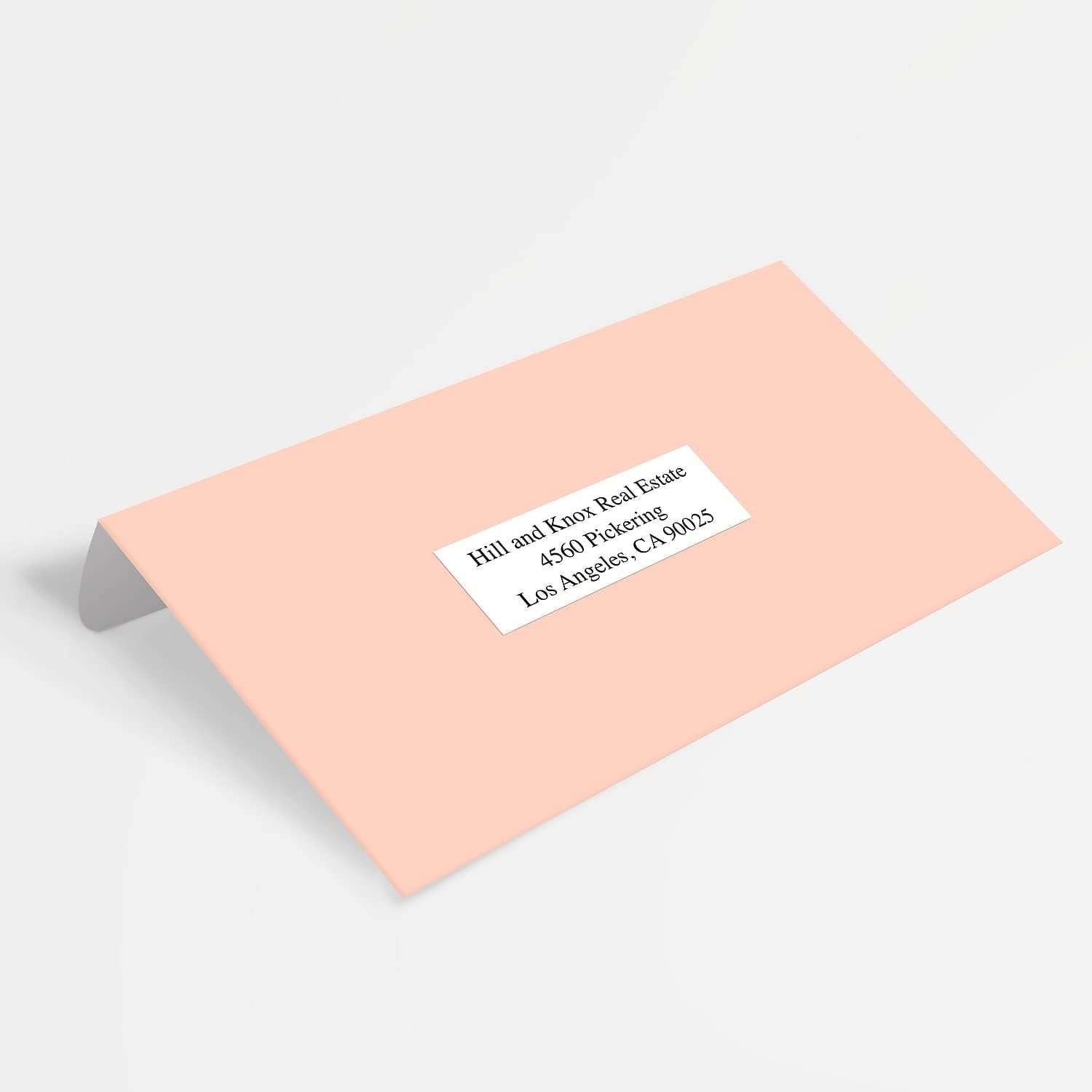
Figure 3.2: A single Avery 5351 label neatly applied to a standard mailing envelope, showcasing its use for addressing.
4. Common Applications
Avery 5351 labels are versatile and can be used for a variety of purposes:
- Mailing and Shipping: Ideal for addressing envelopes, packages, and creating return address labels.
- Barcoding: Suitable for printing product barcodes or inventory tracking labels.
- Organization: Excellent for labeling files, folders, storage bins, shelves, and office supplies to improve organization.

Figure 4.1: Labels applied to bins containing craft supplies, demonstrating their utility in organizing various items.

Figure 4.2: Labels used on colorful buckets to categorize office supplies such as binder clips, scissors, pencils, and dry erase markers.

Figure 4.3: An Avery label featuring a QR code applied to a large brown envelope, illustrating its use for shipping or tracking purposes.
5. Maintenance and Storage
To maintain the quality and adhesive properties of your Avery 5351 labels, store them in a cool, dry place away from direct sunlight and extreme temperatures. Keep the original packaging sealed until ready for use to protect the labels from dust and moisture.
6. Troubleshooting
6.1. Misalignment During Printing
- Check Template: Ensure you are using the correct Avery template (5351) and that it is properly aligned in your design software.
- Printer Settings: Verify that your printer's paper size and type settings match the label sheets. Use "Labels" or "Heavy Paper" settings if available.
- Test Print: Always perform a test print on a plain sheet of paper before printing on actual labels to identify and correct alignment issues.
- Paper Tray: Ensure label sheets are loaded straight and not skewed in the paper tray.
6.2. Labels Not Sticking Properly
- Surface Cleanliness: Ensure the surface to which the label is being applied is clean, dry, and free of dust, oil, or grease.
- Application Pressure: Apply firm, even pressure across the entire label when adhering it to a surface.
- Storage Conditions: Labels stored in extreme temperatures or humidity may lose adhesive quality. Refer to Section 5 for proper storage.
7. Specifications
| Attribute | Detail |
|---|---|
| Model Number | AVE5351 |
| Label Dimensions | 1 inch x 2-13/16 inches |
| Labels Per Sheet | 33 |
| Sheets Per Box | 100 |
| Total Labels Per Box | 3300 |
| Color | Matte White |
| Material | Wood (sourced from certified managed forest) |
| Compatibility | Optimized for high-speed copiers and printers |

Figure 7.1: Visual representation of the label layout, showing 33 labels per standard sheet.
8. Warranty and Support
For information regarding product warranty, returns, or additional support, please visit the official Avery website or contact Avery customer service directly. Detailed contact information and FAQs can typically be found on their support pages.
Avery Official Website: www.avery.com
Avery Templates: avery.com/templates
Ask a question about this manual
Ask about setup, troubleshooting, compatibility, parts, safety, or missing instructions. Manuals+ will review the question and use this page’s manual context to help answer it.