
1. Introduction
The Blue Microphones Yeti Silver USB Microphone is a premium device designed to deliver clear, powerful, broadcast-quality sound for a variety of applications including music, podcasts, Twitch streaming, YouTube videos, and Zoom calls. Its versatile design and advanced features make it an excellent choice for content creators seeking professional audio performance.
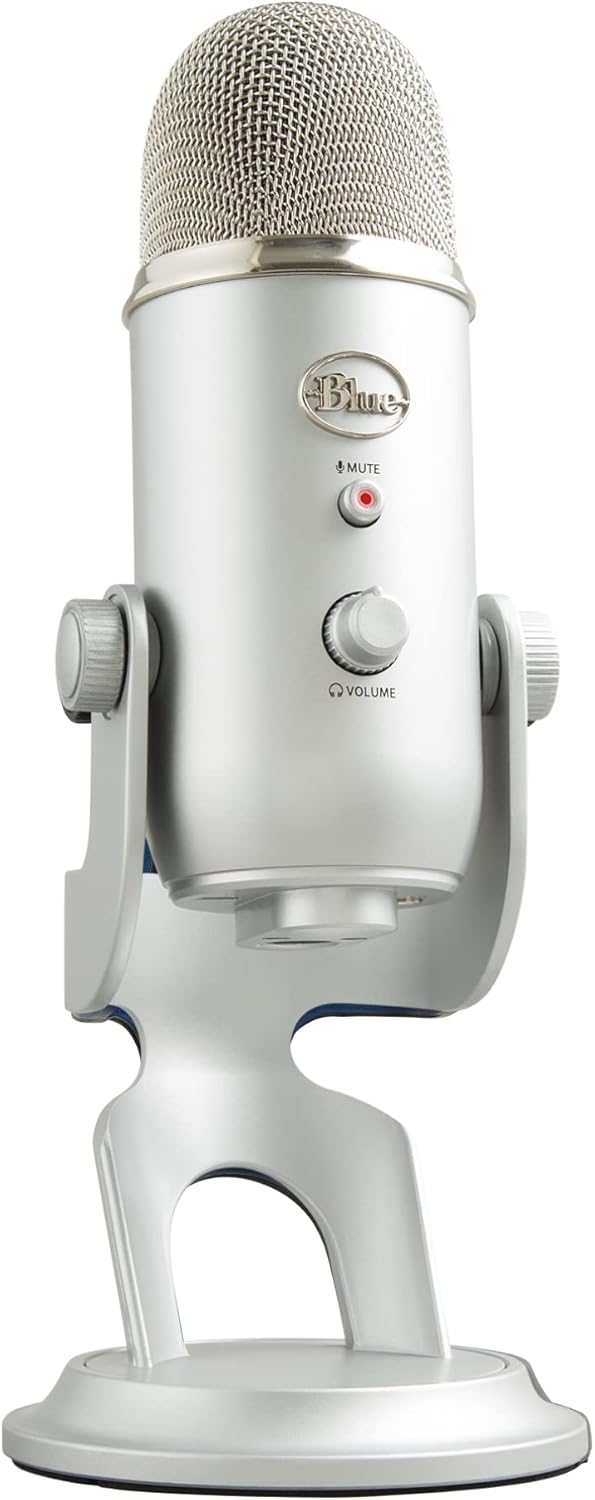
Figure 1: Blue Yeti Silver USB Microphone
2. What's in the Box
Your Blue Yeti USB Microphone package includes the following components:
- Yeti USB microphone with integrated desktop stand
- USB cable

Figure 2: Package Contents
3. Features
The Blue Yeti microphone is equipped with several features to enhance your audio recording and streaming experience:
- Custom Three-Capsule Array: Produces clear, powerful, broadcast-quality sound.
- Blue VO!CE Software: Elevate your streams and recordings with broadcast vocal sound, enhanced effects, advanced modulation, and HD audio samples.
- Four Pickup Patterns: Offers incredible flexibility for various recording scenarios.
- Onboard Audio Controls: Headphone volume, pattern selection, instant mute, and mic gain controls are directly on the microphone.
- Positionable Design: Adjustable desktop stand allows you to pivot the mic for optimal sound quality.
- No-Latency Monitoring: Monitor your voice in real-time through the headphone output.

Figure 3: Legendary Blue Broadcast Sound

Figure 4: Blue VO!CE Broadcast Effects

Figure 5: Yeti Microphone Features
4. Setup
Setting up your Blue Yeti microphone is a simple plug-and-play process:
- Place the Yeti microphone on a stable surface using its integrated desktop stand. You can also connect it to a compatible mic stand or boom arm.
- Connect the included USB cable from the Yeti microphone to an available USB port on your computer (PC or Mac).
- Your computer should automatically recognize the microphone. For full functionality and access to Blue VO!CE effects, download and install the Logitech G HUB software from the official Logitech for Creators website.

Figure 6: Initial Setup
5. Operating Instructions
5.1. Pickup Patterns
The Yeti features four distinct pickup patterns, allowing you to optimize your recording for different scenarios:
- Cardioid: Captures sound directly in front of the microphone, ideal for podcasts, vocals, and streaming.
- Omnidirectional: Picks up sound equally from all directions, suitable for conference calls or recording multiple voices around a table.
- Bidirectional: Records from both the front and rear of the microphone, perfect for two-person interviews.
- Stereo: Uses both left and right channels to capture a wide, realistic sound image, great for musical instruments or immersive recordings.

Figure 7: Four Pickup Patterns
5.2. Onboard Controls
The Yeti microphone provides convenient controls directly on its body:
- Microphone Gain: Adjusts the microphone's sensitivity. Turn clockwise to increase gain, counter-clockwise to decrease.
- Pattern Selector: A knob to switch between the four pickup patterns.
- Headphone Volume: Controls the volume of the headphone output for monitoring.
- Mute Button: Press to instantly mute or unmute the microphone. The LED indicator will change color when muted.

Figure 8: Mic Mute & Headphone Volume
6. Compatibility
The Blue Yeti USB Microphone is compatible with a wide range of devices and platforms, making it versatile for various uses:
- Operating Systems: PC (Windows), Mac (macOS).
- Platforms: YouTube, Twitch, Skype, Zoom, Soundcloud, and other recording/streaming applications.

Figure 9: Platform Compatibility
7. Maintenance
To ensure the longevity and optimal performance of your Blue Yeti microphone, follow these general maintenance guidelines:
- Keep the microphone clean by wiping it with a soft, dry cloth. Avoid using harsh chemicals or abrasive materials.
- Store the microphone in a cool, dry place away from direct sunlight and extreme temperatures.
- Avoid dropping or subjecting the microphone to strong impacts, as this can damage internal components.
- Handle the USB cable carefully to prevent kinks or damage to the connectors.
8. Troubleshooting
If you encounter issues with your Blue Yeti microphone, consider the following common solutions:
| Problem | Possible Cause | Solution |
|---|---|---|
| No sound or low volume | Incorrect input/output settings, low gain, muted microphone, loose cable connection. | Check your computer's sound settings to ensure Yeti is selected as the input device. Adjust the microphone gain and headphone volume knobs. Ensure the mute button is not active. Reconnect the USB cable securely. |
| Distorted or muffled audio | Too high gain, incorrect pickup pattern, microphone too close/far from source. | Reduce the microphone gain. Select the appropriate pickup pattern for your environment. Adjust microphone distance from the sound source (typically 6-12 inches). |
| Microphone not recognized by computer | Driver issue, faulty USB port/cable, software conflict. | Try a different USB port or cable. Restart your computer. Reinstall Logitech G HUB software. Check for driver updates. |
9. Specifications
| Specification | Value |
|---|---|
| Model Number | 988-000103 |
| Connectivity Technology | USB |
| Polar Pattern | Multipattern (Cardioid, Omnidirectional, Bidirectional, Stereo) |
| Frequency Range | 20Hz - 20KHz |
| Sample Rate | 48 kHz |
| Bit Depth | 16-bit |
| Item Weight | 3.2 pounds |
| Dimensions (L x W x H) | 4.9 x 4.7 x 11.6 inches |
| Material | Metal |
| Compatible Devices | PC, Mac, Amplifier, Headphone |

Figure 10: Product Dimensions
10. Warranty & Support
For detailed warranty information and customer support, please refer to the following resources:
- User Guide (PDF): Download Here
- User Manual (PDF): Download Here
- Visit the official Logitech for Creators website for the latest support, FAQs, and software downloads: Logitech for Creators Store


