
Creative Inspire S2
Creative Inspire S2 Bluetooth Wireless Multimedia Speaker System User Manual
Model: Inspire S2 (51MF0390AA003)
Product Overview
The Creative Inspire S2 Bluetooth Wireless Multimedia Speaker System provides high-quality audio through its two satellite speakers and a subwoofer, with the added convenience of Bluetooth wireless connectivity. This system is designed for use with computers and other Bluetooth-enabled devices, offering a versatile audio solution.
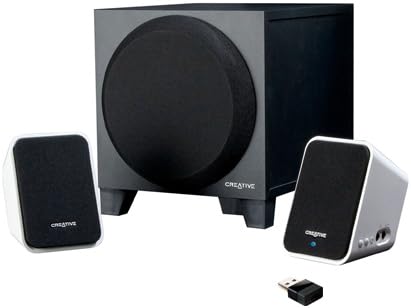
Image: The Creative Inspire S2 system, showing the central subwoofer unit, two compact satellite speakers, and a small USB Bluetooth transmitter. The satellite speakers are white with black grilles, and the subwoofer is black.
Box Contents
Verify that all components are present in the packaging:
- Two Satellite Speakers
- One Subwoofer
- USB Bluetooth Transmitter
- Universal Power Adapter
- Quick Start Guide (refer to this manual for detailed instructions)
- Warranty/Technical Support Leaflet
Setup Instructions
1. Physical Connection
- Positioning: Place the subwoofer on the floor or a sturdy surface. Position the two satellite speakers on either side of your computer monitor or listening area for optimal stereo separation.
- Connect Satellite Speakers: Connect the cables from the satellite speakers to the corresponding ports on the back of the subwoofer. Ensure a secure connection.
- Connect Power: Plug the universal power adapter into the subwoofer's power input, then connect the adapter to a wall outlet.
2. Bluetooth Connection (Wireless Audio)
For Computers (using included USB Bluetooth Transmitter):
- Insert Transmitter: Plug the included USB Bluetooth transmitter into an available USB port on your computer. Your computer may automatically install necessary drivers.
- Power On Speakers: Ensure the speaker system is powered on. The power button is typically located on one of the satellite speakers. A green light should indicate power.
- Automatic Pairing: The speaker system and USB transmitter should automatically pair. A blue light on the satellite speaker will indicate a successful Bluetooth connection.
- Select Audio Output: On your computer, navigate to your sound settings and select the "Creative Inspire S2" or similar Bluetooth audio device as your default playback device.
For Other Bluetooth Devices (e.g., Smartphones, Tablets, Laptops with built-in Bluetooth):
- Power Off Speakers: Ensure the speaker system is turned off.
- Enter Pairing Mode: With the speakers off, press and hold the '+' (volume up) button on the satellite speaker. Continue holding until a blue light begins to flash rapidly. This indicates the speakers are in pairing mode.
- Enable Bluetooth on Device: On your smartphone, tablet, or laptop, go to the Bluetooth settings and ensure Bluetooth is enabled.
- Select "Inspire S2": In the list of available devices, select "Inspire S2" (or similar). If prompted for a passcode, enter "0000" (four zeros).
- Confirm Connection: Once paired, the blue light on the satellite speaker will become solid, indicating a successful connection.
3. Wired Connection (Auxiliary Input)
The Inspire S2 system also supports a wired connection for devices without Bluetooth or for a direct audio link.
- Connect Audio Cable: Connect a 3.5mm audio cable (not included) from the audio output of your device (e.g., MP3 player, laptop headphone jack) to the "Audio In" port on the side of the satellite speaker.
- Power On Speakers: Ensure the speaker system is powered on.
- Playback: Begin audio playback from your connected device. The system will automatically prioritize the wired input if a cable is connected.
Operating Instructions
Power On/Off
- To power on the system, press the power button located on one of the satellite speakers. A green LED will illuminate.
- To power off, press the power button again. The LED will turn off.
Volume Control
- Use the '+' and '-' buttons on the satellite speaker to adjust the system's volume.
- You can also control the volume from your connected Bluetooth device or computer.
Audio Playback
- Once connected via Bluetooth or auxiliary cable, simply start playing audio from your source device.
- Ensure the volume on both the speaker system and your source device is adjusted appropriately.
Maintenance
- Cleaning: Use a soft, dry cloth to clean the surfaces of the speakers and subwoofer. Avoid using liquid cleaners or abrasive materials.
- Placement: Ensure the speakers are placed on stable surfaces to prevent accidental falls. Avoid placing them in direct sunlight, near heat sources, or in excessively humid environments.
- Ventilation: Do not block the ventilation openings on the subwoofer to ensure proper airflow and prevent overheating.
- Cable Management: Keep cables organized and untangled to prevent damage and tripping hazards.
Troubleshooting
| Problem | Possible Solution |
|---|---|
| No sound from speakers. |
|
| Bluetooth device cannot pair or connect. |
|
| Sound is distorted or intermittent. |
|
| Speakers turn off unexpectedly when using auxiliary input. |
|
Specifications
| Feature | Detail |
|---|---|
| Model Name | Inspire S2 |
| Model Number | 51MF0390AA003 |
| Speaker Type | Desktop Multimedia Speaker System |
| Connectivity Technology | Bluetooth Wireless, Wired (3.5mm Auxiliary) |
| Speaker Maximum Output Power | 7 Watts (RMS) |
| Signal-to-Noise Ratio | 75 dB |
| Product Dimensions (Satellite) | 2.9 x 2.9 x 4.05 inches (approximate) |
| Item Weight | 3 Pounds (total system) |
| Power Source | Corded Electric |
| Special Features | USB Bluetooth technology, Creative DIRECT-THROW subwoofer, easy-access controls, Energy Star qualified |
Warranty and Support
For warranty information and technical support, please refer to the warranty/technical support leaflet included in your product packaging. You may also visit the official Creative website for the latest support resources, FAQs, and contact information.
Online Support: www.creative.com/support
Related documentsInspire S2


Ask a question about this manual
Ask about setup, troubleshooting, compatibility, parts, safety, or missing instructions. Manuals+ will review the question and use this page’s manual context to help answer it.