
1. Introduction and Overview
The Davis 6351 VantageVue Wireless Console/Receiver is a compact and feature-rich device designed for easy viewing of weather data. It serves as a central display unit for your Davis weather station sensors, providing real-time information on various atmospheric conditions.
Key Features:
- Backlit LCD screen for clear visibility day or night.
- Glow-in-the-dark keypad for easy operation in low light.
- Unique Weather Center feature to quickly view multiple screens of weather data.
2. Setup
Setting up your Davis 6351 VantageVue Wireless Console/Receiver involves a few straightforward steps to ensure proper communication with your weather sensors and internet connectivity.
2.1 Unboxing and Initial Power-Up
Carefully remove all components from the packaging. The box typically contains the WeatherLink Live unit, an Ethernet cable, a USB power cable, and an AC adapter. Connect the USB power cable to the WeatherLink Live unit and then to the AC adapter. Plug the AC adapter into a power outlet. The unit will power on automatically.
2.2 App Installation and Configuration
Download the "WeatherLink" app from the Google Play Store or Apple App Store on your smartphone or tablet. Open the app and navigate to the Accounts section. Tap the "Add" button next to WeatherLink Live. Follow the on-screen prompts to power up the WeatherLink Live unit and connect to it via Bluetooth. You will then be guided to name and configure your WeatherLink Live unit, selecting your preferred Wi-Fi or Ethernet internet connection method.
2.3 Adding Weather Sensors
Once the WeatherLink Live unit is installed and connected, you can add your Davis weather sensors. The system supports adding a Vantage Vue or a Vantage Pro2 sensor suite. Ensure your sensors are powered on and within the transmission range (up to 1,000 feet line of sight) of the WeatherLink Live unit. The app will guide you through the process of detecting and adding your sensors, allowing you to create a custom network of sensors both inside and outside your property.
Video Description: This video demonstrates the setup process for the WeatherLink Live unit. It shows unboxing the device, connecting power, installing the WeatherLink app, connecting via Bluetooth, configuring Wi-Fi or Ethernet, and adding various Davis weather sensors like Vantage Vue and Vantage Pro2. The video highlights the ease of streaming live data and integrating with smart home assistants.
3. Operating
The Davis 6351 VantageVue Console provides an intuitive interface to access and interpret your local weather data.
3.1 Display Overview
The console features a backlit LCD screen that displays various weather parameters. The glow-in-the-dark keypad ensures visibility and ease of use even in low-light conditions. The display typically shows indoor and outdoor temperature, humidity, wind speed and direction, barometric pressure, and rainfall data.

Image Description: A close-up view of the Davis 6351 VantageVue Wireless Console's LCD screen. The screen displays various weather parameters including indoor and outdoor temperature (72.2°F inside, 40.9°F outside), humidity (65% inside, 50% outside), wind speed (25 MPH from NW), wind chill (29°F), barometric pressure (29.75 in), and rainfall (1.58 in). The time and date are also visible. The console has a dark gray casing with a glow-in-the-dark keypad below the screen.
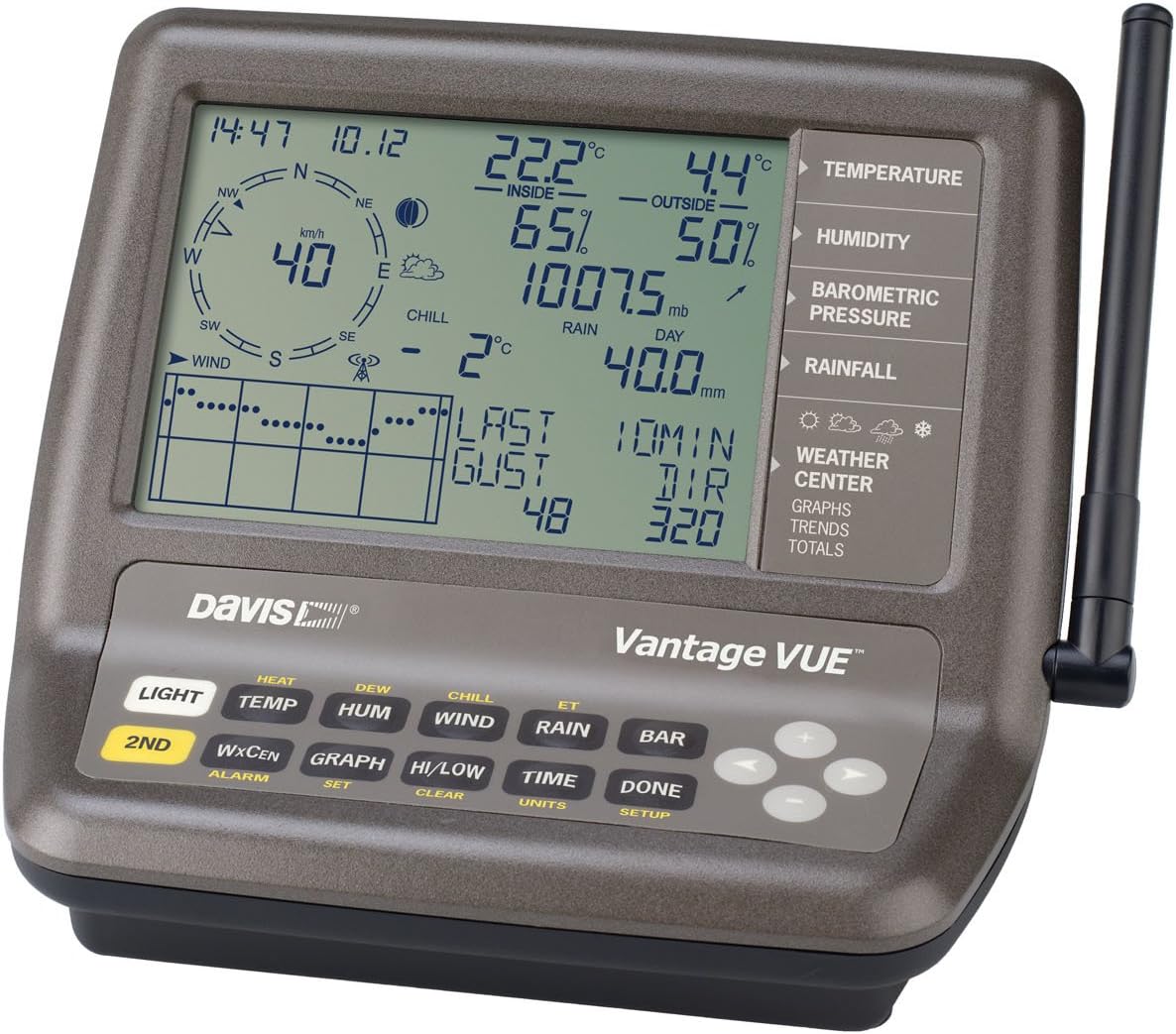
Image Description: Another close-up of the Davis 6351 VantageVue Wireless Console's LCD screen, this time displaying weather data in Celsius. The screen shows indoor and outdoor temperature (22.2°C inside, 4.4°C outside), humidity (65% inside, 50% outside), wind speed (40 km/h from NW), wind chill (2°C), barometric pressure (1007.5 mb), and rainfall (40.0 mm). The time and date are also visible. The console has a dark gray casing with a glow-in-the-dark keypad below the screen.
3.2 Weather Center Feature
Utilize the "Weather Center" feature to quickly navigate through multiple screens of weather data. This allows you to view historical data, trends, and totals for various parameters like rainfall, temperature highs and lows, and wind gusts. Refer to the on-screen prompts and keypad labels for specific navigation options.
4. Maintenance
Regular maintenance ensures the longevity and accuracy of your Davis 6351 VantageVue Wireless Console/Receiver and its associated sensors.
4.1 Battery Checks
The console and outdoor sensors are typically battery-powered (though the console can also be AC powered). Periodically check the battery levels of all components and replace them as needed to prevent data loss or interruption. Low battery indicators will usually appear on the console display.
4.2 Sensor Cleaning
Ensure outdoor sensors, especially the rain collector and wind cups, are free from debris, leaves, or bird droppings. Gently clean them with a soft cloth and water if necessary. Avoid using abrasive cleaners that could damage the sensor surfaces.
5. Troubleshooting
If you encounter issues with your Davis 6351 VantageVue system, consider the following troubleshooting steps:
5.1 No Data Displayed
- Check power connections for the console and batteries for outdoor sensors.
- Ensure the outdoor sensor suite is within the specified wireless transmission range (up to 1,000 feet line of sight) and there are no major obstructions.
- Verify that the console is properly linked to the outdoor sensor suite. Refer to the setup instructions for re-linking if necessary.
5.2 Inaccurate Readings
- Ensure outdoor sensors are installed in an open area, away from heat sources, reflective surfaces, or obstructions that could affect wind or temperature readings.
- Clean the rain collector and wind cups/vane to ensure they are moving freely and not obstructed.
- Check for any physical damage to the sensors.
6. Specifications
| Feature | Detail |
|---|---|
| Brand | Davis Instruments |
| Model Name | Davis 6351 VantageVue Wireless Console/Receiver |
| Power Source | Battery Powered (AC adapter also available) |
| Special Feature | Backlit LED screen, Glow-in-the-dark keypad |
| Material | Plastic |
| Connectivity Technology | Wireless frequencies (e.g., 433 MHz or 868 MHz) |
| Display Type | LED |
| Item Dimensions LxWxH | 8 x 8 x 5 inches |
| Included Components | Davis 6351 VantageVue Wireless Console/Receiver |
7. Warranty and Support
The Davis 6351 VantageVue Wireless Console/Receiver comes with a manufacturer's warranty. For specific details regarding warranty coverage, duration, and terms, please refer to the documentation included with your product or visit the official Davis Instruments website.
For technical support, troubleshooting assistance, or any questions regarding your product, please contact Davis Instruments customer service. Their contact information can typically be found on their official website or in your product's user manual.


