
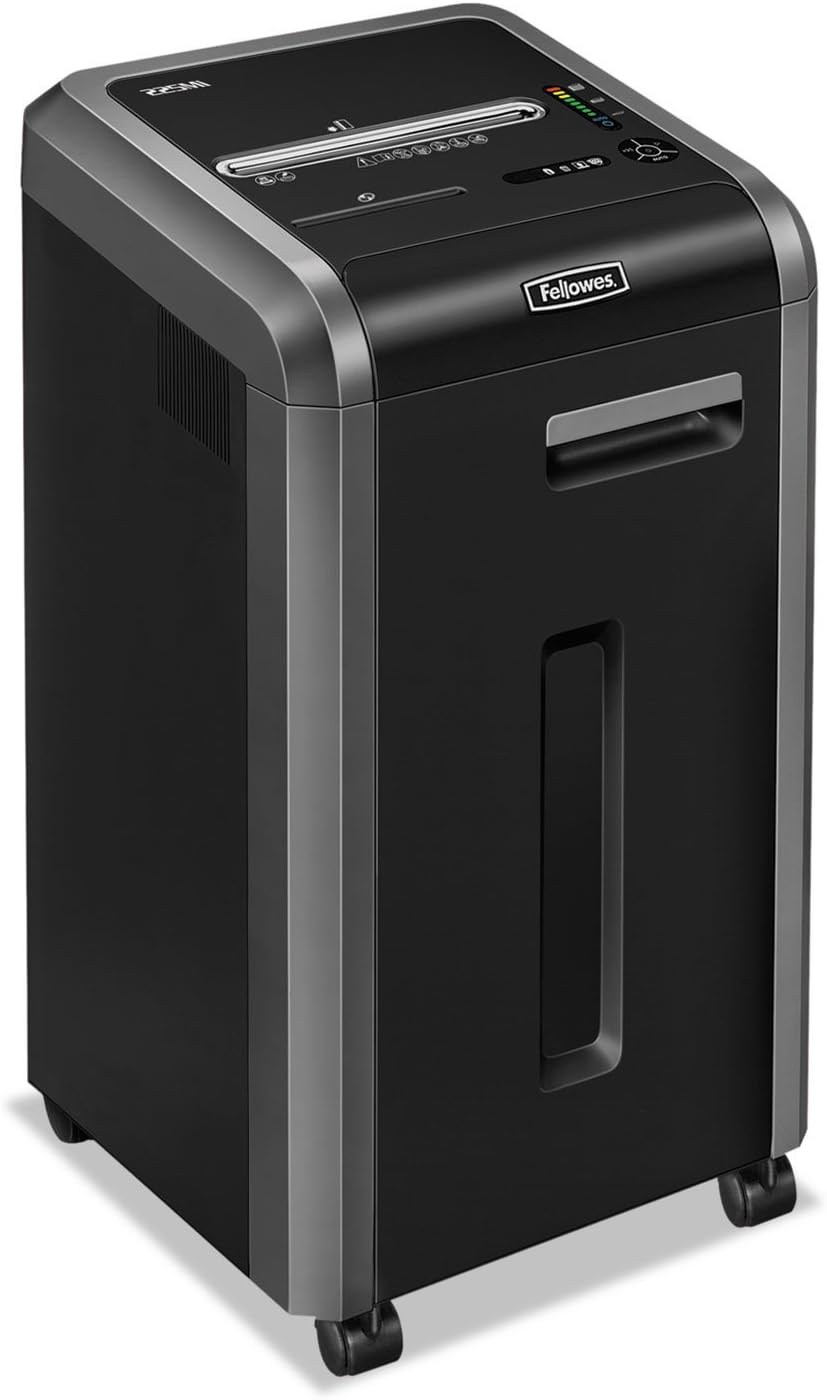
Fellowes 225Ci
Fellowes Powershred 225Ci Crosscut Paper Shredder Instruction Manual
Model: 225Ci (3825001)
1. Important Safety Instructions
Please read these safety instructions carefully before using the shredder. Failure to follow these instructions may result in injury or damage to the product.
- Keep hands, jewelry, loose clothing, hair, and pets away from the paper entry slot.
- Do not insert more than the maximum sheet capacity into the shredder.
- Do not shred metal objects, wet paper, or adhesive materials.
- Always unplug the shredder before moving, cleaning, or emptying the waste bin.
- Do not operate the shredder if the power cord is damaged.
- Keep out of reach of children.
- The shredder is equipped with SafeSense Technology, which stops shredding when hands touch the paper opening. However, exercise caution at all times.
2. Package Contents
Verify that all items are present in the package:
- Fellowes Powershred 225Ci Shredder Unit
- Instruction Manual
- Sample Shredder Oil
- Five Waste Bags
- Casters (wheels)
3. Setup
Follow these steps to set up your shredder:
- Unpack the Shredder: Carefully remove the shredder from its packaging.
- Install Casters: If not pre-installed, insert the casters into the designated slots at the bottom of the shredder until they click into place.
- Position the Shredder: Place the shredder on a flat, stable surface near a power outlet. Ensure adequate ventilation around the unit.
- Connect Power: Plug the power cord into a grounded electrical outlet.
- Prepare Waste Bin: Pull out the 16-gallon waste bin and line it with one of the provided waste bags. Ensure the bag is properly seated. Close the bin securely.
4. Operating Instructions
4.1 Powering On/Off
- To turn on the shredder, locate the power switch (usually on the back or side) and set it to the 'ON' position.
- The control panel on top of the shredder will illuminate, indicating it is ready for operation.
- To turn off, set the power switch to the 'OFF' position.
4.2 Shredding Documents
The Powershred 225Ci can shred up to 22 sheets of paper per pass, as well as staples, credit cards, paper clips, CDs/DVDs, and junk mail.
- Ensure the shredder is powered on and in 'Auto' mode (if applicable).
- Insert paper or other shreddable items into the paper entry slot. The shredder will automatically start.
- For CDs/DVDs, use the dedicated media entry slot (if present).
- The shredder features a continuous duty motor for non-stop shredding during extended use.

4.3 SafeSense Technology
This shredder is equipped with patented SafeSense Technology. This feature automatically stops the shredding process when hands or paws touch the paper opening, enhancing user safety.

4.4 Jam Prevention
The 225Ci features 100% Jam-Proof technology. If too much paper is inserted, the shredder will automatically detect the overload, reverse the paper, and then attempt to shred it again. This helps prevent frustrating paper jams.
4.5 Waste Bin Full Indicator
The shredder is equipped with an LED bin-full indicator. When the waste bin is full, this indicator will illuminate, signaling that the bin needs to be emptied to continue shredding.
5. Maintenance
Regular maintenance ensures optimal performance and extends the life of your shredder.
5.1 Oiling the Cutters
It is recommended to oil the shredder cutters regularly, especially after emptying the waste bin or after approximately 30 minutes of cumulative shredding. Use only Fellowes brand shredder oil or a vegetable-based oil. Do not use aerosol lubricants.
- Apply a thin line of oil across the paper entry slot.
- Run the shredder in reverse for 5-10 seconds to distribute the oil.
5.2 Emptying the Waste Bin
When the LED bin-full indicator illuminates, or when the bin appears full, empty the waste bin:
- Turn off and unplug the shredder.
- Pull out the waste bin.
- Dispose of the shredded material.
- Reinsert the waste bin securely.
- Plug in and turn on the shredder.
5.3 Cleaning
Wipe the exterior of the shredder with a soft, dry cloth. Do not use abrasive cleaners or solvents.
6. Troubleshooting
Refer to the table below for common issues and their solutions.
| Problem | Possible Cause | Solution |
|---|---|---|
| Shredder does not turn on. | Not plugged in; power switch off; waste bin not fully closed. | Ensure power cord is securely plugged in. Turn power switch to 'ON'. Push waste bin in completely. |
| Paper jam. | Too much paper inserted; foreign object. | The 100% Jam-Proof system should automatically reverse and clear. If not, unplug, remove excess paper, and try again. Do not force. |
| Shredder stops during operation. | Overheating; waste bin full; SafeSense activated. | Allow shredder to cool down. Empty waste bin. Remove hands from paper entry. |
| Shredder is noisy. | Cutters need oiling. | Oil the shredder cutters as per maintenance instructions. |
7. Specifications
Detailed specifications for the Fellowes Powershred 225Ci:
| Feature | Detail |
|---|---|
| Shred Type | Cross-Cut |
| Shred Size | 5/32” x 1-1/2” (4x38mm) |
| Sheet Capacity | 22 sheets (70gsm paper) |
| Waste Bin Capacity | 16 Gallons (60 Liters) |
| Shreds Materials | Paper, Staples, Paper Clips, Credit Cards, CDs/DVDs, Junk Mail |
| Security Level | P-4 |
| Safety Features | SafeSense Technology |
| Jam Prevention | 100% Jam-Proof System |
| Motor Type | Continuous Duty |
| Dimensions (H x W x D) | 30.75" x 17.75" x [Depth not specified in image, using 17.75" as a placeholder for depth based on typical shredder proportions] |
| Weight | 93 lbs (42.18 kg) |
| Energy Saving | Energy Savings System |

8. Warranty and Support
The Fellowes Powershred 225Ci is backed by a comprehensive warranty:
- Product and Service Warranty: 2 years from the date of purchase.
- Cutter Warranty: Lifetime warranty on the shredder cutters.
For technical assistance, warranty claims, or to purchase accessories, please contact Fellowes customer support. Refer to the contact information provided in your product registration or on the official Fellowes website.
Related documents225Ci


Ask a question about this manual
Ask about setup, troubleshooting, compatibility, parts, safety, or missing instructions. Manuals+ will review the question and use this page’s manual context to help answer it.