
1. Introduction
This manual provides detailed instructions for the installation, operation, maintenance, and troubleshooting of the Intel Ethernet Server Adapter X520-DA2. This high-performance network interface card is designed to deliver 10 Gigabit Ethernet connectivity for server and desktop environments, enhancing data transfer rates and network efficiency.
2. Product Overview
2.1. Features
- Form Factor: Plug-in card
- Networking Interface: PCI Express
- Data Transfer Rate: 10 Gbps
- Data Link Protocol: 10 Gigabit Ethernet
- Connectivity Technology: Wired
- Type: iSCSI Host Bus Adapter
2.2. Components
The Intel Ethernet Server Adapter X520-DA2 is a PCI Express-based network card. It typically includes the main adapter board with two SFP+ ports for 10 Gigabit Ethernet connectivity. Depending on the package, it may include different size brackets (full-height or low-profile) for various system chassis.
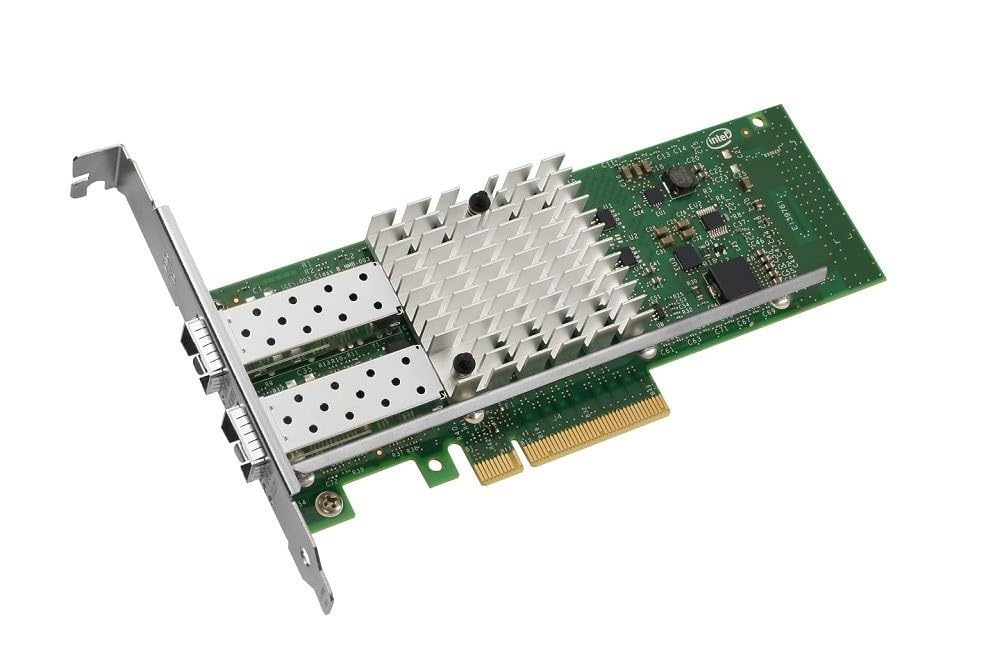
Figure 1: Intel Ethernet Server Adapter X520-DA2. This image displays the network adapter card, highlighting its PCI Express interface and two SFP+ ports for high-speed network connections.
3. Setup and Installation
Follow these steps to properly install the Intel Ethernet Server Adapter X520-DA2 into your system.
- Power Off System: Ensure your computer or server is completely powered off and disconnected from the power source before beginning installation.
- Open Chassis: Open the computer or server chassis to access the PCI Express slots.
- Select PCI Express Slot: Identify an available PCI Express slot (preferably PCIe x8 or x16 for optimal performance).
- Install Bracket (if necessary): If your system requires a low-profile bracket and the card is equipped with a full-height bracket, or vice-versa, carefully swap the bracket. This typically involves removing two small Phillips head screws.
- Insert Adapter: Align the adapter with the chosen PCI Express slot and press down firmly until it is securely seated.
- Secure Adapter: Secure the adapter with the chassis retention mechanism or screw.
- Close Chassis: Close the computer or server chassis and reconnect the power.
- Power On System: Power on your system. The operating system should detect the new hardware.
- Install Drivers: Install the appropriate drivers for your operating system. Drivers can typically be found on the Intel support website. The adapter is known to work out-of-the-box with Linux and ESXi, and Windows drivers are readily available.
4. Operating Instructions
Once the Intel Ethernet Server Adapter X520-DA2 is installed and drivers are loaded, it will function as a standard network interface card, providing 10 Gigabit Ethernet connectivity.
- Connect Network Cables: Connect appropriate SFP+ transceivers and fiber optic cables to the adapter's ports and to your 10 Gigabit network switch or other network devices.
- Verify Connectivity: Check your operating system's network settings to ensure the adapter is recognized and has an active network connection.
- Configure Network Settings: Configure IP addresses, subnet masks, and other network parameters as required by your network environment.
- Performance: The adapter is designed for high-speed data transfer. Ensure all connected network components (cables, switches, transceivers) are rated for 10 Gigabit Ethernet to achieve optimal performance.
5. Maintenance
The Intel Ethernet Server Adapter X520-DA2 requires minimal maintenance. Adhering to the following guidelines can help ensure its longevity and reliable operation:
- Keep Clean: Ensure the inside of your computer or server chassis is kept clean and free of dust to prevent overheating and maintain optimal airflow around the adapter.
- Firmware Updates: Periodically check the Intel support website for any available firmware updates for the X520-DA2 adapter. Firmware updates can improve performance, stability, and compatibility.
- Driver Updates: Keep your network adapter drivers updated to the latest version provided by Intel for the best performance and compatibility with your operating system.
- Environmental Conditions: Operate the adapter within recommended temperature and humidity ranges as specified for your computer or server system.
6. Troubleshooting
If you encounter issues with your Intel Ethernet Server Adapter X520-DA2, consider the following troubleshooting steps:
- No Link Light/Connectivity Issues:
- Verify that the network cables are securely connected to both the adapter and the network switch.
- Ensure the SFP+ transceivers are correctly seated in the adapter's ports.
- Check the status of the network switch port.
- Confirm that the correct drivers are installed and functioning properly in your operating system.
- System Incompatibility:
- Some motherboard models, particularly certain Asus motherboards, have reported incompatibilities where the system may not power up with the card connected. If this occurs, test the adapter in a different system or consult your motherboard's compatibility list.
- Ensure your system's BIOS/UEFI is updated to the latest version.
- Performance Issues (e.g., lower than 10Gbps):
- Verify that all network components (cables, transceivers, switch ports) are rated for 10 Gigabit Ethernet.
- Ensure the adapter is installed in a PCI Express slot that provides sufficient bandwidth (e.g., PCIe x8 or x16).
- Check for driver or firmware updates.
- SFP+ Port Issues / High-pitched Ringing:
- Some users have reported issues with specific SFP+ ports or high-pitched ringing sounds accompanied by connection dropouts. This may indicate a defective unit.
- Under Linux, if using non-Intel optics, you may need to disable authentic SFP verification when loading the kernel module to ensure proper functionality.
If problems persist, contact Intel support or your vendor for further assistance.
7. Specifications
| Model Number | E10G42BTDA |
| Form Factor | Plug-in Card |
| Networking Interface | PCI Express |
| Data Transfer Rate | 10 Gbps (10000 Megabits Per Second) |
| Data Link Protocol | 10 Gigabit Ethernet |
| Connectivity Technology | Wired |
| Type | iSCSI Host Bus Adapter |
| Product Dimensions | 7.09 x 3.94 x 0.59 inches |
| Item Weight | 7.4 ounces (0.21 Kilograms) |
| Hardware Interface | Ethernet |
| Compatible Devices | Desktop (Servers) |
8. Warranty and Support
For warranty information and technical support, please refer to the official Intel website or contact your point of purchase. Intel provides comprehensive support resources, including drivers, firmware, and documentation for their products.
You can visit the official Intel Store for additional information and support resources: Intel Store on Amazon


