1. Introduction and Overview
The Nintendo 3DS is a portable gaming console that allows users to play games in 3D without the need for special glasses. It combines the functionality of the 3DS XL at an affordable price, supporting both 3DS and DS games. Users can also capture 3D photos and connect with friends through StreetPass and SpotPass features.
The console features two screens: a bottom touch screen and a top screen that displays 3D visuals. The 3D effect can be adjusted or turned off completely using the 3D Depth Slider, ensuring a comfortable viewing experience for all users. The system also incorporates motion and gyro sensors for unique gameplay mechanics.

Image 1: The Nintendo 3DS Cosmo Black console, open and ready for use.
2. Setup
2.1 Initial Charging
Before first use, ensure your Nintendo 3DS is fully charged. Connect the AC adapter to the charging cradle, then place the Nintendo 3DS into the cradle. The charging indicator light will illuminate. A full charge typically takes a few hours.
2.2 Powering On/Off
To power on the console, press the POWER button located on the bottom right of the console. To power off, hold the POWER button until the system shuts down.
Video 1: An overview of the Nintendo 3DS, demonstrating its features and initial setup.
3. Key Features
3.1 3D Display and Depth Slider
The top screen provides a stereoscopic 3D display without the need for special glasses. The 3D Depth Slider on the right side of the top screen allows you to adjust the intensity of the 3D effect or turn it off completely for 2D gameplay.
3.2 Controls and Input
- Bottom Touch Screen: Operated with the included telescoping stylus.
- Circle Pad: Provides analog control for precise movement in games.
- D-Pad (Plus Control Pad): For directional input.
- A/B/X/Y Buttons: Standard action buttons.
- L/R Buttons: Shoulder buttons for additional actions.
3.3 Motion and Gyro Sensors
Built-in motion and gyro sensors allow the system to react to physical movement and tilt, enabling new and interactive gameplay experiences.
3.4 Cameras
The Nintendo 3DS features one inward-facing camera and two outward-facing cameras. The dual outward-facing cameras enable the capture of 3D photos and videos. All cameras have a resolution of 640 x 480 pixels.
3.5 Wireless Connectivity (StreetPass & SpotPass)
- StreetPass: Exchange game data (e.g., Mii characters, high scores) with other Nintendo 3DS users you pass while the system is in Sleep Mode.
- SpotPass: Automatically connects to wireless internet access points to download special content, updates, and promotions, even in Sleep Mode.
3.6 Built-in Software
The console comes with pre-installed applications including AR Games, Nintendo 3DS Sound, and the Mii Maker application.
Video 2: A demonstration of the Nintendo 3DS in Aqua Blue, highlighting its design and features.
4. Operating Instructions
4.1 Using the 3D Depth Slider
To adjust the 3D effect, slide the 3D Depth Slider up or down. Sliding it all the way down will disable the 3D effect, allowing you to play in 2D. Adjust to a level that is comfortable for your eyes.
4.2 Navigating the Home Menu
Pressing the HOME button during gameplay will pause the current game and bring up the Home Menu. From here, you can access other applications, adjust settings, or return to your game. New software additions are indicated by notifications.
4.3 Inserting Game Cards and SD Cards
Insert Nintendo 3DS or Nintendo DS game cards into the game card slot on the back of the console. An SD card slot is also available for storing photos, music, and downloadable content. A 2 GB SD card is included with the system.
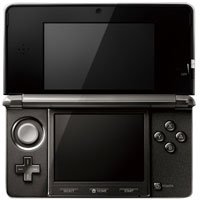
Image 2: Top-down view of the Nintendo 3DS Cosmo Black, showing the game card slot.
4.4 Internet Browser
The Internet Browser application allows you to connect to the internet and view web pages. Ensure your system is connected to a wireless network via SpotPass for internet access.
Video 3: A video showcasing the Nintendo 3DS game library and interface.
5. Maintenance
5.1 Cleaning
Use a soft, dry cloth to clean the console's screens and exterior. Avoid using harsh chemicals or abrasive materials that could damage the surfaces.
5.2 Battery Care
The Nintendo 3DS uses a Lithium Ion battery. To prolong battery life, avoid extreme temperatures and store the console in a cool, dry place. Regular charging using the provided AC adapter and charging cradle is recommended.
5.3 Storage
When not in use, close the console to protect the screens. Store it in a safe place away from direct sunlight, dust, and moisture.
6. Troubleshooting
6.1 General Issues
If you encounter any issues such as the system freezing or not responding, try holding the POWER button for several seconds to force a shutdown, then restart the console. Ensure the battery is adequately charged.
6.2 3D Display Concerns
If the 3D effect appears blurry or causes discomfort, adjust the 3D Depth Slider or turn off the 3D feature entirely. Ensure you are viewing the screen directly and not at an extreme angle.
7. Specifications
- Model Number: CTRSKAAA
- Product Dimensions: 5.3 x 0.8 x 2.9 inches
- Item Weight: 8 ounces
- Batteries: 1 Lithium Ion battery required (included)
- Release Date: March 27, 2011
- Language: English
- Cameras: One inward-facing, dual outward-facing (640 x 480 resolution each)
8. Warranty and Support
For detailed warranty information, product support, or service inquiries, please refer to the official Nintendo website or contact Nintendo customer support directly. Keep your proof of purchase for warranty claims.
Parental Controls are available to restrict 3D mode for children aged 6 and under, as well as other content restrictions.


