
Introduction
This manual provides essential instructions for the setup, operation, and maintenance of your Craig Electronics CVD508 Digital to Analog Broadcast Converter. This device is designed to convert digital television (ATSC) signals for display on analog (NTSC) televisions, allowing older TVs to receive modern broadcast signals.
Safety Information
- Do not expose the unit to rain or moisture to prevent fire or electric shock.
- Do not open the casing. Refer all servicing to qualified personnel.
- Ensure proper ventilation around the unit to prevent overheating.
- Use only the provided AC/DC adapter.
- Keep the unit away from direct sunlight, heat sources, and strong magnetic fields.
Package Contents
Please check that all items listed below are included in your package:
- Craig Electronics CVD508 Digital to Analog Broadcast Converter
- Remote Control (requires 2 x 'AAA' batteries, included)
- AC/DC Adapter
- RF Coaxial Cable
- RCA Cable
Product Overview
The Craig Electronics CVD508 converter features various ports for connectivity to your television and antenna. Familiarize yourself with the device's layout before setup.
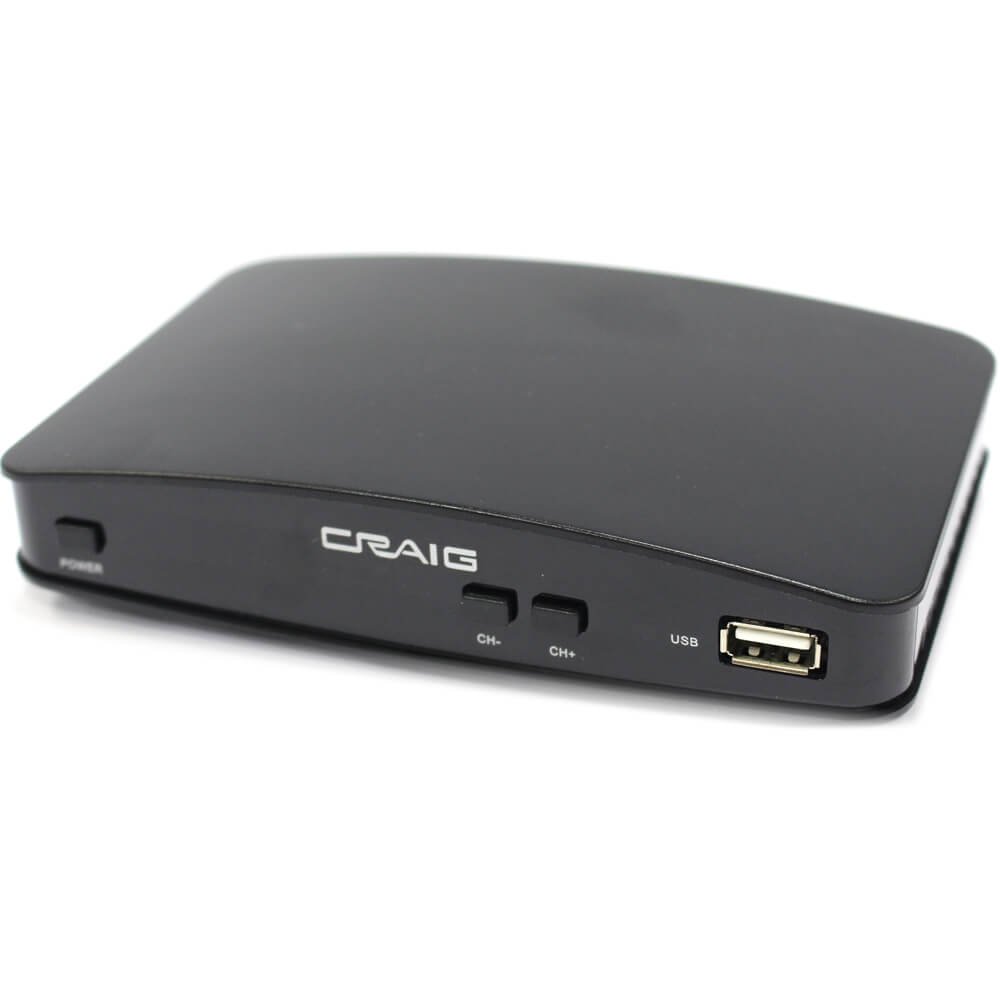
Image: Rear view of the Craig Electronics CVD508 Digital to Analog Broadcast Converter. From left to right, the ports include two coaxial inputs/outputs, an HDMI output, an audio output jack, and three RCA (composite video and stereo audio) outputs, followed by the DC power input.
Setup Instructions
- Connect Antenna: Connect your outdoor or indoor antenna to the 'ANT IN' coaxial port on the converter using an RF coaxial cable.
- Connect to TV:
- Using RCA Cables (Recommended for Analog TVs): Connect the yellow (video), white (left audio), and red (right audio) RCA cables from the converter's 'VIDEO OUT' and 'AUDIO L/R' ports to the corresponding input ports on your analog television.
- Using RF Coaxial Cable (Alternative for Analog TVs): Connect an RF coaxial cable from the converter's 'RF OUT' port to the 'ANT IN' or 'CABLE IN' port on your television. Tune your TV to channel 3 or 4.
- Power Connection: Connect the AC/DC adapter to the 'DC IN' port on the converter, then plug the adapter into a standard electrical outlet.
- Power On: Turn on your television and the converter. Select the correct input source (e.g., AV, Video 1, TV/Antenna) on your television that corresponds to the connection you made.
- Initial Channel Scan: Navigate to the converter's menu (usually by pressing the 'MENU' button on the remote) and select the 'Channel Search' or 'Auto Scan' option. The converter will scan for available digital broadcast channels. This process may take several minutes.
Operating Instructions
Remote Control Functions
The included remote control allows you to navigate menus, change channels, adjust volume, and access various features. Ensure the 'AAA' batteries are correctly inserted.
Basic Operation
- Channel Selection: Use the 'CH+' / 'CH-' buttons or the numeric keypad on the remote to change channels.
- Volume Control: Use the 'VOL+' / 'VOL-' buttons to adjust the audio volume.
- On-Screen Display (OSD): Press the 'MENU' button to access the main menu. Here you can configure settings such as:
- Language: Select your preferred language for the OSD.
- Closed Captioning (CCD): Enable or disable closed captions for programs that support them.
- Electronic Program Guide (EPG): View program schedules and information for available channels.
- Parental Lock: Set up a password to restrict access to certain channels or programs.
- Aspect Ratio: Adjust the display aspect ratio (Full, Letterbox, Center) to best fit your television screen. This option is typically found in the 'Display' or 'Picture' settings within the OSD.
- Audio Output Tracks: If available from the TV broadcast, you can select different audio output tracks (e.g., primary audio, secondary audio, descriptive audio) through the OSD settings.
Maintenance
- Cleaning: Use a soft, dry cloth to clean the exterior of the converter. Do not use liquid cleaners or abrasive materials.
- Storage: If storing the unit for an extended period, disconnect it from power and store it in a cool, dry place.
- Remote Control Batteries: Replace the 'AAA' batteries in the remote control when its performance diminishes.
Troubleshooting
| Problem | Possible Cause | Solution |
|---|---|---|
| No picture or sound | Incorrect input source selected on TV; loose cable connections; converter not powered on. | Ensure TV is on correct input (AV, Video 1, TV/Antenna). Check all cable connections. Verify converter is plugged in and powered on. |
| "No Signal" message | Antenna not connected or positioned correctly; channel scan not performed or incomplete. | Check antenna connection and position. Perform a channel scan through the converter's menu. |
| Picture freezing or pixelated | Weak antenna signal; interference. | Adjust antenna position. Consider using an amplified antenna or repositioning the converter away from other electronics. |
| Remote control not working | Dead batteries; obstruction between remote and converter; remote not pointed at IR sensor. | Replace batteries. Remove any obstructions. Point remote directly at the converter's front panel. |
| Cannot access all channels | Incomplete channel scan; weak signal for certain channels. | Perform another channel scan. Adjust antenna direction and try scanning again. |
Specifications
- Model: CVD508
- Brand: Craig
- Function: Digital (ATSC) to Analog (NTSC) Broadcast Converter
- Interface Type: Coaxial, RCA
- Material: Plastic
- Power: AC Operation (AC Adapter Included)
- Features: Multi-language OSD, Closed Captioning (CCD), Loop Through, Electronic Program Guide (EPG), Parental Lock, Aspect Ratio Support (Full, Letter, Center), Stereo Audio Output, Selectable Multi Audio Output Tracks.
- Accessories: Remote Control, AC/DC Adapter, RF Coaxial Cable, RCA Cable
Warranty and Support
For warranty information or technical support, please refer to the documentation provided with your purchase or contact Craig Electronics customer service. Keep your purchase receipt as proof of purchase.


