
Magicard 3649-0001
Magicard Pronto Single Sided, Hand-Fed Color Card Printer User Manual
Model: 3649-0001
1. Introduction
This manual provides comprehensive instructions for the setup, operation, and maintenance of your Magicard Pronto Single Sided, Hand-Fed Color Card Printer. Please read this manual thoroughly before operating the device to ensure proper use and longevity.
The Magicard Pronto is a compact and affordable single-sided ID card printer designed for high-quality, vibrant color, and crystal-clear text printing. It features a unique watermark capability for enhanced security.
2. Safety Information
Always follow basic safety precautions when using this product to reduce the risk of fire, electric shock, and injury to persons.
- Do not expose the printer to water or moisture.
- Ensure the power supply is correctly rated for your region.
- Do not attempt to service the printer yourself. Refer all servicing to qualified service personnel.
- Keep hands clear of moving parts during operation.
3. Package Contents
Verify that all items are present in the package:
- Magicard Pronto Single Sided ID Card Printer
- Power Supply Unit
- USB Cable
- Driver CD (or download instructions)
- Quick Start Guide
4. Setup
4.1 Unpacking and Placement
Carefully remove the printer from its packaging. Place the printer on a stable, flat surface with adequate ventilation. Ensure there is enough space around the printer for card feeding and ribbon replacement.

Figure 4.1: Magicard Pronto Printer. This image displays the compact design of the Magicard Pronto printer, shown from two different angles, highlighting its suitability for desktop use.

Figure 4.2: Magicard Pronto Dimensions. This image illustrates the physical dimensions of the Magicard Pronto printer, indicating its length (10.6 inches), width (8.4 inches), height (9.1 inches), and weight (9.7 lbs), emphasizing its compact and portable nature.
4.2 Connecting the Printer
- Connect the power supply to the printer and then to a suitable power outlet.
- Connect the USB cable from the printer to your computer. The printer supports USB rev 1.1 and USB 2.0 connections.
4.3 Driver Installation
The Magicard Pronto requires specific drivers for operation. Drivers are compatible with Windows XP, Vista, 7, 8.1, 10 (32 and 64-bit), Windows Server 2003 R2 SP2, 2008, 2012, 2016, GNU/Linux, and Mac OS X.
- Insert the provided driver CD into your computer's CD/DVD drive. If no CD is provided, download the latest drivers from the official Magicard website.
- Follow the on-screen instructions to complete the driver installation.
- Restart your computer if prompted.
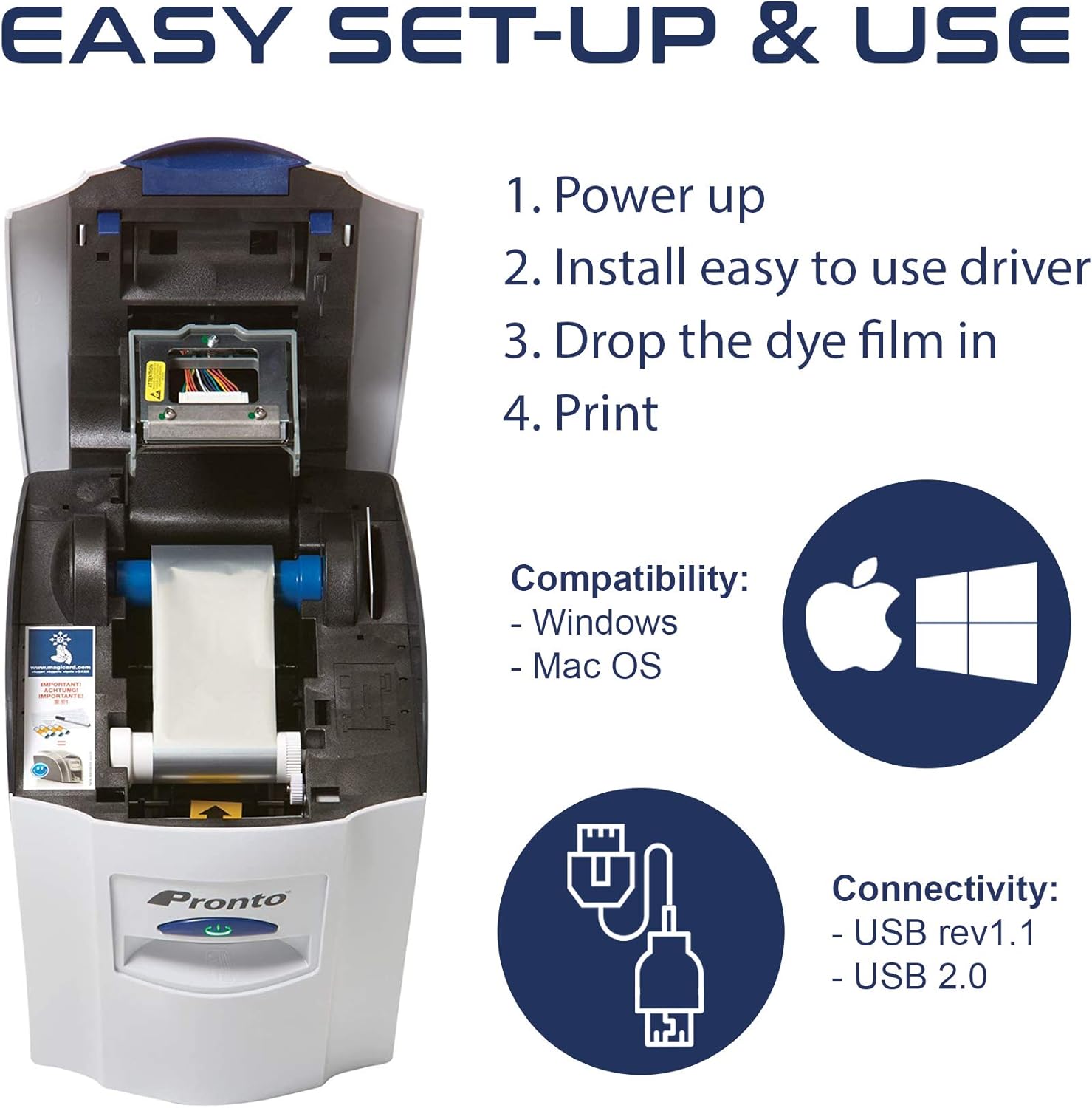
Figure 4.3: Easy Setup and Use. This diagram outlines the simple four-step process for setting up and using the Magicard Pronto: Power up, Install easy-to-use driver, Drop in the dye film, and Print. It also highlights compatibility with Windows and Mac OS, and connectivity via USB rev 1.1 and USB 2.0.
4.4 Loading the Dye Film
The dye film (ribbon) is essential for color printing. Refer to the printer's internal diagram or quick start guide for precise loading instructions.
- Open the printer cover.
- Carefully insert the dye film cartridge into its designated slot, ensuring it clicks into place.
- Close the printer cover.
5. Operating Instructions
5.1 Loading Cards
The Magicard Pronto is a hand-fed printer. Cards must be loaded one at a time into the input slot.
- Accepted Card Dimensions: ISO CR80 (85.6mm x 54mm / 3.375 inches by 2.125 inches) and ISO CR79 (83.9mm x 51mm / 3.303 inches by 2.051 inches).
- Card Thickness: 0.51mm to 1.02mm / 20mil to 40mil.
- Ensure the printer is powered on and drivers are installed.
- Gently insert a single ID card into the manual feed slot until it is detected by the printer.
5.2 Printing a Card
Once the card is loaded and the printer is ready, you can initiate printing from your design software.
- Open your card design software (e.g., Magicard's card design software or any compatible application).
- Create or open your card design.
- Select the Magicard Pronto as your printer.
- Adjust print settings as needed (e.g., color, monochrome, HoloKote options).
- Click "Print". The printer will automatically feed the card, print, and eject it.

Figure 5.1: Custom Designed Single-Sided ID Cards. This image showcases various types of single-sided ID cards that can be custom designed and printed using the Magicard Pronto, such as Employee ID Cards, Membership Cards, Gift Cards, and Student ID Cards.
5.3 HoloKote Security Feature
The Magicard Pronto includes HoloKote, a patented technology that prints a secure watermark during processing. This feature enhances the visual security of your cards.
- You can choose from 4 standard HoloKote designs.
- Refer to your printer software for selecting and applying HoloKote watermarks.

Figure 5.2: Reliable & Secure Features. This image emphasizes the security and reliability features of the Magicard Pronto, including HoloKote visual security with 4 predefined watermarks and customizable upgrade options. It also highlights the 2-year limited warranty and available telephone and online support.
6. Maintenance
6.1 Cleaning the Printer
Regular cleaning ensures optimal print quality and extends the life of your printer. Use only Magicard approved cleaning kits.
- Power off and unplug the printer before cleaning.
- Follow the instructions provided with your cleaning kit for cleaning the print head, rollers, and internal components.
- Do not use abrasive materials or harsh chemicals.
6.2 Ribbon Replacement
When the dye film is depleted, it needs to be replaced.
- Open the printer cover.
- Remove the used ribbon cartridge.
- Insert a new Magicard Pronto compatible ribbon cartridge, ensuring it is correctly seated.
- Close the printer cover.
7. Troubleshooting
This section addresses common issues you might encounter with your Magicard Pronto printer.
| Problem | Possible Cause | Solution |
|---|---|---|
| Printer not responding | Power cable loose, USB cable disconnected, Driver issue | Check power and USB connections. Reinstall drivers if necessary. |
| Poor print quality (faded, lines) | Dirty print head, low ribbon, incorrect settings | Clean the print head. Replace ribbon. Check print settings in software. |
| Card jam | Incorrect card thickness, foreign object, misaligned card | Power off printer. Carefully remove jammed card. Ensure correct card type and thickness. |
| HoloKote not visible | HoloKote not enabled in software, incorrect ribbon type | Verify HoloKote settings in your printing software. Ensure you are using a compatible ribbon. |
If the problem persists, contact Magicard support for further assistance.
8. Specifications
| Feature | Detail |
|---|---|
| Technology | 300dpi color dye sublimation, monochrome, thermal rewritable |
| Feed System | Manual fed |
| Printing Capability | Single-sided |
| Color Print Speed | 35 seconds per card |
| Monochrome Print Speed | 7 seconds per card |
| Operating Systems | Windows XP, Vista, 7, 8.1, 10 (32/64-bit), Windows Server 2003 R2 SP2, 2008, 2012, 2016, GNU/Linux, Mac OS X |
| USB Connection | USB rev 1.1 and USB 2.0 |
| Standard HoloKote | Choice of 4 standard designs |
| Card Sizes | ISO CR80 (85.6mm x 54mm), ISO CR79 (83.9mm x 51mm) |
| Card Thickness | 0.51mm to 1.02mm (20mil to 40mil) |
| Printer Weight | 4.4kg / 9.7lbs |
| Printer Size (L x W x H) | 270mm x 215mm x 233mm (10.6 x 8.4 x 9.1 inches) |
| Temperature Range | 10°C to 30°C / 50°F to 85°F |
| Power Source | External power brick for 90-265V 40-60Hz |

Figure 8.1: High Quality, Low Volume ID Printing. This infographic highlights the key printing capabilities of the Magicard Pronto, including color dye sublimation technology, 300x300 dpi resolution, hand-feed mechanism, thermal rewritable functionality, and print speeds of 35 seconds for color and 7 seconds for grayscale per card.
9. Warranty Information
The Magicard Pronto Single Sided ID Card Printer is covered by a 2-year warranty. This warranty covers defects in materials and workmanship under normal use. For detailed terms and conditions, please refer to the warranty card included with your product or visit the official Magicard website.
10. Support and Contact
For technical support, troubleshooting assistance, or warranty claims, please contact Magicard customer support.
- Online Support: Visit the official Magicard website for FAQs, driver downloads, and support resources.
- Telephone Support: Refer to the contact information provided in your product documentation or on the Magicard website for regional support numbers.
Related documents3649-0001


Ask a question about this manual
Ask about setup, troubleshooting, compatibility, parts, safety, or missing instructions. Manuals+ will review the question and use this page’s manual context to help answer it.