
1. Introduction
This user manual provides comprehensive instructions for the setup, operation, and maintenance of your new Microsoft Wired Keyboard, Model ANB-00021. Please read this manual thoroughly before using the product to ensure optimal performance and longevity.

Figure 1: Microsoft Wired Keyboard (Model ANB-00021)
This image displays the Microsoft Wired Keyboard from an angled perspective, showcasing its full layout, including the numeric keypad and special function keys. The keyboard is black with a standard QWERTY layout and a wired USB connection.
2. Product Features
The Microsoft Wired Keyboard is designed for efficiency and durability, offering a comfortable typing experience. Key features include:
- Black, English/International Layout: Standard QWERTY layout suitable for various regions.
- USB Connectivity: Simple and reliable wired connection.
- Ultra-Flat Design: Slim profile for a modern aesthetic and comfortable wrist position.
- Short Key Travel: Responsive keys with a short actuation distance for efficient typing.
- Splash-Resistant: Designed to withstand minor spills, protecting internal components.
- Dedicated Hotkeys: Includes 5 special keys for quick access to common functions.
- Calculator Key: Instant access to the calculator application.
- Gently Inclined Key Block: Ergonomic design for reduced strain during extended use.
- Classic Keyboard Layout: Familiar and intuitive key arrangement.
- Plug and Play: No software installation required; simply connect and use.
3. Setup
Setting up your Microsoft Wired Keyboard is a straightforward process due to its Plug and Play functionality.
- Unpack the Keyboard: Carefully remove the keyboard from its packaging.
- Connect to a USB Port: Locate an available USB port on your computer (desktop PC, laptop, or compatible device). Insert the USB connector of the keyboard firmly into the USB port.
- System Recognition: Your operating system (Windows, macOS, Linux, etc.) will automatically detect and install the necessary drivers. This process usually takes a few seconds.
- Ready for Use: Once the drivers are installed, the keyboard is ready for immediate use. No additional software or configuration is typically required.
For optimal performance, ensure the USB cable is not kinked or strained.
4. Operating Instructions
The Microsoft Wired Keyboard operates like any standard QWERTY keyboard, with additional convenience features.
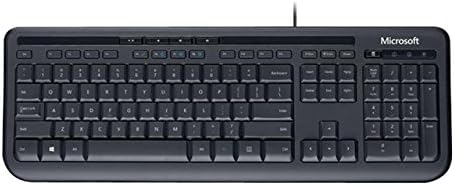
Figure 2: Top-down view of the keyboard layout
This image provides a clear top-down view of the Microsoft Wired Keyboard, highlighting the full QWERTY key layout, function keys, numeric keypad, and the row of special hotkeys located above the function keys.
Standard Key Functions
- Alphanumeric Keys: Used for typing letters, numbers, and symbols.
- Function Keys (F1-F12): Perform various tasks depending on the active application or operating system.
- Numeric Keypad: Located on the right, for efficient data entry.
- Navigation Keys: Arrow keys, Home, End, Page Up, Page Down for cursor movement and scrolling.
- Modifier Keys: Shift, Ctrl, Alt, Windows key for combination shortcuts.
Special Keys (Hotkeys)
The keyboard features a row of dedicated hotkeys above the function keys for quick access to multimedia and system functions:
- Media Control Keys: Play/Pause, Stop, Previous Track, Next Track.
- Volume Control Keys: Mute, Volume Down, Volume Up.
- Calculator Key: Instantly launches the system's calculator application.
- Other Programmable Keys: Some models may include additional keys that can be customized through operating system settings or Microsoft keyboard software (if available).
Familiarize yourself with these keys to enhance your productivity.
5. Maintenance
Proper care and maintenance will extend the life of your Microsoft Wired Keyboard.
- Cleaning:
- Disconnect the keyboard from your computer before cleaning.
- Use a soft, lint-free cloth lightly dampened with water or a mild, non-abrasive cleaning solution.
- Wipe the surface of the keys and the keyboard casing.
- For dust and debris between keys, use compressed air.
- Do not immerse the keyboard in water or use harsh chemicals.
- Splash Resistance: While the keyboard is splash-resistant, it is not waterproof. Avoid exposing it to excessive liquids. In case of a spill, disconnect immediately, wipe dry, and allow to air dry completely before reconnecting.
- Storage: When not in use for extended periods, store the keyboard in a clean, dry environment away from extreme temperatures.
- Cable Care: Avoid sharp bends or kinks in the USB cable to prevent damage.
6. Troubleshooting
If you encounter issues with your keyboard, refer to the following common problems and solutions:
| Problem | Possible Cause | Solution |
|---|---|---|
| Keyboard not responding | Loose USB connection, incorrect USB port, driver issue. | Ensure the USB cable is securely plugged into a working USB port. Try a different USB port. Restart your computer. |
| Specific keys not working | Debris under the key, key mechanism damage. | Use compressed air to clear debris. If the key is physically damaged, contact support. |
| Hotkeys not functioning | Software conflict, operating system settings. | Ensure your operating system is up to date. Check keyboard settings in your OS control panel. |
| Unexpected behavior after liquid exposure | Internal components affected by liquid. | Immediately disconnect the keyboard. Allow it to dry completely for at least 24-48 hours in a well-ventilated area before attempting to reconnect. If issues persist, the keyboard may be damaged. |
If the problem persists after trying these solutions, please refer to the Support section.
7. Specifications
Detailed technical specifications for the Microsoft Wired Keyboard (Model ANB-00021):
| Attribute | Detail |
|---|---|
| Model Number | ANB-00021 |
| Brand | Microsoft |
| Connectivity Technology | USB (Wired) |
| Keyboard Description | Standard QWERTY, USB |
| Special Feature | Splash-resistant |
| Color | Black |
| Number of Keys | 600 (Note: This number is as per product specifications and may refer to total keypresses lifespan or a specific internal metric, not physical keys.) |
| Keyboard Backlighting | None (Single Color support listed, but typically implies no backlighting for this model) |
| Style | Modern |
| Material | Plastic |
| Product Dimensions (L x W x H) | 8.66 x 3.15 x 1.18 inches (22 x 8 x 3 cm approx.) |
| Item Weight | 1.31 pounds (0.59 kg approx.) |
| Compatible Devices | Laptop, PC, Tablet, Smartphone (via appropriate adapters if needed) |
| Manufacturer | Microsoft |
| Date First Available | March 9, 2011 |
8. Warranty and Support
For warranty information and technical support regarding your Microsoft Wired Keyboard, please refer to the official Microsoft support channels.
- Online Support: Visit the official Microsoft Support website for FAQs, troubleshooting guides, and driver downloads.
- Contact Support: For direct assistance, contact Microsoft customer service through their provided contact methods (phone, chat, email).
- Proof of Purchase: Always retain your proof of purchase for warranty claims.
Specific warranty terms and conditions may vary by region and purchase date. Please consult the documentation included with your product or the Microsoft website for the most accurate and up-to-date warranty details.


