
Introduction
Thank you for purchasing the ION Profile LP Vinyl-to-MP3 Turntable. This manual provides essential information for setting up, operating, and maintaining your turntable, as well as instructions for converting your vinyl records to MP3 format. Please read these instructions carefully before use to ensure proper operation and to maximize the lifespan of your device.
Key Features:
- Converts vinyl records directly to MP3 format.
- Compatible with Mac and PC operating systems.
- Plays records on a home stereo system without requiring a separate preamplifier.
- Features a plug-and-play USB connection for computer integration.
Product Overview

Image: The ION Profile LP Turntable, showcasing its compact design and integrated dust cover.
The ION Profile LP is designed to bring your vinyl collection into the digital age while also serving as a traditional record player. Its streamlined design integrates seamlessly into any audio setup.
Setup
Unpacking and Components:
Carefully remove all components from the packaging. Ensure the following items are present:
- ION Profile LP Turntable Unit
- USB Cable
- Power Adapter
- RCA Audio Cables
- Software (downloadable)
Connections:
- Power Connection: Connect the power adapter to the turntable's power input and then to a wall outlet.
- Audio Output (Optional): To listen to your records through a home stereo system, connect the RCA audio cables from the turntable's audio output to an available audio input on your receiver or amplifier. The Profile LP features a built-in preamplifier, so it can be connected to any line-level input.
- USB Connection: For converting vinyl to MP3, connect the USB cable from the turntable to an available USB port on your computer.
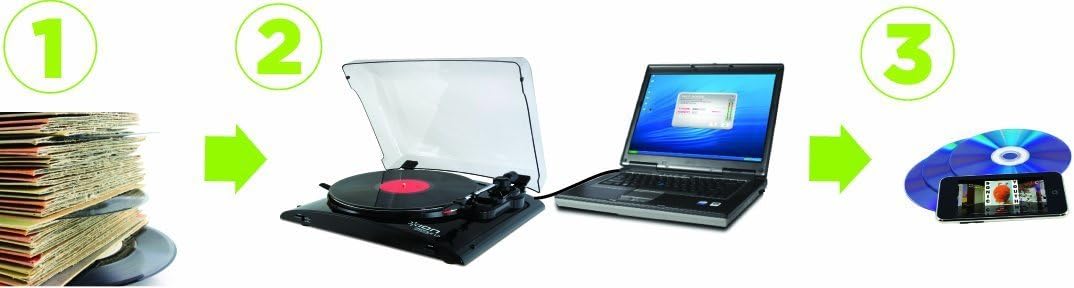
Image: A visual representation of the vinyl-to-digital conversion process, from records to the turntable, then to a computer, and finally to digital music formats.
Operating Instructions
Playing a Record:
- Place a record on the turntable platter.
- Select the appropriate speed (33 or 45 RPM) using the speed selector switch. For 45 RPM records, ensure the included 45 RPM adapter is placed on the spindle if the record has a large center hole.
- Release the tonearm lock.
- Gently lift the tonearm using the cueing lever.
- Position the stylus over the desired starting groove of the record.
- Lower the tonearm slowly using the cueing lever. The platter will begin to rotate automatically.
- At the end of the record, the tonearm will automatically return to its rest position, and the platter will stop spinning.
- To stop playback manually, lift the tonearm using the cueing lever and return it to the tonearm rest.
Speed Selection:
The turntable supports two standard playback speeds:
- 33 RPM: For standard 12-inch and 10-inch LPs.
- 45 RPM: For 7-inch singles. Use the included 45 RPM adapter when necessary.
Converting Vinyl to MP3
The ION Profile LP allows you to digitize your vinyl collection for playback on computers, portable devices, or for archival purposes.
Software Requirements:
While the turntable may come with proprietary software, many users find success with third-party audio recording software such as Audacity. If using Audacity for MP3 export, you may also need to download the LAME MP3 encoder.
Conversion Process:
- Ensure the turntable is connected to your computer via the USB cable.
- Install and open your chosen audio recording software (e.g., Audacity).
- In the software's preferences or settings, select the ION Profile LP (or similar USB audio device) as the input source.
- Adjust the recording level within the software to prevent clipping or distortion.
- Start recording in the software.
- Begin playing your vinyl record on the turntable as described in the 'Operating Instructions' section.
- Once the record side is finished, stop the recording in the software.
- Use the software's editing tools to trim silence, remove clicks/pops, and normalize the audio levels.
- Export the recorded audio as an MP3 file. Many programs allow you to split tracks and add metadata during export.

Image: The ION Profile LP Turntable connected to a laptop, illustrating the setup for digitizing vinyl records using recording software.
Maintenance
Cleaning:
- Regularly wipe the turntable's exterior with a soft, dry cloth. Avoid abrasive cleaners or solvents.
- Keep the dust cover closed when not in use to prevent dust accumulation on the platter and stylus.
- Use a dedicated stylus cleaning brush to gently remove dust and debris from the stylus tip. Brush from back to front.
Stylus Replacement:
The stylus (needle) is a consumable part and will wear out over time, affecting sound quality and potentially damaging your records. Replace the stylus after approximately 300-500 hours of playback, or if you notice a degradation in sound quality. Refer to the manufacturer's website or your retailer for compatible replacement styli.
Troubleshooting
- No Sound:
- Ensure all audio cables are securely connected to the correct inputs on your stereo system.
- Verify your stereo system is set to the correct input source.
- Check the volume levels on both the turntable (if applicable) and your stereo system.
- Distorted Sound:
- Clean the stylus.
- Check if the stylus is damaged or worn and replace if necessary.
- Ensure the record is clean and free of dust.
- When converting to MP3, adjust recording levels in your software to avoid clipping.
- Turntable Not Spinning:
- Confirm the power adapter is securely connected and the unit is receiving power.
- Ensure the tonearm is lifted from its rest and positioned over the platter. The platter typically starts automatically when the tonearm is moved into position.
- USB Connection Issues:
- Try a different USB port on your computer.
- Ensure the USB cable is not damaged.
- Restart your computer and the recording software.
- Verify that the turntable is selected as the audio input device in your computer's sound settings and recording software.
Technical Specifications
| Brand | ION |
| Model Number | ION PROFILE LP |
| Maximum Rotational Speed | 45 RPM (also supports 33 RPM) |
| Special Feature | MP3 Conversion |
| Material | Plastic |
| Item Weight | 3.1 Kilograms |
| Compatible Devices | Mac OS X and iOS, Windows (98SE and up), USB 1.1 and higher |
| Power Source | Corded Electric |
| Connectivity Technology | Wired |
Warranty Information
The ION Profile LP Turntable comes with a limited warranty. The warranty period is Ninety days from the original date of purchase. This warranty covers defects in materials and workmanship under normal use. For specific terms, conditions, and limitations, please refer to the warranty card included with your product or contact ION customer support.
Customer Support:
For technical assistance, troubleshooting beyond this manual, or warranty claims, please visit the official ION website or contact their customer support department. Have your product model number and purchase date available when contacting support.


