
Introduction
This manual provides comprehensive instructions for the setup, operation, maintenance, and troubleshooting of your ACP 3XFIRE Oscar Laser Gaming Mouse, model XL-730F. This high-performance wired gaming mouse is designed for precision and speed, featuring customizable DPI settings, programmable buttons, and on-board memory for personalized gaming experiences.
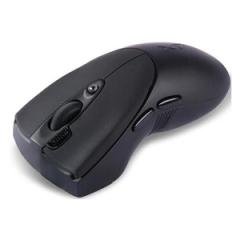
Image: The ACP 3XFIRE Oscar Laser Gaming Mouse XL-730F, showcasing its sleek black design and button layout. This image illustrates the general appearance of the mouse.
Setup
- Connect the Mouse: Insert the USB connector of the ACP 3XFIRE Oscar Laser Gaming Mouse into an available USB port on your computer.
- Driver Installation: The mouse is designed for plug-and-play functionality. Your operating system should automatically detect and install the necessary drivers. No additional driver installation is typically required for basic functionality.
- Software Installation (Optional): To access advanced customization features such as macro programming and detailed DPI settings, you may need to download and install the dedicated software from the ACP official website. Refer to the product page or included documentation for software download links.
Operating Instructions
DPI Adjustment
The mouse features a customizable DPI button that allows instant switching between multiple sensitivity levels. The DPI range is from 100 to 3600 DPI. An LED color indicator will change to reflect the current DPI setting, providing visual feedback.
- Press the DPI button (usually located near the scroll wheel) to cycle through available DPI settings.
- Observe the LED indicator to identify the active DPI level.
- Customize specific DPI values and their corresponding LED colors using the optional software.
Customizable Buttons and Macros
The ACP 3XFIRE Oscar Laser Gaming Mouse allows you to program its buttons for various functions and create complex macros. This feature is primarily managed through the dedicated software.
- Install the optional software to access the button assignment and macro editor.
- Assign single key presses, multi-key combinations, or complex sequences (macros) to any programmable button.
- Save your configurations to the mouse's on-board memory.
Adjustable Key Response Time
You can adjust the mouse key response time between 3ms and 30ms. This feature can enhance responsiveness in fast-paced applications and extend the lifespan of the mouse switches.
- Access the response time settings within the optional software.
- Select your preferred response time. A lower value provides faster response.
On-board Memory
The mouse is equipped with 16KB of on-board memory. This allows you to store your customized settings, including DPI profiles, button assignments, and macros, directly on the mouse. Once saved, these settings can be used on any computer without needing to reinstall the software.
- After configuring your settings in the software, ensure you save them to the mouse's on-board memory.
- The mouse will retain these settings even when connected to a different computer or after being unplugged.
Maintenance
Proper maintenance ensures the longevity and optimal performance of your gaming mouse.
- Cleaning the Surface: Use a soft, dry, lint-free cloth to wipe the exterior of the mouse. For stubborn dirt, slightly dampen the cloth with water or a mild cleaning solution, then wipe dry immediately. Avoid harsh chemicals or abrasive materials.
- Cleaning the Sensor: Periodically inspect the optical/laser sensor on the underside of the mouse for dust or debris. Use a cotton swab or compressed air to gently clean the sensor area. Do not touch the sensor directly with your fingers.
- Cable Care: Avoid sharply bending or twisting the mouse cable. Store the cable neatly when not in use to prevent damage.
- Storage: When not in use for extended periods, store the mouse in a clean, dry environment away from extreme temperatures.
Troubleshooting
| Problem | Possible Solution |
|---|---|
| Mouse is not responding. |
|
| DPI settings are not changing. |
|
| Macros or custom button functions are not working. |
|
| Mouse cursor movement is erratic or jumpy. |
|
Specifications
- Model: XL-730F
- DPI Range: 100 - 3600 DPI (Adjustable)
- Key Response Time: 3 - 30 ms (Adjustable)
- On-board Memory: 16KB
- Connectivity: Wired USB
- Sensor Type: Laser
- Item Weight: 1 pound (approximately 454 grams)
- Package Dimensions: 6 x 5 x 4 inches (approximately 15.24 x 12.7 x 10.16 cm)
- Manufacturer: ACP
- ASIN: B0029O0ABY
Warranty and Support
For warranty information, technical support, or service inquiries, please refer to the documentation included with your product or visit the official ACP website. Keep your purchase receipt as proof of purchase for warranty claims.