
Introduction
This manual provides detailed instructions for the installation, operation, and maintenance of your Thermaltake DH 202 VJ80011N2Z Digital Home Series HTPC Case. Please read this manual thoroughly before beginning installation to ensure proper setup and optimal performance. Keep this manual for future reference.
Product Overview
The Thermaltake DH 202 VJ80011N2Z is a Home Theater Media PC case designed for digital entertainment systems. It features a stylish aluminum front panel, efficient cooling, and integrated media functionalities.
Key Features:
- Stylish aluminum front panel design.
- High-efficiency ventilation with a 120mm silent front fan and dual 60mm rear fans.
- Built-in 23-in-1 card reader for versatile media access.
- Integrated Media LAB LCD module with hot keys for multi-language display and system control.
- Volume control knob and included remote controller for convenient operation.
Product Views:
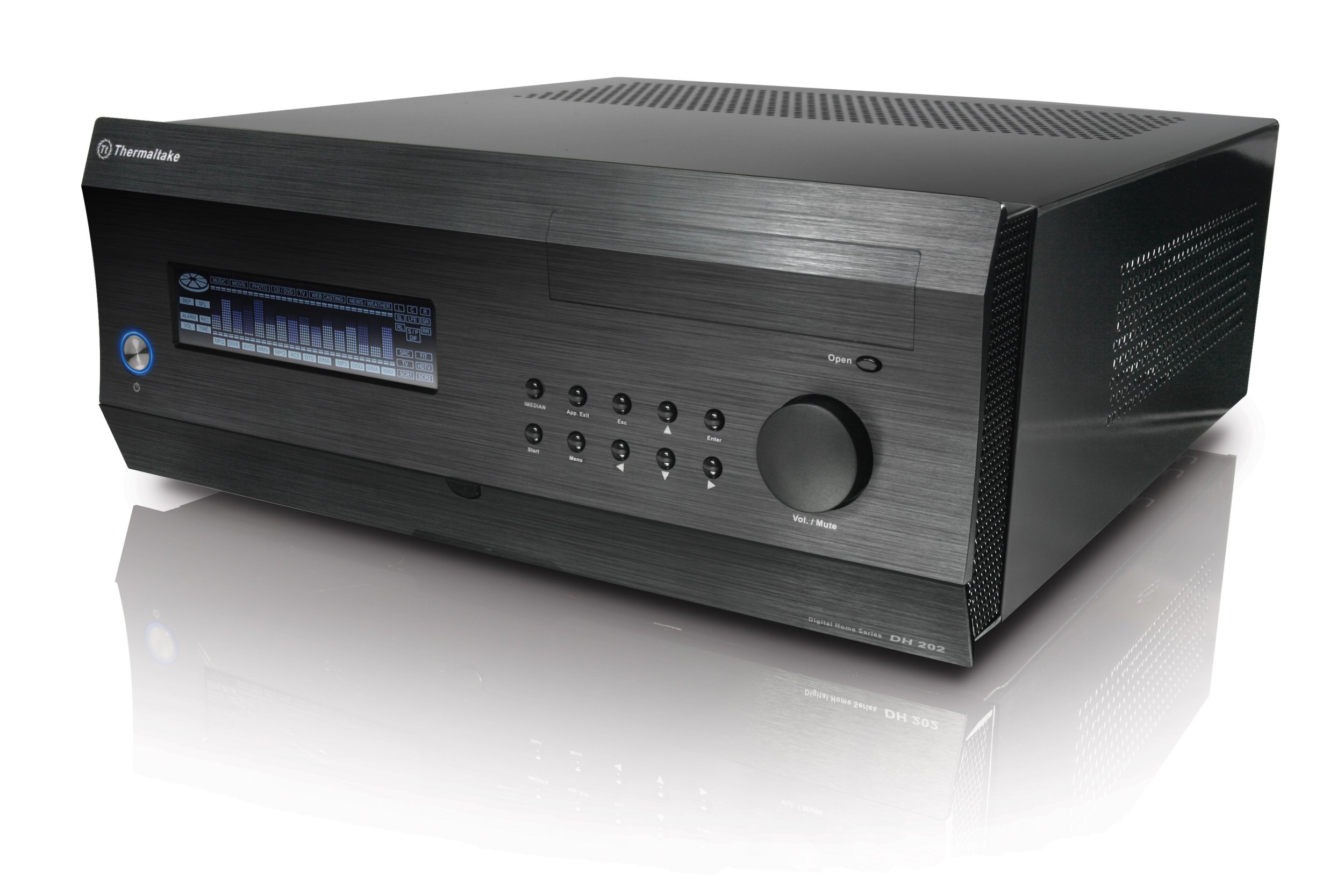
Figure 1: Front view of the Thermaltake DH 202 HTPC case, showcasing the brushed aluminum finish, integrated Media LAB LCD, and front panel controls including the volume knob and hot keys.

Figure 2: Detailed view of the front panel, highlighting the Media LAB LCD screen, two USB 2.0 ports, IEEE 1394 Firewire port, HD Audio jacks, and the 23-in-1 card reader slot.

Figure 3: Rear view of the HTPC case, illustrating the seven expansion slots for PCI/PCI-E cards and the vents for the dual 60mm exhaust fans.

Figure 4: Internal layout of the case, showing the placement of the 5.25" drive bay, 3.5" internal drive bays, and the 120mm front intake fan.

Figure 5: Side view of the HTPC case, highlighting the ventilation grilles designed to improve internal airflow and cooling efficiency.
Setup and Installation
Follow these steps for proper installation of components into your HTPC case.
1. Preparing the Case:
- Carefully remove the side panel by unscrewing the thumbscrews at the rear of the case and sliding the panel backward.
- Identify the internal layout as shown in Figure 4.
2. Motherboard Installation:
- Install the necessary standoffs onto the motherboard tray according to your motherboard's ATX or Micro ATX form factor.
- Carefully place your motherboard onto the standoffs and secure it with screws.
3. Drive Installation:
- 5.25" Drive Bay: Install your optical drive (e.g., DVD/Blu-ray) into the single external 5.25" bay.
- 3.5" Drive Bays: Install up to three 3.5" hard disk drives into the internal drive cage. Note that the drive cage is located near the 120mm front fan.
- Note: Some larger graphics cards may interfere with the hard drive bracket. It may be necessary to temporarily remove the bracket to install the graphics card, then re-install the bracket.
4. Power Supply Installation:
- Install a standard ATX PSII power supply into the designated bay. The power supply is bottom-mounted.
5. Expansion Card Installation:
- The case provides seven expansion slots. Remove the slot covers as needed.
- Insert your PCI or PCI-E expansion cards (e.g., graphics cards, sound cards) and secure them. Be aware that the plastic retention brackets may be fragile.
- Compatibility Note: This HTPC case has a low-profile design. Ensure that any CPU heatsinks/fans or large graphics cards are compatible with the internal dimensions. Tall heatsinks (e.g., Zalman CNPS9700) may not fit.
6. Front I/O and Internal Connections:
- Connect the front panel USB 2.0, IEEE 1394 Firewire, and HD Audio cables to the corresponding headers on your motherboard.
- Connect the 23-in-1 card reader cable. This typically connects to a USB header on the motherboard.
- Connect the power LED, HDD LED, power switch, and reset switch cables to the motherboard's front panel header. Note that the power LED connector may be a 2-pin style, requiring an adapter for some 3-pin motherboard headers.
- Connect the fans (120mm front, dual 60mm rear) to appropriate power sources (e.g., motherboard fan headers or direct power supply connections).
Operating Instructions
1. Media LAB LCD and Hot Keys:
- The integrated LCD module displays system information, media playback status, and other data. It supports multi-language display.
- Use the 10 hot keys on the front panel to navigate menus and control media functions.
- The large knob on the front panel controls volume and can mute audio.
- Software: The Media LAB LCD functionality is managed by the iMon software. Ensure you have the latest version installed for optimal performance. Some users have reported issues with volume control and display information with older software versions.
2. Remote Controller:
- The included remote controller allows for convenient control of your HTPC from a distance. It can be used to power on the PC, navigate, and control media.
- The IR receiver is integrated into the case.
- Compatibility: While functional, the remote may not be fully optimized for all Media Center Edition (MCE) software. It can be programmed with universal remotes like Logitech Harmony.
3. Front I/O Ports and Card Reader:
- USB 2.0 Ports: Use these for connecting peripherals such as keyboards, mice, or external storage devices.
- IEEE 1394 Firewire: For connecting compatible Firewire devices.
- HD Audio Jacks: Connect headphones and microphones.
- 23-in-1 Card Reader: Insert various memory card formats (e.g., SD, MS, CF/MD, SM/XD) for direct data access.
Maintenance
Regular maintenance ensures the longevity and optimal performance of your HTPC case.
1. Cleaning:
- Exterior: Wipe the aluminum front panel and other exterior surfaces with a soft, dry cloth. Avoid abrasive cleaners.
- Interior and Fans: Periodically open the case and use compressed air to remove dust buildup from internal components and fan blades. Pay special attention to the 120mm front intake fan and the dual 60mm rear exhaust fans to maintain efficient airflow.
2. Airflow:
- Ensure that the case's ventilation openings (side and rear) are not obstructed to allow for proper cooling.
Troubleshooting
This section addresses common issues you might encounter.
1. Component Fit Issues:
- Large Graphics Cards: If a long graphics card (e.g., 10.5 inches or more) does not fit, it may be obstructed by the internal 3.5" hard drive bracket. Try removing the hard drive bracket, installing the graphics card, and then re-installing the bracket if possible. Consider alternative PCI-E slots if available.
- Tall CPU Coolers: The case has a low-profile design. Ensure your CPU heatsink/fan is not excessively tall. Check specifications for maximum cooler height if experiencing clearance issues.
- PCI/PCI-E Retention Brackets: The plastic retention brackets for expansion cards can be fragile. If they break or cause difficulty in seating cards, consider using traditional screws to secure expansion cards.
2. Media LAB LCD / iMon Software Issues:
- Incorrect Display/Volume Control: Ensure the iMon software is correctly installed and updated to the latest version. Older versions may have bugs affecting display information or volume control functionality. Reinstalling the software may resolve issues.
- LCD Not Functioning: Verify all internal cables connecting the LCD module to the motherboard are securely attached.
3. Front Panel Connections:
- Power LED Not Working: Check the connection of the power LED cable to your motherboard's front panel header. Some motherboards use a 3-pin header while the case may provide a 2-pin connector, potentially requiring an adapter.
- Card Reader Not Detected: Ensure the card reader's internal USB cable is properly connected to a USB header on your motherboard.
4. General System Instability:
- Always double-check all power and data connections for internal components.
- Ensure all drivers for your motherboard and components are installed and up to date.
Specifications
| Feature | Detail |
|---|---|
| Case Type | Home Theater Media PC (Desktop) |
| Material | SECC Steel (Chassis), Aluminum (Front Bezel) |
| Color | Black |
| Motherboard Support | ATX, Micro ATX |
| 5.25" Drive Bays | 1 (External) |
| 3.5" Drive Bays | 3 (Internal) |
| Expansion Slots | 7 |
| Front I/O Ports | 2 x USB 2.0, 1 x IEEE 1394 Firewire, HD Audio (Mic & Headphone), Built-in 23-in-1 Card Reader |
| Cooling System | Front: 1 x 120mm fan (1400 rpm), Rear: 2 x 60mm fans (2500 rpm) |
| Power Supply Support | Standard ATX PSII (Not included) |
| Dimensions (H x W x D) | 167 x 428 x 440 mm (6.57 x 16.85 x 17.3 inches) |
| Net Weight | 7.5 kg (16.5 lbs) |
| Special Features | Built-in Media LAB LCD with hot keys module and remote controller |
Warranty and Support
The Thermaltake DH 202 VJ80011N2Z HTPC Case comes with a 3-year warranty from the date of purchase.
For technical support, warranty claims, or further assistance, please contact Thermaltake customer service through their official website or authorized distributors. Please have your product model number (DH 202 VJ80011N2Z) and proof of purchase ready when contacting support.