
1. Introduction
This manual provides detailed instructions for the installation, operation, and maintenance of your Creative Labs CT4500 Sound Blaster AWE64 Sound Card. Please read this manual thoroughly before proceeding with installation or use to ensure proper functionality and to prevent damage to your system or the sound card.
2. Product Overview
The Creative Labs CT4500 Sound Blaster AWE64 is an internal sound card designed to enhance the audio capabilities of your personal computer. It features advanced audio processing for rich sound experiences, including support for surround audio output. This card is compatible with standard PCI slots found in many desktop computers.

Image 2.1: Top-down view of the Creative Labs CT4500 Sound Blaster AWE64 Sound Card, showing the main components and circuitry.
3. Setup and Installation
3.1 Pre-installation Checklist
- Ensure your computer has an available PCI expansion slot.
- Gather necessary tools: Phillips head screwdriver.
- Locate the driver CD or download the appropriate drivers from the Creative support website for your operating system.
3.2 Physical Installation
- Power Off: Shut down your computer completely and unplug the power cord from the wall outlet.
- Open Case: Remove the side panel of your computer case to access the internal components.
- Locate PCI Slot: Identify an empty PCI expansion slot on your motherboard. Remove the metal bracket cover corresponding to the chosen slot.
- Insert Card: Carefully align the Sound Blaster AWE64 card with the PCI slot. Apply even, firm pressure to both ends of the card until it is fully seated in the slot. Do not force the card.
- Secure Card: Use a screw to secure the metal bracket of the sound card to the computer case.
- Close Case: Replace the computer's side panel and reconnect the power cord and all other peripherals.
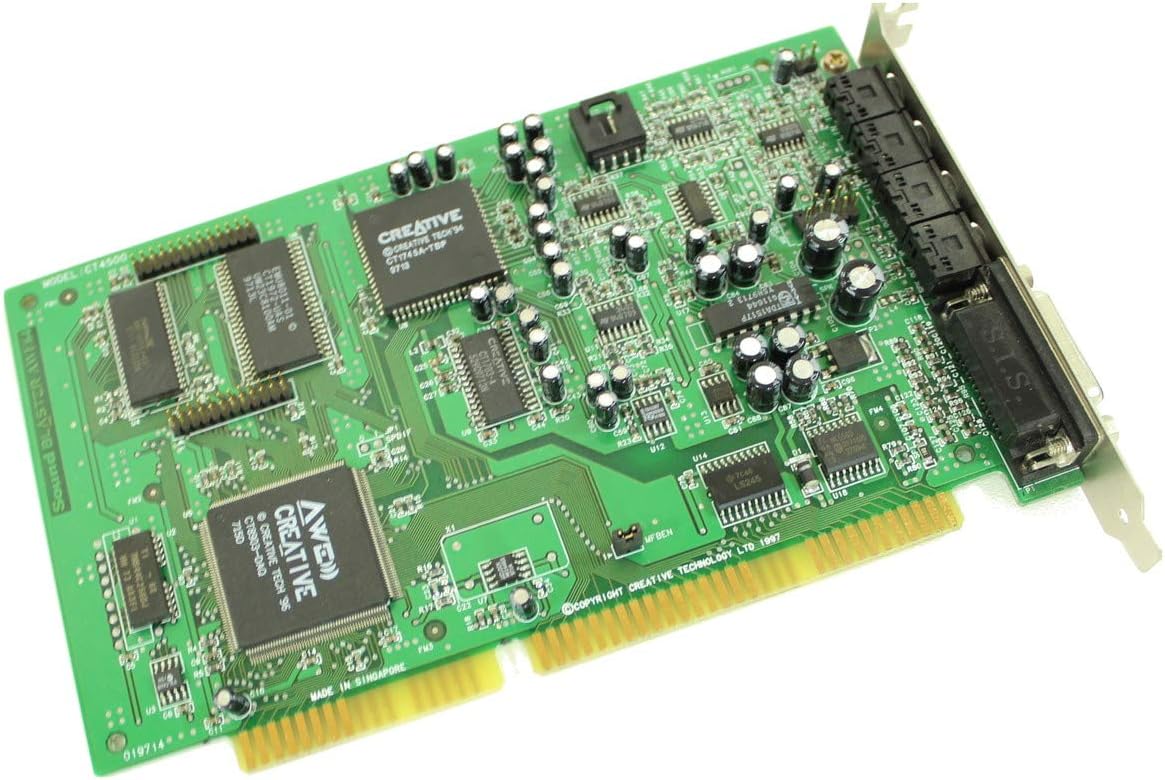
Image 3.1: Angled view of the Sound Blaster AWE64 card, illustrating its form factor for PCI slot installation.
3.3 Driver Installation
- Power On: Turn on your computer. The operating system may detect new hardware and attempt to install generic drivers.
- Install Drivers: Insert the Creative Labs driver CD into your optical drive, or run the downloaded driver setup file. Follow the on-screen instructions to complete the driver installation. A system restart may be required.
- Verify Installation: After restarting, open your computer's Device Manager to confirm that the Sound Blaster AWE64 card is recognized and functioning correctly without any error indicators.
4. Operating Instructions
4.1 Connecting Audio Devices
The Sound Blaster AWE64 card features several ports for connecting external audio devices:
- Line Out: Connect your speakers or headphones to this port for audio output.
- Line In: Connect external audio sources (e.g., CD player, tape deck) to record or play through your computer.
- Microphone In: Connect a microphone for voice input.
- MIDI/Joystick Port (DB15): Connect a joystick or MIDI interface for gaming and musical instrument connectivity.

Image 4.1: Close-up view of the Sound Blaster AWE64's external ports, including Line Out, Line In, Microphone In, and the DB15 MIDI/Joystick port.
4.2 Software Control Panel
Once drivers are installed, Creative provides a software control panel (e.g., Creative Audio Mixer, AWE Control Panel) that allows you to:
- Adjust master volume and individual channel levels.
- Configure speaker settings (e.g., stereo, surround).
- Enable or disable special audio effects (e.g., EAX).
- Manage MIDI settings and instrument banks.
Refer to the software's built-in help documentation for detailed instructions on using specific features.
5. Maintenance
To ensure the longevity and optimal performance of your Sound Blaster AWE64 card:
- Keep Drivers Updated: Periodically check the Creative support website for any updated drivers, although new releases for this model are infrequent.
- Dust Removal: Regularly clean the interior of your computer case to prevent dust buildup on the sound card, which can lead to overheating or component failure. Use compressed air for this purpose.
- Proper Handling: When handling the card, always hold it by its edges to avoid touching the electronic components or connectors.
6. Troubleshooting
6.1 No Sound Output
- Check Connections: Ensure speakers/headphones are securely plugged into the correct Line Out port.
- Volume Levels: Verify that volume levels are not muted or set too low in both the operating system and the Creative software control panel.
- Driver Status: Check Device Manager to confirm the sound card drivers are installed correctly and there are no conflicts. Reinstall drivers if necessary.
- Speaker Functionality: Test your speakers/headphones with another audio source to ensure they are working.
6.2 Distorted or Poor Quality Sound
- Cable Integrity: Inspect audio cables for damage or loose connections.
- Driver Settings: Adjust audio settings in the Creative software control panel. Disable any special effects that might be causing distortion.
- Interference: Ensure the sound card is not too close to other components that might cause electromagnetic interference.
6.3 Installation Issues
- Reseat Card: Power off and unplug the computer, then carefully remove and reinsert the sound card into the PCI slot to ensure it is fully seated.
- Try Another Slot: If available, try installing the card in a different PCI slot.
- BIOS Settings: Check your computer's BIOS settings to ensure PCI slots are enabled and there are no resource conflicts with other devices.
7. Specifications
| Brand | Creative |
| Model Number | CT4500 |
| Audio Output Mode | Surround |
| Compatible Devices | Personal Computer, Headphone |
| Hardware Platform | PC Internal Sound Card |
| ASIN | B0026HUXBQ |
| Approximate Package Dimensions | 8 x 5 x 1 inches |

Image 7.1: Rear view of the Sound Blaster AWE64 card, showing the PCB and various markings.
8. Warranty and Support
For warranty information and technical support, please refer to the documentation included with your original purchase or visit the official Creative Labs website. Warranty terms typically cover manufacturing defects for a specified period from the date of purchase. Support resources often include FAQs, driver downloads, and contact information for customer service.


