
Sweex SC016
Sweex SC016 7.1 External USB Sound Card User Manual
Model: SC016 | Brand: Sweex
Product Overview
The Sweex SC016 7.1 External USB Sound Card is designed to enhance the audio experience of your PC or laptop. It provides high-quality sound output and input capabilities, supporting various speaker configurations including 2.1, 5.1, and 7.1 surround sound, as well as headphones. This device is powered directly via a USB port, offering a convenient plug-and-play solution for improved audio performance in home theater, gaming, and multimedia applications.
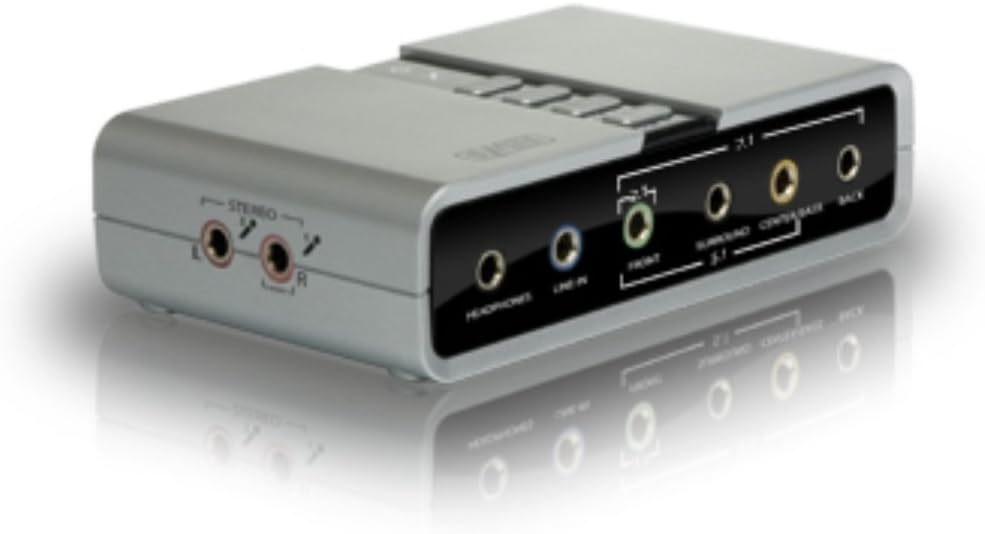
Image: The Sweex SC016 external USB sound card, showcasing its compact design and multiple audio input/output ports, including headphone, line-in, front, surround, center/bass, and back channels. The device is silver and black with control buttons on top.
Package Contents
Please verify that all items are present in the package:
- Sweex SC016 7.1 External USB Sound Card
- USB Cable (integrated or separate, typically for power and data)
- Driver CD (if applicable, otherwise drivers are typically downloaded)
- User Manual (this document)
System Requirements
- Available USB 2.0 or 3.0 port
- Operating System: Windows (Windows 8 mentioned in specs, likely compatible with newer versions)
- Minimum 128MB RAM
- Minimum 100MB free hard disk space
- CD-ROM drive (for driver installation, if not downloaded)
Setup Guide
Driver Installation
- Do not connect the sound card to your computer yet.
- Insert the driver CD into your computer's CD-ROM drive. If no CD is provided, download the latest drivers from the official Sweex website.
- Follow the on-screen instructions to complete the driver installation. You may need to restart your computer after installation.
Hardware Connection
- Once the drivers are installed and your computer has restarted (if required), connect the Sweex SC016 sound card to an available USB port on your PC or laptop using the provided USB cable.
- Your operating system should automatically detect the new hardware and configure it.
- Connect your speakers or headphones to the appropriate audio output jacks on the sound card.
- For 2.1 stereo: Use the "Front" output.
- For 5.1 surround: Use "Front", "Surround", and "Center/Bass" outputs.
- For 7.1 surround: Use "Front", "Surround", "Center/Bass", and "Back" outputs.
- For headphones: Use the "Headphones" output.
- Connect any audio input devices (e.g., microphone) to the "Line In" or "Mic" ports if available.
Operating Instructions
Audio Playback
- After connecting the sound card, open your computer's Sound settings (e.g., Control Panel > Sound in Windows).
- Select the Sweex SC016 as your default playback device.
- Configure your speaker setup (Stereo, 5.1, 7.1) within the sound settings to match your connected speakers.
- Adjust volume levels using the sound card's physical controls (if present) or your operating system's volume mixer.
Audio Recording
- Connect your microphone or other audio source to the appropriate input port on the sound card.
- In your computer's Sound settings, select the Sweex SC016 as your default recording device.
- Adjust recording levels and test your input using a recording application.
Software Control Panel
The Sweex SC016 typically comes with a dedicated software control panel. This application allows for advanced audio configuration, including:
- Equalizer settings
- Environmental effects (e.g., concert hall, bathroom)
- Karaoke functions (e.g., key shifting, vocal removal)
- Speaker calibration and testing
- Input/output routing
Refer to the software's built-in help or the driver package documentation for detailed instructions on using the control panel.
Maintenance
- Cleaning: Use a soft, dry cloth to clean the exterior of the sound card. Do not use liquid cleaners or aerosols.
- Storage: Store the device in a cool, dry place away from direct sunlight and extreme temperatures when not in use.
- Connectivity: Ensure USB cables and audio cables are securely connected but do not force them. Avoid bending cables sharply.
- Driver Updates: Periodically check the official Sweex website for updated drivers to ensure optimal performance and compatibility.
Troubleshooting
| Problem | Possible Cause | Solution |
|---|---|---|
| No sound output. |
|
|
| No microphone input. |
|
|
| Sound quality is poor or distorted. |
|
|
| Device not recognized by computer. |
|
|
Specifications
| Model Number | SC016 |
| Brand | Sweex |
| Hardware Interface | USB |
| Audio Output Mode | Digital |
| Surround Sound Configuration | 7.1 Channels (also supports 2.1, 5.1) |
| Maximum Sampling Rate | 48 KHz |
| Signal-to-Noise Ratio (SNR) | 120 dB |
| Compatible Devices | Headphones, 2.1/5.1/7.1 Speaker Systems |
| Platform | Windows (Windows 8 mentioned) |
| Color | Black, Silver |
| Product Dimensions | 21.01 x 15.39 x 3.99 cm |
| Product Weight | 249.48 g |
Warranty and Support
For warranty information and technical support, please refer to the official Sweex website or contact their customer service directly. Keep your proof of purchase for warranty claims.
Official Sweex Website: www.sweex.com (Note: This is a placeholder URL as no specific support URL was provided in the data. Users should verify the correct support portal.)
Related documentsSC016

Ask a question about this manual
Ask about setup, troubleshooting, compatibility, parts, safety, or missing instructions. Manuals+ will review the question and use this page’s manual context to help answer it.