1. Overview
The Memorex MVD2047 Progressive Scan DVD Player is a versatile multimedia device designed for home entertainment. It supports playback of various disc formats including DVD, CD, MP3 CD, and picture CDs. Featuring Dolby Digital output and an intuitive on-screen graphical user interface, this player offers essential functions such as zoom and multi-angle menu options for an enhanced viewing experience.
Key Features
- DVD, DVD+R/+RW, DVD-R/-RW, audio CD, CD-R/RW, MP3 CD, and picture CD playback
- Dolby Digital output and On-Screen graphical user interface
- Zoom function and VFD display
- Full function remote control and audio/video cables included
- 16:9/4:3 picture select for aspect ratio adjustment
- HDMI upconverting for high-definition viewing up to 1080p
- Progressive scan capability for smooth, flicker-free images
- Parental lock function for content control
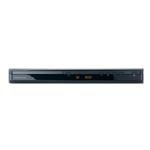
Figure 1: Front view of the Memorex MVD2047 Progressive Scan DVD Player. This image displays the sleek, black design of the DVD player, highlighting its compact form factor and front panel controls.
2. Setup Guide
Unpacking
Before setting up your DVD player, ensure all components are present and undamaged. The package should include:
- Memorex MVD2047 DVD Player unit
- Full-function remote control (batteries sold separately)
- Audio/Video cables (RCA type)
Connecting Your DVD Player
Proper connection is crucial for optimal performance. Ensure your television and DVD player are turned off before making any connections.
Video Connections
- HDMI Output: For the highest quality digital video and audio, connect an HDMI cable (not included) from the DVD player's HDMI OUT port to an HDMI IN port on your TV. This connection supports upconverting to 1080p.
- Component Video Output (YPbPr): For high-quality analog video, connect component video cables (red, green, blue) from the DVD player's COMPONENT VIDEO OUT ports to the corresponding COMPONENT VIDEO IN ports on your TV.
- S-Video Output: Connect an S-Video cable (not included) from the DVD player's S-VIDEO OUT port to the S-VIDEO IN port on your TV. S-Video provides better quality than composite video.
- Composite Video Output: Connect the yellow RCA video cable from the DVD player's VIDEO OUT port to the VIDEO IN port on your TV. This is a standard analog video connection.
Audio Connections
- HDMI Audio: If using an HDMI connection, audio is transmitted digitally through the same cable.
- Analog Audio Output (RCA): Connect the red and white RCA audio cables from the DVD player's AUDIO OUT (L/R) ports to the corresponding AUDIO IN (L/R) ports on your TV or audio receiver.
- Dolby Digital Output: The player supports Dolby Digital output for surround sound systems. Connect the appropriate digital audio cable (coaxial or optical, not included) to your compatible audio receiver.
3. Operating Instructions
Basic Playback
- Power On: Press the POWER button on the front panel or remote control to turn on the DVD player.
- Insert Disc: Press the OPEN/CLOSE button to open the disc tray. Place a DVD, CD, or compatible disc onto the tray with the label side facing up. Press OPEN/CLOSE again to close the tray.
- Playback: The player will typically begin playback automatically. If not, select the PLAY button on the remote control.
- Stop/Pause: Use the STOP or PAUSE buttons on the remote to control playback.
- Eject Disc: Press the OPEN/CLOSE button to eject the disc.
Advanced Features
- Zoom Function: Use the ZOOM button on the remote to magnify a portion of the screen during playback.
- Multi-Angle Menu: For discs that support multiple camera angles, use the ANGLE button to switch between available views.
- Slow Motion: During playback, press the SLOW button to play video at 1/2, 1/4, or 1/8 speed.
- Fast-Forward/Rewind: Use the FF (Fast-Forward) and REW (Rewind) buttons to navigate through content at x2, x4, or x8 speed.
- Aspect Ratio: Adjust the display aspect ratio between 16:9 (widescreen) and 4:3 (standard) using the ASPECT button on the remote or through the on-screen menu.
Parental Controls
The Memorex MVD2047 includes a parental lock function to restrict access to certain content. This feature allows you to set a rating level, preventing playback of discs above that level without a password. Refer to the on-screen graphical user interface for setting up and managing parental controls.
4. Maintenance
To ensure the longevity and optimal performance of your Memorex MVD2047 DVD player, follow these simple maintenance guidelines:
- Cleaning the Unit: Use a soft, dry cloth to wipe the exterior of the DVD player. Do not use liquid cleaners or aerosol sprays, as they may damage the finish or internal components.
- Disc Care: Handle discs by their edges to avoid fingerprints and scratches. Store discs in their cases when not in use. Clean dirty discs with a soft, lint-free cloth, wiping from the center outwards.
- Ventilation: Ensure the DVD player is placed in a well-ventilated area. Do not block the ventilation openings on the unit, as this can lead to overheating.
- Power Off When Not in Use: For extended periods of inactivity, it is recommended to power off the unit and unplug it from the power outlet.
5. Troubleshooting
If you encounter issues with your Memorex MVD2047 DVD player, consult the table below for common problems and their solutions.
| Problem | Possible Cause | Solution |
|---|---|---|
| No power | Power cord not securely connected. | Ensure the power cord is firmly plugged into the wall outlet and the player. |
| No picture | Incorrect video connection or input selection on TV. | Check video cables (HDMI, Component, S-Video, Composite) are securely connected. Select the correct input source on your TV (e.g., HDMI 1, AV, Component). |
| No sound (especially via HDMI) | Incorrect audio connection; TV or receiver volume too low; HDMI audio setting issue. | Verify audio cables (RCA, digital) are connected correctly. Increase volume on TV/receiver. If using HDMI, ensure your TV/receiver supports HDMI audio and check the player's audio output settings. Try a different HDMI cable or port. |
| Disc tray does not open/close | Obstruction in tray; mechanical issue. | Check for any foreign objects blocking the tray. Power cycle the unit (unplug, wait 30 seconds, plug back in). If the problem persists, service may be required. |
| Disc does not play | Disc is dirty, scratched, or incompatible format. | Clean the disc with a soft cloth. Try a different disc. Ensure the disc format (DVD, CD, MP3 CD, Picture CD) is supported by the player. |
| Remote control not working | Batteries are dead or inserted incorrectly; obstruction between remote and player. | Replace batteries with new ones, ensuring correct polarity. Remove any obstacles between the remote and the player's front panel sensor. |
6. Technical Specifications
| Feature | Specification |
|---|---|
| Model Number | MVD2047 (Internal: 01233) |
| Supported Media Types | DVD, DVD+R/+RW, DVD-R/-RW, Audio CD, CD-R/RW, MP3 CD, Picture CD |
| Video Output | HDMI, Component Video (YPbPr), S-Video, Composite Video |
| Audio Output | HDMI Audio, Analog Stereo (RCA L/R), Dolby Digital Output |
| Resolution (HDMI Upconverting) | Up to 1080p (1920x1080) |
| Aspect Ratios | 16:9, 4:3 |
| Special Features | Progressive Scan, Zoom Function, Multi-Angle Menu, Parental Control |
| Display | LED display |
| Item Weight | 8 ounces (approx. 227 grams) |
| Package Dimensions | 16.5 x 10 x 3.5 inches (approx. 41.9 x 25.4 x 8.9 cm) |
7. Warranty and Support
For information regarding product warranty, technical support, or service, please refer to the documentation included with your purchase or visit the official Imation (Memorex) support website. Keep your proof of purchase for warranty claims.


