
1. Introduction
The TP-Link TL-R480T+ Load Balance Broadband Router is a robust networking device designed for small and medium businesses. It features 5 ports, with up to 4 configurable WAN ports, allowing for multiple internet connections to be utilized simultaneously. This router enhances network reliability and bandwidth through its intelligent load balancing capabilities, ensuring optimal performance for various network demands.
Key Features:
- Multi-WAN Ports: Up to 4 configurable WAN/LAN ports for flexible internet connectivity.
- Load Balance: Automatically distributes data streams according to the bandwidth proportion of each WAN port, maximizing multi-line broadband utilization.
- Advanced Firewall: Provides robust security against external threats.
- Bandwidth Control: Manages bandwidth allocation for specific users or applications.
- Port Mirroring: Allows network traffic to be monitored.
- DDNS, UPnP, VPN Pass-through: Supports various network protocols for enhanced functionality.
2. Package Contents
Please verify that all items listed below are included in your package. If any item is missing or damaged, please contact your retailer or TP-Link support.
- TL-R480T+ Load Balance Broadband Router
- Power Cord
- RJ-45 Ethernet Cable
- Installation Guide
- Resource CD
3. Setup Guide
3.1 Hardware Installation
Follow these steps to connect your TL-R480T+ router:
- Power Off: Disconnect power from your modem and any existing routers.
- Connect WAN: Connect your modem's Ethernet cable to the WAN port (Port 1) on the TL-R480T+. If you have multiple internet connections, connect additional modems to the WAN/LAN ports (Ports 2-4) configured as WAN.
- Connect LAN: Connect your computer or a network switch to any of the LAN ports (Port 5, or Ports 2-4 if configured as LAN) using an Ethernet cable.
- Power On: Connect the power adapter to the router and plug it into a power outlet. Power on your modem first, then the router.

Figure 3.1: Front panel of the TL-R480T+ router, illustrating the WAN, WAN/LAN, and LAN ports, along with LED indicators.
3.2 Initial Configuration
To access the router's web-based management interface:
- Ensure your computer is connected to a LAN port of the router.
- Open a web browser (e.g., Chrome, Firefox, Edge).
- In the address bar, type the default IP address: 192.168.0.1 and press Enter.
- A login window will appear. The default username and password are both admin (all lowercase).
- Follow the on-screen Quick Setup Guide to configure your WAN connections and basic network settings. It is highly recommended to change the default login credentials for security.
4. Operating Instructions
4.1 Load Balance Functionality
The TL-R480T+ intelligently distributes internet traffic across multiple WAN connections to optimize bandwidth usage and provide redundancy. You can configure load balancing policies through the web interface under the 'Load Balance' section. Options typically include:
- Link Backup: Designate a primary WAN and a backup WAN. If the primary fails, traffic automatically switches to the backup.
- Policy Routing: Define rules to route specific types of traffic or traffic from certain IP addresses through a particular WAN port.
- Bandwidth Based Balance: Distribute traffic based on the configured bandwidth of each WAN port.
4.2 WAN/LAN Port Configuration
Ports 2, 3, and 4 on the TL-R480T+ are configurable, meaning they can function as either WAN or LAN ports. This flexibility allows you to adapt the router to your specific network needs, whether you require more internet connections or more internal network ports. Configuration is performed within the router's web management interface under the 'Network' or 'WAN' settings.
4.3 Advanced Features
The router offers several advanced features to enhance network management and security:
- Firewall: Configure rules to filter incoming and outgoing network traffic, protecting your network from unauthorized access and attacks.
- Port Bandwidth Control: Manage the upload and download speeds for specific IP addresses or IP ranges within your network.
- Port Mirror: Monitor network traffic by sending a copy of packets from one port to another for analysis.
- DDNS (Dynamic DNS): Allows you to access your network resources remotely using a domain name, even if your public IP address changes.
- UPnP (Universal Plug and Play): Enables automatic discovery and configuration of network devices.
- VPN Pass-through: Supports VPN tunnels to allow secure remote access to your network.
5. Maintenance
Regular maintenance ensures the optimal performance and longevity of your TL-R480T+ router:
- Firmware Updates: Periodically check the TP-Link official website for the latest firmware versions. Updating firmware can improve performance, add new features, and fix security vulnerabilities.
- Regular Reboot: Rebooting the router every few weeks can help clear its memory and resolve minor performance issues.
- Physical Cleaning: Keep the router in a well-ventilated area. Gently clean dust from the vents and ports using a soft, dry cloth or compressed air.
- Configuration Backup: Regularly back up your router's configuration settings through the web interface. This allows for quick restoration in case of a factory reset or unexpected issues.
6. Troubleshooting
If you encounter issues with your TL-R480T+ router, refer to the following common problems and solutions:
- No Internet Access:
- Check all cable connections between the modem, router, and computer.
- Verify that the WAN port LEDs on the router are lit, indicating a connection.
- Reboot your modem and router in sequence (modem first, then router).
- Ensure your WAN settings in the router's web interface are correct (e.g., IP address, DNS).
- Cannot Access Web Management Page:
- Ensure your computer's IP address is in the same subnet as the router (e.g., 192.168.0.x).
- Try clearing your browser's cache or using a different browser.
- Verify the router's IP address (default is 192.168.0.1).
- Slow Network Speed:
- Check the status of your internet service provider (ISP).
- Review load balancing settings to ensure optimal distribution.
- Check for any bandwidth control rules that might be limiting speed.
- Ensure the router is in a well-ventilated area to prevent overheating.
- Forgot Login Password:
- Press and hold the Reset button on the router for about 5-10 seconds until the system LED blinks rapidly. This will restore the router to factory default settings (username/password: admin/admin). Note that this will erase all your custom configurations.
7. Technical Specifications
Below are the key technical specifications for the TP-Link TL-R480T+ Load Balance Broadband Router:
| Feature | Specification |
|---|---|
| Brand | TP-Link |
| Model Name | TL-R480T |
| Item Model Number | FBA_TL-R480T+ |
| Wireless Type | 802.11ac (Note: This router is primarily wired, this specification might refer to internal components or compatibility) |
| Connectivity Technology | Wi-Fi (Note: This router is primarily wired, this specification might refer to internal components or compatibility) |
| Operating System Compatibility | Linux, Microsoft Windows |
| Item Weight | 3.52 pounds (approx. 1.6 kg) |
| Product Dimensions | 7.1 x 11.6 x 1.7 inches (approx. 18 x 29.5 x 4.3 cm) |
| Color | Black |
| Voltage | 100 Volts |
| First Available Date | December 22, 2011 |
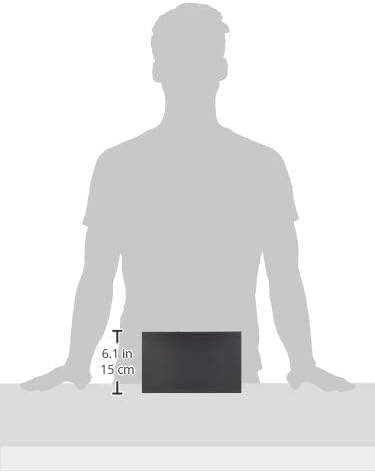
Figure 7.1: Illustrative image showing the approximate dimensions of the TL-R480T+ router.
8. Warranty Information
TP-Link products are backed by a limited warranty. The specific terms and duration of the warranty may vary by region and product. For detailed warranty information, including coverage, limitations, and the process for making a warranty claim, please refer to the official TP-Link website or the warranty card included with your product. Keep your purchase receipt as proof of purchase.
9. Technical Support
For further assistance, technical support, or to download the latest drivers and firmware, please visit the official TP-Link support website. You can typically find FAQs, troubleshooting guides, and contact information for customer service there.
TP-Link Official Website: https://www.tp-link.com/us/support/
When contacting support, please have your product model (TL-R480T+) and serial number ready.


