
Introduction
This manual provides detailed instructions for the setup, operation, maintenance, and troubleshooting of your Kanto iPair 5 iPod/iPhone Speaker System. Please read this manual thoroughly before using the product to ensure proper functionality and to maximize your listening experience.
Package Contents
Before proceeding with the setup, please verify that all components are present in the package:
- Kanto iPair 5 Powered Speakers (Left and Right)
- Remote Control
- Power Cable
- 3.5mm Auxiliary Audio Cable
- RCA Audio Cable
- Various iPod/iPhone Dock Adapters
Setup
1. Speaker Placement
Place the Kanto iPair 5 speakers on a stable, flat surface, such as a table or shelf. Ensure there is adequate space around each speaker for proper ventilation and sound dispersion. Position the speakers to create an optimal stereo sound field for your listening area.
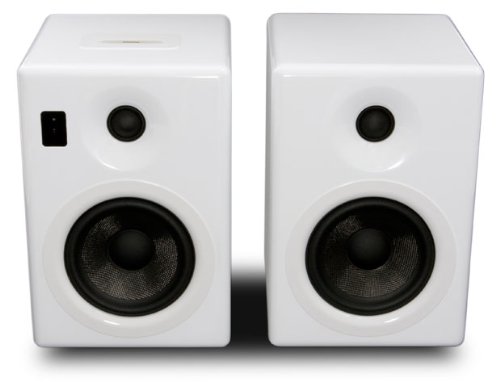
Image: The Kanto iPair 5 speaker system, featuring two white, glossy speakers. The left speaker includes the iPod/iPhone docking station on top and control buttons on the front panel. Both speakers have a tweeter and a larger woofer/subwoofer driver.
2. Connecting to Power
Connect the provided power cable to the power input on the back of the main (left) speaker. Plug the other end of the power cable into a standard electrical outlet.
3. Audio Connections
The iPair 5 offers multiple audio input options:
- iPod/iPhone Dock: Select the appropriate dock adapter for your iPod or iPhone model and insert it into the docking station on top of the main speaker. Carefully place your device onto the dock connector.
- Auxiliary Input (3.5mm Jack): Use the 3.5mm auxiliary audio cable to connect devices such as MP3 players, laptops, or tablets to the 3.5mm AUX input on the back of the main speaker.
- RCA Input: Use the RCA audio cable to connect devices with RCA outputs, such as CD players or older audio equipment, to the RCA input jacks on the back of the main speaker.
- Bluetooth: For wireless audio streaming, ensure your device's Bluetooth is enabled and follow the pairing instructions in the 'Operating' section.
Operating
1. Powering On/Off
Press the power button located on the front panel of the main speaker or on the remote control to turn the system on or off. An indicator light will illuminate when the system is powered on.
2. Source Selection
Use the 'Source' button on the remote control or the main speaker to cycle through the available audio inputs: iPod/iPhone Dock, Auxiliary (3.5mm), RCA, and Bluetooth. The selected source will typically be indicated by an LED or display.
3. Volume Control
Adjust the volume using the 'Volume Up' and 'Volume Down' buttons on the remote control or the volume knob/buttons on the main speaker. Start with a low volume and gradually increase it to a comfortable listening level.
4. iPod/iPhone Playback
Once your iPod or iPhone is docked and the 'iPod' source is selected, you can control playback (play, pause, skip tracks) using the remote control or directly on your device. The iPair 5 will also charge your docked device.
5. Bluetooth Pairing
- Select the 'Bluetooth' source on the iPair 5. The Bluetooth indicator light will typically flash, indicating it is in pairing mode.
- On your Bluetooth-enabled device (smartphone, tablet, laptop), go to the Bluetooth settings and search for available devices.
- Select 'Kanto iPair 5' from the list of devices.
- Once paired, the Bluetooth indicator light on the iPair 5 will become solid, and you can begin streaming audio wirelessly.
Maintenance
Cleaning
To clean the speaker cabinets, use a soft, dry cloth. For stubborn marks, a slightly damp cloth can be used, followed by a dry cloth. Avoid using abrasive cleaners, solvents, or chemical sprays, as these can damage the finish. Do not apply liquids directly to the speaker drivers.
General Care
Keep the speakers away from direct sunlight, heat sources, and excessive moisture. Ensure proper ventilation to prevent overheating. Do not block the speaker grilles or vents.
Troubleshooting
If you encounter any issues with your Kanto iPair 5 system, please refer to the following common problems and solutions:
| Problem | Possible Cause | Solution |
|---|---|---|
| No sound from speakers | Power not connected; incorrect source selected; volume too low; audio cable loose/faulty. | Ensure power cable is securely plugged in. Select the correct input source. Increase volume. Check audio cable connections. |
| iPod/iPhone not charging or playing | Incorrect dock adapter; device not seated properly; 'iPod' source not selected. | Use the correct dock adapter. Re-seat the device firmly. Select the 'iPod' source. |
| Bluetooth pairing failure | Speakers not in pairing mode; device too far; interference. | Ensure 'Bluetooth' source is selected and indicator is flashing. Move device closer. Turn off other Bluetooth devices. |
| Remote control not working | Dead batteries; obstruction; remote out of range. | Replace batteries. Remove any obstructions between remote and speakers. Ensure remote is within operating range. |
Specifications
| Feature | Detail |
|---|---|
| Model Name | iPair5 |
| Model Number | iPair5W |
| Brand | Kanto |
| Color | White |
| Speaker Type | Powered Speaker System with Integrated Subwoofers |
| Connectivity Technology | Auxiliary, Bluetooth |
| Power Output | 2 x 20W (Main Speakers) + 2 x 20W (Integrated Subwoofers) |
| Control Method | Remote Control |
| Special Features | Apple Docking Station |
| Dimensions (L x W x H) | 20 x 19 x 27.2 cm (7.87 x 7.48 x 10.7 inches) |
| Weight | 10.5 Kilograms (23.15 lbs) |
| Power Source | Electric Cable |
| Compatible Devices | Smartphone, Laptop, Tablet, MP3 Player, iPod, iPhone |
| Components Included | Remote Control |
| Surround Sound Channel Configuration | 2.0 |
Warranty
The Kanto iPair 5 Speaker System comes with a limited warranty. Please refer to the warranty card included with your product or visit the official Kanto website for specific terms and conditions regarding coverage and duration.
Support
For further assistance, technical support, or service inquiries, please contact Kanto customer support. Contact information can typically be found on the official Kanto website or in the product packaging.