
Introduction
The Innova 3160 Diagnostic Scan Tool is designed to assist in diagnosing issues in OBD2 compliant vehicles. This tool provides access to diagnostic trouble codes (DTCs), live data streams, and ABS/SRS system information, enabling users to identify and understand vehicle problems efficiently.
Key Features
- Reads "Check Engine" light warnings on all 1996 and newer cars, light trucks, SUVs, and minivans (foreign & domestic), including C.A.N. (Controller Area Network).
- Diagnoses ABS and SRS codes on most 1996 and newer GM, Ford, Chrysler, Toyota, and Honda vehicles.
- Provides SAE enhanced Live Data - views, graphs, records, and plays back live PCM data streams on screen.
- Displays OBD2 Freeze Frame Data & turns off check engine, ABS, and SRS lights.
- Features a unique patented all-in-one backlit screen and LED display for quick State Emissions readiness check and drive cycle verification.
- Retrieves OEM Enhanced and Transmission DTCs.
- Communicates with all OBD2 protocols: C.A.N., ISO 9141, J1850PWM, J1850VPW, KWP 2000 ISO 14230-4.
- Includes Spanish and French Interface & Definitions (selected by a menu command).
- Retrieves OBD2 DTCs: Generic Codes (P0, P2, P3, and U0) / Manufacturer Specific Codes (P1, P3, and U1).
- Unit can be flash updated with a standard Windows® PC (OBD-PC Link™ software required / included with tool).
- Memory / Battery backup for off-car review and analysis.
- Comes with access to CanOBD2.com RepairSolutions for trouble code definitions, diagnostic reports, probable causes, most likely fixes, and repair costs.
Setup
Connecting the Scan Tool
1. Locate the vehicle's 16-pin Data Link Connector (DLC), typically found under the dashboard on the driver's side.
2. Ensure the vehicle's ignition is in the OFF position.
3. Firmly plug the scan tool's OBD2 connector into the vehicle's DLC. The tool will automatically power on and begin linking with the vehicle.

Image: The Innova 3160 Diagnostic Scan Tool with its OBD2 connector, ready for connection to a vehicle.
Operating Instructions
Reading Diagnostic Trouble Codes (DTCs)
Once connected, the tool will automatically link to the vehicle. The screen will display "AUTO-LINK is in Progress" and then show any detected Diagnostic Trouble Codes (DTCs).
DTCs are alphanumeric codes that indicate specific issues detected by the vehicle's onboard diagnostic system. They typically start with a letter (e.g., P for Powertrain, C for Chassis/ABS).
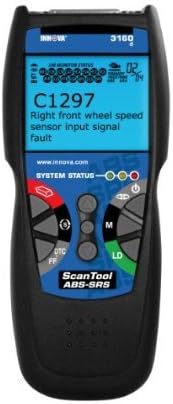
Image: The Innova 3160 screen showing a C1297 ABS code, indicating a right front wheel speed sensor input signal fault.
Use the DTC button to scroll through multiple codes if present. The display will also show the status of the Malfunction Indicator Lamp (MIL), pending codes, code history, and freeze frame data.Viewing Live Data
Press the LD (Live Data) button to view real-time data streams from the vehicle's sensors. This data can include engine RPM, vehicle speed, oxygen sensor readings, fuel trim values, and more.
Live data is crucial for observing how the vehicle's systems are performing during operation and can help in diagnosing intermittent issues.
Emission Status Check
The tool features three color-coded LED indicators (Green, Yellow, Red) for emission status:
- Green: Indicates that all emission monitors have completed their diagnostic cycles and the vehicle is ready for an emission test.
- Yellow: Suggests that some emission monitors have not yet completed their cycles, or there might be potential issues that could affect an emission test.
- Red: Signifies that the vehicle has failed one or more emission monitor tests and will likely fail an emission or smog test.
Erasing Diagnostic Trouble Codes
After performing repairs, you can clear the stored DTCs and turn off the Check Engine, ABS, or SRS lights.
Press the Erase button (often marked with a red icon) on the scan tool. Confirm the action when prompted.
Caution: Clearing codes erases all diagnostic data. Ensure you have recorded all relevant information before clearing codes, as this can hinder further diagnosis if the problem persists.
Software and Repair Solutions
OBD-PC Link Software
The Innova 3160 includes OBD-PC Link software, allowing you to connect the scan tool to a Windows® PC via a USB cable. This software enables you to:
- Update the scan tool's firmware to ensure compatibility with newer vehicles and diagnostic protocols.
- Review and analyze stored diagnostic data, including DTCs and freeze frame data, on a larger screen.
- Print diagnostic reports for record-keeping or sharing with customers.
CanOBD2.com RepairSolutions
Your Innova 3160 provides access to the CanOBD2.com RepairSolutions database. This online resource offers comprehensive repair information based on the DTCs retrieved by your tool, including:
- Detailed trouble code definitions.
- Full diagnostic reports.
- Probable causes for specific issues.
- Most likely fixes and repair procedures.
- Estimated repair costs.
This feature enhances diagnostic capabilities by providing actionable repair guidance.
Specifications
| Feature | Detail |
|---|---|
| Brand | Innova |
| Model Number | 3160 |
| Item Weight | 2.15 pounds |
| Product Dimensions | 7 x 3 x 10 inches |
| Power Source | Corded Electric |
| Operating System (for PC Link) | Windows |
| Screen Size | 2.8 Inches |
| Supported Protocols | C.A.N., ISO 9141, J1850PWM, J1850VPW, KWP 2000 ISO 14230-4 |
| ABS/SRS Coverage | Most 1996 and newer GM, Ford, Chrysler, Toyota, Honda vehicles |
Troubleshooting
Tool Not Powering On
- Ensure the OBD2 connector is firmly seated in the vehicle's DLC.
- Verify the vehicle's ignition is in the ON position (engine off or running, depending on the test).
- Check the vehicle's fuse for the DLC port (consult your vehicle's manual).
Communication Error
- Confirm the vehicle is OBD2 compliant (1996 or newer for most regions).
- Ensure the connection is secure.
- Try the tool on a different OBD2 compliant vehicle to rule out tool malfunction.
- Update the tool's firmware using the OBD-PC Link software.
Inaccurate Readings
- Ensure the tool's firmware is up to date.
- Consult the vehicle's service manual for expected sensor values when reviewing live data.
- If possible, compare readings with another known-good diagnostic tool.
Maintenance
- Keep the scan tool clean and free from dust, dirt, and grease. Use a soft, dry cloth for cleaning.
- Store the tool in its protective soft pouch when not in use to prevent damage.
- Avoid exposing the tool to extreme temperatures or direct sunlight for prolonged periods.
- Regularly update the tool's software via the OBD-PC Link to ensure optimal performance and compatibility.
Warranty and Support
Warranty
The Innova 3160 Diagnostic Scan Tool comes with a 1-year warranty. Please retain your proof of purchase for warranty claims.
Technical Support
Innova provides technical support staffed by ASE certified technicians.
- Online Support: Access comprehensive repair solutions and FAQs at CanOBD2.com.
- Phone Support: Available via a toll-free phone line from 5 AM to 6 PM PST.
Product Overview Video
Video: An overview of the Innova 3160 Diagnostic Scan Tool, demonstrating its features, display, and ease of use for diagnosing vehicle issues, including ABS/SRS codes and live data.


