
1. Introduction
The Kaito IR-168 is a Wi-Fi Internet Radio designed to provide access to thousands of radio stations worldwide without subscription fees. This device connects to your home Wi-Fi network or via an Ethernet cable, offering a diverse range of audio content. It features a robust solid wood cabinet for enhanced sound quality and includes an SD/MMC card slot for playing MP3 files. This manual will guide you through the setup, operation, and maintenance of your IR-168 radio.
2. Product Overview
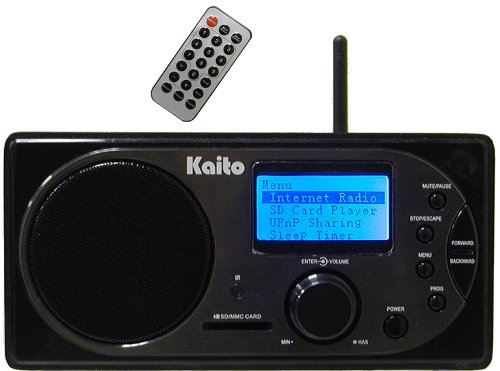
Figure 2.1: Kaito IR-168 Wi-Fi Internet Radio, general view.
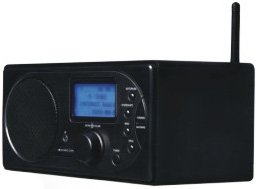
Figure 2.2: Front panel of the Kaito IR-168, highlighting the LCD display, speaker, and control buttons.

Figure 2.3: Rear panel of the Kaito IR-168, showing the DC 9V power input, earphone jack, speaker output, and Ethernet port.

Figure 2.4: Included remote control for the Kaito IR-168.
3. Setup
3.1 Power Connection
- Connect the provided power adapter to the DC 9V input on the rear panel of the radio.
- Plug the power adapter into a standard electrical outlet.
- To power on the device, press and hold the Power button on the front panel for a few seconds.
3.2 Network Connection
The IR-168 can connect to the internet via Wi-Fi or an Ethernet cable.
- Wi-Fi: The radio will automatically attempt to connect to a wireless network upon startup. Navigate through the on-screen menu to select your Wi-Fi network (SSID) and enter the corresponding password. Ensure your Wi-Fi router is configured to support the radio's encryption type (TKIP is supported; AES may cause connectivity issues).
- Ethernet: For a wired connection, plug a standard Ethernet cable into the RJ45 Ethernet jack on the rear panel of the radio and connect the other end to your router or network switch.
3.3 Language Selection
During initial setup, you may be prompted to select your preferred language. The radio supports multiple languages including English, Chinese, French, Spanish, and German. Navigate using the control knob and buttons to make your selection.
4. Operating Instructions
4.1 Basic Controls
- Power Button: Press and hold to turn the radio on or off.
- MENU Button: Accesses the main menu and navigates back to previous menus.
- ENTER/VOLUME Knob: Rotate to adjust volume or scroll through menu options. Press to confirm a selection.
- FORWARD / BACKWARD Buttons: Navigate through lists or skip tracks.
- MUTE/PAUSE Button: Mutes or pauses audio playback.
- STOP/ESCAPE Button: Stops playback or exits the current function/menu.
- PROG Button: Used for programming functions, such as saving favorite stations.
4.2 Internet Radio Functionality
- From the main menu, select Internet Radio.
- You can search for stations by various criteria:
- Geographic Location: Browse by continent, country, or state.
- Category: Explore stations by genre such as news, sports, music, weather, or traffic information.
- To save a station for quick access, select it and use the PROG button or menu option to add it to your Favorite Stations list. The radio can store up to 255 favorite stations.
4.3 SD Card Player
The IR-168 features an SD/MMC memory card slot for playing your personal MP3 music files.
- Insert an SD or MMC memory card containing MP3 files into the designated slot on the front panel.
- From the main menu, select SD Card Player.
- Navigate through your music files using the FORWARD and BACKWARD buttons and select a track to play using the ENTER knob.
4.4 Earphone Jack
Connect standard 3.5mm headphones to the EARPHONE jack on the rear panel for private listening.
4.5 Remote Control
The included remote control provides convenient access to most functions. Familiarize yourself with the buttons for standby, mute, volume adjustment, navigation, and menu access. Ensure the remote has fresh batteries and is pointed towards the radio's front panel for optimal operation.
5. Maintenance
5.1 Cleaning
Use a soft, dry cloth to clean the radio's exterior. Avoid using abrasive cleaners, solvents, or chemical sprays, as these can damage the finish or internal components.
5.2 Firmware Updates
Kaito may release firmware updates to improve performance, add features, or address known issues. It is recommended to periodically check for and install updates.
- Navigate to Menu > Setup > Firmware Upgrade.
- Follow the on-screen prompts to check for and install any available updates. Ensure the radio remains connected to power and the internet during the update process.
6. Troubleshooting
- Radio does not turn on: Ensure the power adapter is securely connected to both the radio and a working electrical outlet. Press and hold the Power button for several seconds.
- Cannot connect to Wi-Fi:
- Verify the Wi-Fi password is entered correctly.
- Check your router's security settings. The radio may have compatibility issues with AES encryption; try using TKIP if available.
- Ensure the radio is within range of your Wi-Fi router.
- Frequent "Signal Errors" or buffering:
- This can occur due to network congestion or weak Wi-Fi signal. Try moving the radio closer to your router or using an Ethernet connection.
- Attempt to reconnect to the station.
- Consider performing a firmware update, as this has been known to reduce such issues.
- Station not playing or specific streams fail:
- Verify your internet connection is active and stable.
- Some streaming protocols or codecs (e.g., WMA10 Pro, certain RTSP streams) may not be supported by the radio. Try a different station.
- If the internal buffer underflows, the radio may return to the main menu. Re-select the station.
- Display is difficult to read: If available after a firmware update, navigate to the setup menu to adjust the LCD backlight brightness. Ensure you are viewing the display directly, as viewing from an angle can reduce visibility.
- Remote control not working: Check and replace batteries if necessary. Ensure there are no obstructions between the remote and the radio's front panel.
7. Specifications
| Brand | Kaito |
| Model Number | KA-IR168 |
| Connectivity Technology | Ethernet, Wi-Fi |
| Tuner Technology | Internet Radio |
| Power Source | DC 9V Adapter |
| Compatible Devices | Earphone |
| Enclosure Material | Solid Wood Cabinet |
| Item Weight | 1.13 kg |
| Supported Languages | English, Chinese, French, Spanish, German |
8. Warranty and Support
For detailed warranty information, technical assistance, or customer support, please refer to the documentation included with your Kaito IR-168 Wi-Fi Internet Radio at the time of purchase. You may also visit the official Kaito website for further resources and contact information.