
TP-Link TL-POE150S
TP-LINK 802.3af Gigabit PoE Injector User Manual
Model: TL-POE150S
1. Product Overview
The TP-LINK TL-PoE150S Gigabit PoE Injector is designed to provide both power and data over a single Ethernet cable to PoE-compatible devices. This allows for flexible deployment of network devices such as IP cameras, wireless access points, and VoIP phones in locations where power outlets are not readily available. It converts a non-PoE Ethernet connection into a Power over Ethernet (PoE) connection, simplifying installation and reducing cabling requirements.

Image: Front view of the TP-LINK TL-PoE150S Gigabit PoE Injector.
2. Key Features
- Convert Non-PoE to PoE: Enables PoE functionality for existing non-PoE switches/devices.
- High Speed Gigabit Ports: Features 1 Gigabit Ethernet Input Port and 1 Gigabit Ethernet Output port for fast wired speeds.
- 802.3af PoE Compliant: Supplies power and data via a single Ethernet cable to 802.3af PoE devices.
- Plug and Play Installation: Requires no software installation or configuration.
- Long Range Transmission: Delivers power up to 100 meters (328ft).
- Auto Detect Power: Automatically determines and delivers the exact power supply (up to 15.4W) to your devices.

Image: The TL-PoE150S is 802.3af PoE Compliant, ensuring compatibility with standard PoE devices.
3. Package Contents
Verify that your package contains the following items:
- Gigabit PoE Injector (TL-POE150S)
- Power Adapter
- RJ45 Cable
- Installation Guide
4. Setup
Follow these steps to set up your TL-PoE150S Gigabit PoE Injector:
- Identify Ports: Locate the 'LAN IN' port (Data Only Input), 'POWER+DATA OUT' port (Power & Data Output), and the 'DC 48V' power input on the injector.
- Connect Data Source: Connect an Ethernet cable from your non-PoE Ethernet device (e.g., switch, router, or computer) to the LAN IN port of the TL-PoE150S.
- Connect PoE Device: Connect another Ethernet cable from the POWER+DATA OUT port of the TL-PoE150S to your PoE-compatible device (e.g., Access Point, IP Phone, IP Camera).
- Connect Power Adapter: Plug the provided power adapter into the DC 48V input on the TL-PoE150S, and then plug the adapter into a standard electrical outlet.
- Verify Connection: The Power (PWR) LED indicator on the injector should illuminate, indicating that the device is receiving power. The connected PoE device should also power on and establish a network connection.

Image: Diagram showing the Data Only Input Port (LAN IN), 48V DC Power input, and Power & Data Output Port (POWER+DATA OUT).

Image: Diagram illustrating the easy installation process, showing connections for both PoE and non-PoE devices.
5. Operating Instructions
The TL-PoE150S is designed for simple plug-and-play operation. Once connected as described in the Setup section, it will automatically detect the power requirements of the connected PoE device and supply the necessary power along with data over the Ethernet cable.
The injector supports long-range transmission, allowing your PoE devices to be placed up to 100 meters (328 feet) away from the injector, which is ideal for various applications such as IP cameras or access point deployments in large areas.
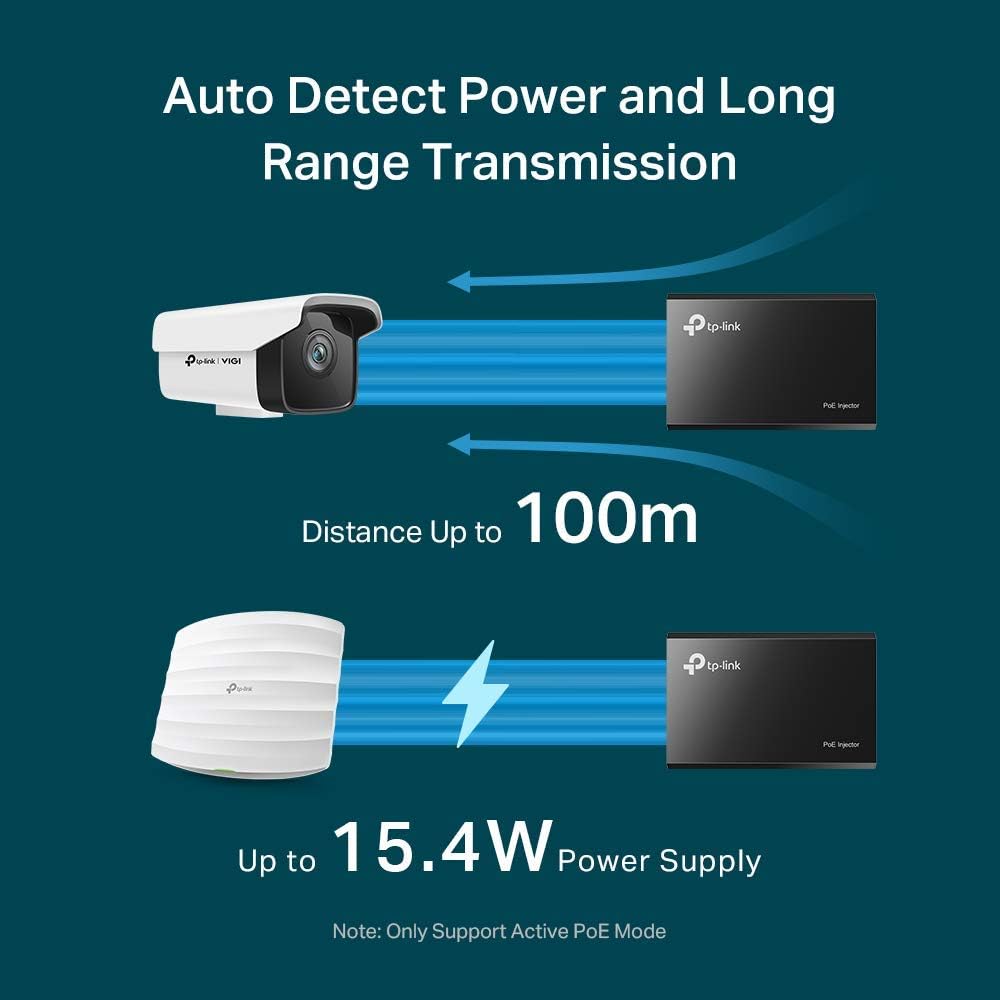
Image: Visual representation of the auto-detect power feature and the 100m transmission distance for devices like IP cameras and wireless access points.
Common applications include:
- WiFi Coverage: Powering WiFi Access Points.
- Surveillance: Providing power and data to IP Cameras.
- VoIP Communication: Supplying power to VoIP Phones.

Image: Examples of multiple home, office, and business applications for the PoE injector, including WiFi coverage, surveillance, and VoIP conference calls.
6. Maintenance
To ensure optimal performance and longevity of your TL-PoE150S:
- Keep the device in a cool, dry place, away from direct sunlight and heat sources.
- Ensure proper ventilation around the unit. Do not block any ventilation openings.
- Clean the device periodically with a soft, dry cloth. Do not use liquid cleaners or aerosols.
- Avoid exposing the device to water or excessive humidity.
7. Troubleshooting
If you encounter issues with your TL-PoE150S, consider the following:
- No Power to PoE Device:
- Check if the power adapter is securely connected to the injector and a working power outlet.
- Ensure the Power (PWR) LED on the injector is illuminated.
- Verify that the connected device is PoE-compatible (IEEE 802.3af standard).
- Test with a different Ethernet cable between the injector and the PoE device.
- No Data Connection:
- Ensure all Ethernet cables are securely plugged into their respective ports (LAN IN and POWER+DATA OUT).
- Verify that the non-PoE Ethernet device (router/switch) connected to the LAN IN port is functioning correctly.
- Test with different Ethernet cables.
- Device Not Recognized:
- Confirm that the connected device is indeed a Power over Ethernet (PoE) Powered Device (PD) and adheres to the 802.3af standard.
- Restart both the PoE injector and the connected PoE device.
8. Specifications
| Attribute | Value |
|---|---|
| Product Dimensions | 8.15 x 2.68 x 6.61 inches (3.2"L x 2.1"W x 0.9"H) |
| Item Weight | 10.6 ounces (0.3 Kilograms) |
| Item Model Number | TL-POE150S |
| Batteries | 1 Lithium Ion batteries required (for internal clock/memory, not for operation) |
| Manufacturer | TP-Link |
| Hardware Interface | Ethernet |
| Color | Black |
| Data Link Protocol | Ethernet, Gigabit Ethernet |
| Data Transfer Rate | 1000 Megabits Per Second |
9. Warranty and Support
The TP-LINK TL-PoE150S Gigabit PoE Injector typically comes with a 2-year warranty. Please refer to the official TP-Link website or the warranty card included in your package for specific terms and conditions.
For further assistance, you can refer to the official documentation:
For technical support and additional resources, visit the official TP-Link website or their Amazon store:
Related documentsTL-POE150S


Ask a question about this manual
Ask about setup, troubleshooting, compatibility, parts, safety, or missing instructions. Manuals+ will review the question and use this page’s manual context to help answer it.