
1. Introduction
The DigiTech RP1000 is an advanced integrated-effects switching system designed for guitarists seeking comprehensive control over their sound. This unit seamlessly integrates with your existing amplifier and stompboxes, providing a versatile platform for tone shaping and performance.
Key features include:
- Controllable amp and stompbox loops for integrating external gear.
- Ability to bypass internal amplifiers and cabinets with a single button.
- Over 160 distinct amplifier models, cabinet simulations, stompboxes, and effects.
- 14 heavy-duty metal footswitches for robust performance.
- Built-in expression pedal for real-time control of various parameters.
- 24-bit 44.1kHz sample rate for high-fidelity audio processing.
- Integrated Phrase Looper with 20 seconds of record time.

Figure 1: Front view of the DigiTech RP1000, showcasing the display, control knobs, and footswitches.
2. Setup
2.1 Power Connection
Connect the included 9-volt power adapter to the '9V AC' input jack on the rear panel of the RP1000. Plug the adapter into a standard AC power outlet. Ensure the power supply meets the specified voltage requirements to prevent damage.
2.2 Audio Connections
The RP1000 offers various input and output options for integration into your guitar rig:
- Guitar Input: Connect your guitar to the 'INPUT' jack.
- Amp Loop: Use the 'AMP LOOP' Send and Return jacks to integrate your amplifier's preamp section into the RP1000's signal chain. This allows the RP1000's effects to be placed before or after your amp's preamp.
- Stomp Loop: The 'STOMP LOOP' Send and Return jacks allow you to incorporate external stompbox pedals into the RP1000's signal path.
- Outputs: Connect the 'LEFT/MONO OUTPUT' and 'RIGHT OUTPUT' 1/4-inch jacks to your amplifier, mixer, or audio interface. XLR outputs are also available for direct connection to a PA system or recording console.
- Headphone Output: For silent practice, connect headphones to the 'HEADPHONE' jack.
2.3 USB Connection
Connect the RP1000 to your computer using a USB cable. This connection facilitates firmware updates, patch management, and direct recording capabilities.
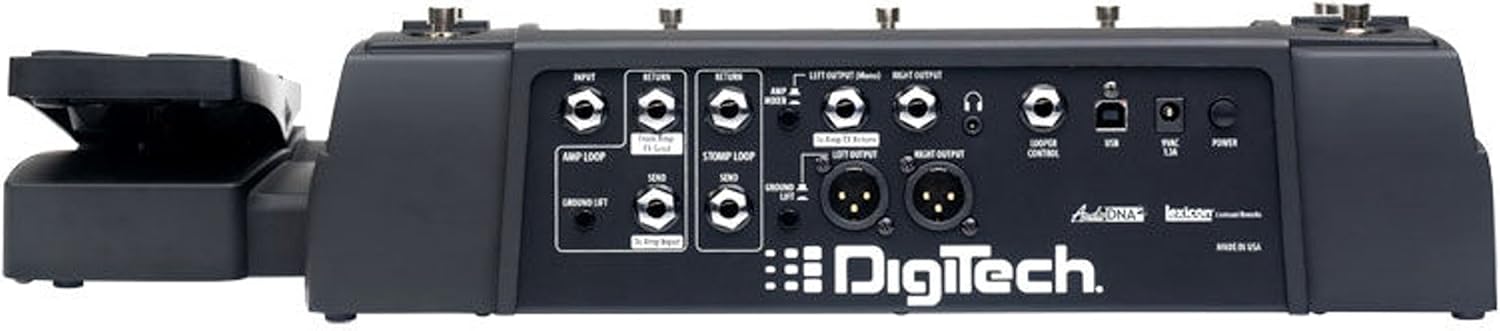
Figure 2: Rear panel of the DigiTech RP1000, showing various input and output jacks for connectivity.
3. Operating Instructions
3.1 General Controls
- Footswitches: The RP1000 features 14 heavy-duty footswitches for patch selection, effect toggling, and mode changes.
- Expression Pedal: The built-in expression pedal can be assigned to control various effects parameters such as wah, volume, or Whammy effects.
- Display and Knobs: The large LED display provides visual feedback, while dedicated knobs allow for intuitive parameter adjustments.
3.2 Stompbox and Amp Loops
The RP1000's exclusive Stompbox and Amp loops allow you to integrate your favorite external pedals and amplifier's preamp into the digital signal chain. This ensures your preferred analog tones are preserved while benefiting from the RP1000's extensive effects processing. These loops can be activated or bypassed within your presets.
3.3 Amp/Cabinet Bypass
For users who prefer to utilize their amplifier's natural tone, the RP1000 includes an Amp/Cabinet bypass switch. This feature allows you to disable the internal amplifier and cabinet simulations, ensuring that your amplifier's unique sound remains prominent in the signal path.
3.4 Pedalboard Mode
The Pedalboard option transforms footswitches 6 through 10 into individual stompbox-style effect on/off controls. This mode provides immediate access to effect toggling, mimicking a traditional pedalboard setup. When combined with the Amp/Cabinet Bypass, the RP1000 can function as 100 distinct pedalboards, offering flexibility for live performance.
3.5 Phrase Looper
The built-in Phrase Looper allows for on-the-fly performance loops. With 20 seconds of record time, you can create layered guitar parts for practice, composition, or live performance. Controls for Stop, Play, and Overdub facilitate seamless loop creation.
3.6 Effects and Presets
The RP1000 offers a vast array of over 160 amplifier models, cabinet simulations, stompboxes, and effects. These can be combined and saved as presets, allowing for instant recall of complex tone configurations. Refer to the detailed software manual (available on the DigiTech website) for in-depth editing and preset management.
4. Maintenance
- Cleaning: Use a soft, dry cloth to clean the exterior of the unit. Avoid abrasive cleaners or solvents.
- Storage: Store the RP1000 in a cool, dry environment away from direct sunlight and extreme temperatures.
- Cable Management: Ensure all cables are properly routed and secured to prevent damage or tripping hazards.
5. Troubleshooting
- No Power: Verify the power adapter is securely connected to both the unit and a working power outlet.
- No Sound: Check all audio cable connections. Ensure input and output levels are appropriately set. Confirm that the master volume is not muted or set too low.
- Unexpected Effects: If effects are behaving unexpectedly, check the current preset settings. Ensure the expression pedal is not inadvertently controlling a parameter.
- Software Issues: For issues related to computer connectivity or software, ensure you have the latest drivers and software installed from the DigiTech website.
For further assistance, consult the comprehensive manual available on the DigiTech website or contact DigiTech customer support.
6. Specifications
| Feature | Specification |
|---|---|
| Item Weight | 11.9 pounds (5.4 kg) |
| Product Dimensions | 24 x 6 x 13 inches (61 x 15.2 x 33 cm) |
| Model Number | RP1000 |
| Hardware Interface | USB |
| Signal Format | Analog |
| Voltage | 9 Volts |
| Amperage | 160 Amps (internal processing) |
| Sample Rate | 24-bit 44.1kHz |
7. Warranty and Support
Warranty information for the DigiTech RP1000 is typically included with your purchase documentation. For detailed warranty terms, product registration, and technical support, please visit the official DigiTech website or contact their customer service department. Keep your proof of purchase for warranty claims.


